
Yealink SIP-T77U IP Phone | 20-Line, 7" Adjustable Touch Screen-1301011

Frequently Asked Questions

First, verify your SIP credentials (username, password, and domain) are entered correctly under Account > Register. Then check that the phone has a valid IP address and can reach the internet—try pinging a public address from the phone's network settings. If the issue persists, a Toronto-based VoIP support provider can usually resolve this remotely.
Start by cleaning the screen with a soft, dry cloth to remove any residue or static buildup. If that doesn't help, power cycle the phone by unplugging it for 30 seconds. A temporary software glitch often clears with a reboot.
Check that the handset cord is firmly plugged into both the phone and handset. Then confirm the phone is powered on (look for the screen to light up) and that the network cable is connected securely. If you're using PoE, verify the switch port is delivering power.
Connect the EXP55 module to the T77U using the supplied cable, then power cycle the phone. The phone should automatically detect the module and assign it as a DSS/BLF page. You can then configure each key under the DSS Keys menu in the web interface.
First, ensure your network connection is stable and has sufficient bandwidth—try a wired connection if you're using Wi-Fi. Then check the handset volume and speakerphone settings; sometimes echo is caused by the speaker being too loud. If the problem continues, ask your VoIP provider to check for jitter or packet loss on your line.
Go to Settings > Features > DSS Keys and verify each key has a valid function assigned. If they are configured but still unresponsive, reboot the phone to refresh the key mapping. A factory reset should only be considered after confirming the configuration is correct.
Yes, but you need to plug a compatible Bluetooth dongle into one of the USB ports on the back of the phone. Once inserted, go to Settings > Bluetooth to pair your headset. Not all USB Bluetooth adapters are supported, so check Yealink's compatibility list first.
Check the power source: if using PoE, make sure the switch port can deliver at least 15.4W (802.3af). A weak power supply can cause intermittent reboots. Also inspect the Ethernet cable for damage and try a different cable if available.
Access the phone's web interface by entering its IP address in a browser. Go to Settings > Auto Provision and enter your provisioning server URL. Most Canadian hosted PBX providers will give you a specific URL and credentials to paste there.
Try a different Ethernet port on your switch or router to rule out a bad port. Also check that the cable is not a crossover cable—the T77U supports auto MDI/MDI-X, but a damaged cable can still cause issues. If the problem persists, test with a known-good cable.
IP Phones

Yealink SIP-T77U IP Phone | 20-Line, 7" Adjustable Touch Screen-1301011
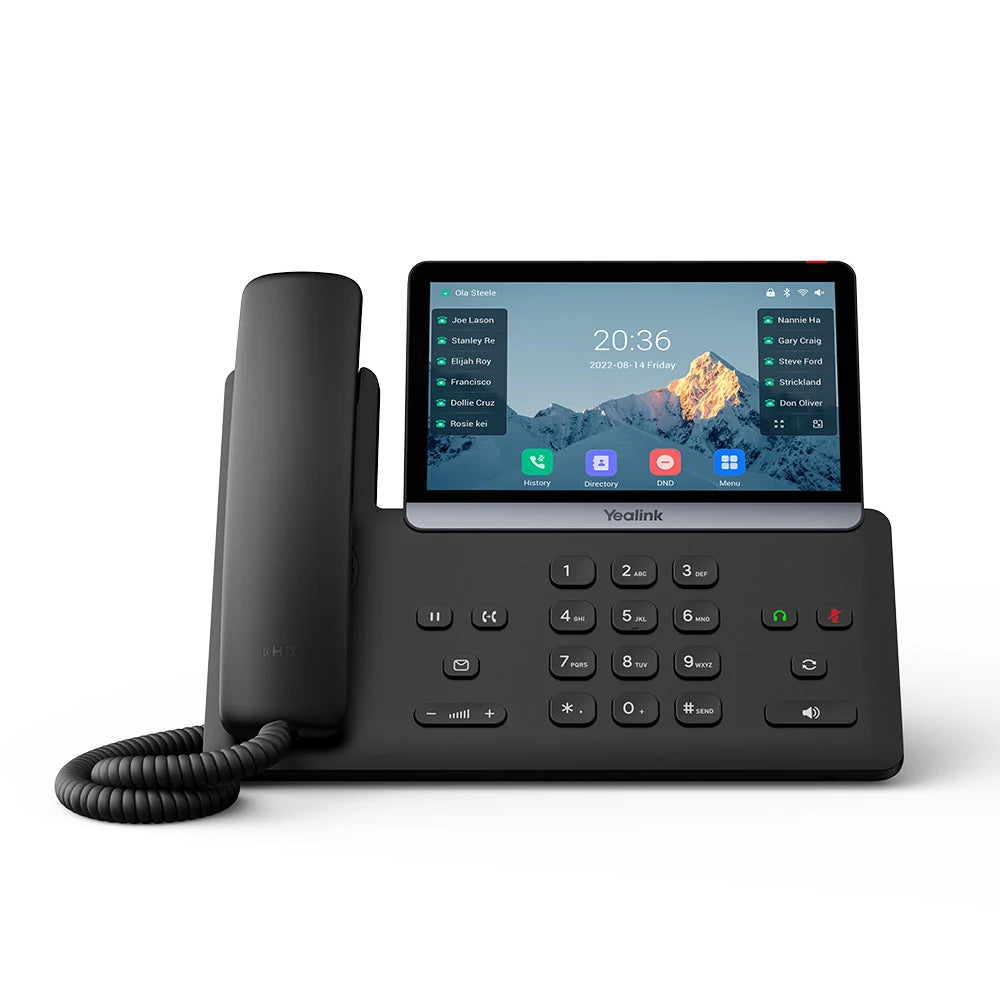
The Yealink SIP-T77U is a premium wired desk phone designed for executives and C-level staff who require the highest performance, visual space, and enterprise-grade security. Key Features: • 7" adjustable multi-touch screen with high-resolution color display • Supports up to 20 SIP accounts • Trusted Execution Environment (TEE) hardware encryption for strongest defense against network vulnerabilities • Ultra-HD voice with Acoustic Shield noise filtering for professional-grade voice quality • Dual USB 2.0 ports for maximum flexibility and support for USB headsets, call recording, and Bluetooth/Wi-Fi dongles • Paperless DSS keys with up to 29 one-touch programmable keys • EXP55 Expansion Ready for connection with up to three cascaded expansion modules for high-call volume scenarios • Dual Gigabit Ports (PoE) for high-speed, stable data pass-through and simplified power delivery via Power over Ethernet What's Included: • Yealink SIP-T77U IP Phone Unit • Handset with Handset Cord • Desk Stand (Adjustable, two-angle) • Ethernet Cable • Quick Start Guide

About This Product

This phone is built for the executive desk, where call volume is high and every minute of clarity matters. The large touch screen and programmable keys make it easy to manage multiple calls, conference lines, or busy reception areas without digging through menus. It pairs naturally with a hosted PBX or on-premise SIP server and works well in Toronto office environments where Power over Ethernet is standard, keeping the desk clean with a single cable. The hardware encryption is a meaningful addition for any business handling sensitive client data, though the real-world benefit depends on your carrier supporting secure signalling. It is overkill for a single-line user or a hot-desk setup, and the price reflects that—this is a tool for someone who lives on the phone, not a spare handset for the break room.
Services We Provide
  • Professional Installation & Configuration
  • Ongoing Maintenance & Support
  • Troubleshooting & Repairs
  • System Upgrades & Updates



