
Yealink SIP-T85W IP Phone | 5.5" Adjustable Screen, Wi-Fi 6, TEE Security-1301220

Frequently Asked Questions

First, ensure your router supports Wi-Fi 6 (802.11ax) in mixed mode, as the phone defaults to that standard. Navigate to Settings > Network > Wi-Fi and confirm the SSID and password are correct. If you're using WPA3-Enterprise, verify the certificate is loaded in the phone's security settings. If the issue persists, a Toronto-based VoIP support provider can usually resolve this remotely.
This usually indicates a registration or network issue. Check that the Ethernet cable is firmly connected to the LAN or PoE switch, and confirm the phone has received an IP address (look under Status > Network). If it's using Wi-Fi, verify the wireless connection is active. If the phone shows a registration failure icon, contact your VoIP provider to confirm your SIP credentials.
First, clean the screen with a soft, dry cloth—moisture or debris can cause erratic behavior. If that doesn't help, power cycle the phone by unplugging the Ethernet cable (or power adapter) for 30 seconds, then reconnect. This resets the display controller without affecting your settings. If the problem continues, try calibrating the screen under Settings > Basic > Touch Screen.
This is often a microphone issue. Make sure the handset's microphone port (small hole on the back) isn't blocked. If you're using a headset, try the handset instead to isolate the problem. For the speakerphone, check that the top microphone array is not covered by stickers or debris. If the problem is intermittent, ensure the latest firmware is installed, as audio codec issues are sometimes fixed in updates.
Put your headset into pairing mode, then on the phone go to Settings > Bluetooth > Add Device. The phone will scan for nearby devices; select your headset when it appears. If pairing fails, move the headset closer (within 1 metre) and ensure no other Bluetooth devices are actively connected. For best reliability, use a Yealink-certified headset or one with Bluetooth 5.0 backwards compatibility.
First, check the power source—if using PoE, verify the switch provides at least 802.3af (15.4W) or higher. Underpowered PoE can cause instability. If using the optional power adapter, ensure it's a 5V 2A unit (not a lower-rated charger). Next, review the phone's firmware version under Settings > About Device; known bugs are sometimes fixed in newer releases. Avoid performing a factory reset unless instructed by support, as it will erase all settings.
Yes, the EXP55 must be daisy-chained properly. Connect the first module to the phone's dedicated expansion port (near the USB ports) using the provided cable. Each subsequent module connects to the previous one. Power cycle the phone after connecting all modules so it discovers them. Also, ensure the expansion module's firmware is up to date—both the phone and module should be on compatible versions.
This usually means the USB recording settings are misconfigured. Go to Features > USB > Call Recording and confirm the recording format (e.g., WAV) matches your playback software. Also verify the USB drive is formatted as FAT32 and has enough free space. If using a USB headset, disconnect it during recording as some headsets take over the audio path. If the issue remains, test with a different USB drive to rule out compatibility.
This indicates the phone cannot reach the auto-provisioning server. First, confirm the provisioning URL is correct under Settings > Auto Provision. If you're using a DHCP option, verify the server address is set on your router. Try manually entering the server IP instead of a hostname to rule out DNS issues. If you're not using auto-provisioning, you can safely ignore this error or disable provisioning under Settings > Advanced.
Yes, the SIP-T85W is SIP-compatible and works with any standard VoIP provider. You'll need to enter the SIP server, username, and password provided by your carrier. For Canadian providers, ensure the phone's codec settings include G.711 and G.729 to match common network conditions. If registration fails, double-check that your internet plan allows SIP traffic (some residential plans block it) and that the firewall is not blocking port 5060.
IP Phones

Yealink SIP-T85W IP Phone | 5.5" Adjustable Screen, Wi-Fi 6, TEE Security-1301220
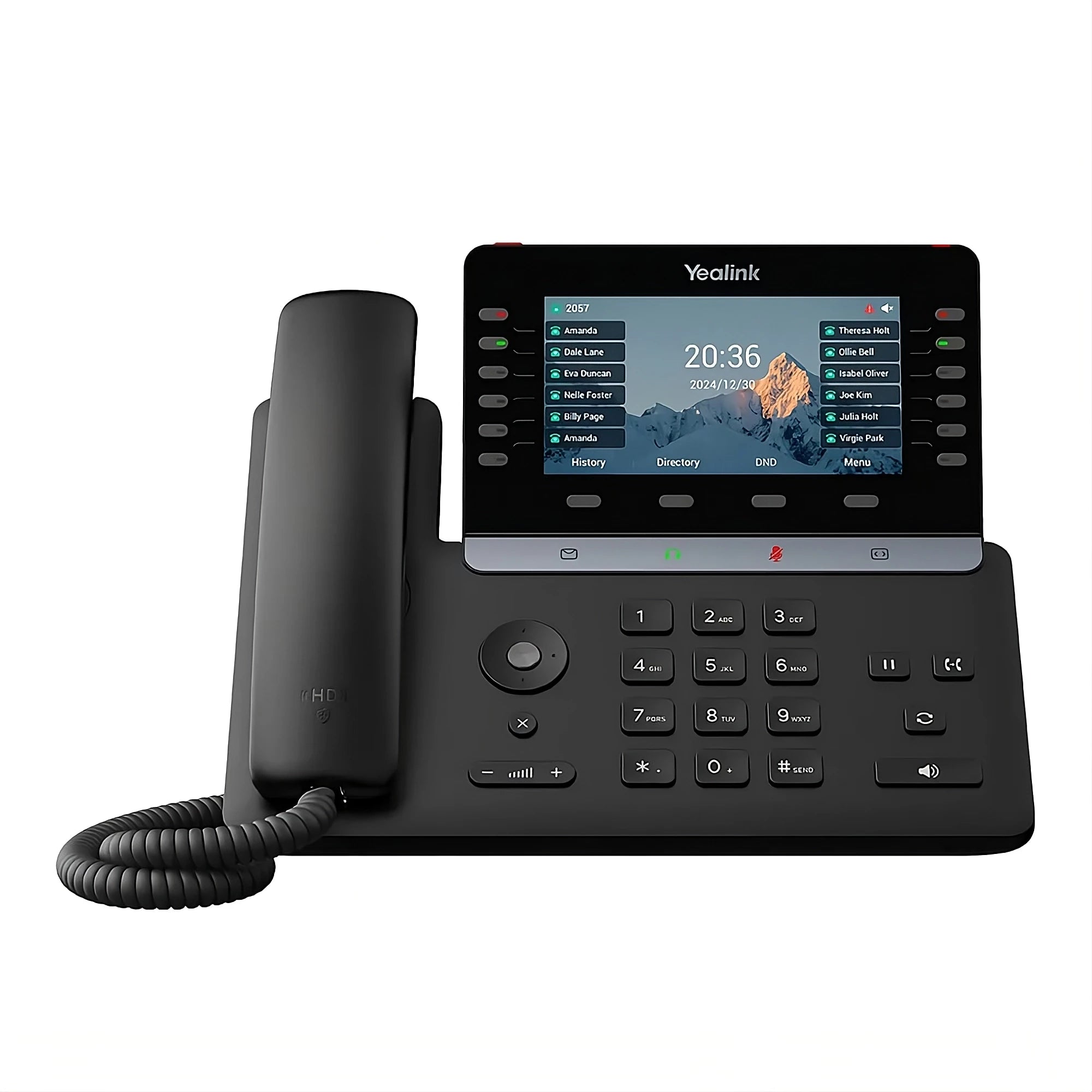
The Yealink SIP-T85W is an Ultra Prime business phone meticulously engineered for busy executives and professionals who demand the absolute best in performance, audio quality, and future-proof technology. It features a stunning 5.5-inch color LCD screen, offering a superior visual experience and a highly customizable interface for managing complex workflows. Key Features: • Built-in Wi-Fi 6 (802.11ax) & Bluetooth 5.0 for fast and stable dual-band wireless connections • TEE Hardware Encryption & Linux 6.1 for enterprise-grade protection across three rings of security • AI Noise Cancellation with Acoustic Shield technology for crystal-clear voice quality • High Account Capacity: supports up to 16 SIP accounts and 12 physical line keys (programmable up to 60 DSS keys across 5 pages) • Dual USB Ports (A & C) for maximum flexibility, supporting USB headsets, call recording, and the EXP55 module • Massive Expansion: supports up to three cascaded EXP55 Color Expansion Modules, providing up to 234 additional programmable buttons What's Included in the package: • Yealink SIP-T85W IP Phone Unit • Handset with Handset Cord • Desk Stand • Ethernet Cable (2m CAT5E UTP Cable) • Quick Start Guide (QSG) * Note: The external Yealink 5V 2A power adapter is sold separately (not included by default). For a full list of specifications, please refer to the Yealink SIP-T85W IP Phone Datasheet (PDF).

About This Product

The Yealink SIP-T85W is designed for professionals who manage high call volumes and complex workflows, such as executives, team leaders, or power users in a busy office environment. Its Wi-Fi 6 and Bluetooth 5.0 support make it a strong candidate for hot-desking or open-plan spaces where Ethernet cables are impractical, but the built-in wired Ethernet port remains the most reliable option for mission-critical calls. The phone pairs well with Yealink’s EXP55 expansion modules (up to three) and USB headsets, transforming it into a full-featured command center for receptionists or call center supervisors.

For small businesses or single-line users, the T85W’s extensive programmable keys and advanced security features (TEE encryption, Linux 6.1) may be overkill—simpler models like the SIP-T43U would suffice at a lower cost. However, its competitive price point (just $269 CAD) makes it an attractive option for GTA offices wanting future-proof wireless connectivity without the flagship price tag. One notable tradeoff: the power adapter is sold separately, so budget for it unless your environment provides PoE (Power over Ethernet) via a compatible switch.

Canadian businesses should note that this phone works with any SIP-compatible VoIP provider, and its Wi-Fi 6 radio is fully compatible with common Canadian ISP routers. For deployments in dense Toronto offices, the AI noise cancellation and Acoustic Shield technology help filter background chatter, but performance ultimately depends on network stability—especially wireless. If your office already has robust wired infrastructure, the wired-only variant (SIP-T85) might offer simpler connectivity at a similar price.
Services We Provide
  • Professional Installation & Configuration
  • Ongoing Maintenance & Support
  • Troubleshooting & Repairs
  • System Upgrades & Updates



