
Yealink SIP-T87W Executive IP Phone | 7" Touch Screen, Wi-Fi 6, TEE Security-1301227

Frequently Asked Questions

Confirm that the SIP server address, username, and password entered in the phone’s account settings exactly match what your provider gave you. Also verify the phone is connected to the network (check the Ethernet cable or Wi-Fi status) and that your router or firewall isn’t blocking SIP traffic on ports 5060/5061. If the issue persists, try power cycling both the phone and your network equipment.
From the home screen, go to Settings > Network > Wi-Fi. Make sure Wi-Fi is enabled, then scan for available networks. Select your network, enter the password, and confirm. For the best performance with Wi-Fi 6, ensure your access point supports 802.11ax. If the connection drops frequently, check for interference from other devices or consider using a wired Ethernet connection for more stability.
First, ensure your hands are clean and dry, and that there is no screen protector or debris interfering. If the issue persists, try a soft reboot by unplugging the power (or Ethernet if using PoE) and plugging it back in. If the screen remains unresponsive, the phone may need recalibration—this can usually be done via the Settings menu under Display & Sound. Contact Yealink support if the problem continues.
Yes, the Yealink SIP-T87W is a standard SIP phone and works with any SIP-compliant provider. For Rogers or Bell business VoIP services, you’ll need to enter the specific server settings they provide. Some providers may require specific firmware or provisioning templates, so check with them first. If you encounter difficulties, a Toronto-based VoIP support provider can usually assist with configuration.
First, check the handset receiver volume by pressing the volume keys during a call. If using a headset or speakerphone, ensure the correct audio mode is selected. Also, verify that the handset cord is firmly plugged into both the handset and the phone. For headset issues, try a different headset or check the Bluetooth pairing. If the problem is one-sided on many calls, the phone may need a firmware update.
The T87W already supports up to 84 one-touch keys across five pages. If you need more, you can connect a Yealink EXP50 expansion module via the USB port—just plug it in and the phone will recognize it. Each EXP50 adds 40 additional physical keys. Configure the keys through the phone’s interface or web portal under Features > DSS Keys.
Yes, if you’re relying on Power over Ethernet. Ensure your switch provides PoE (802.3af or 802.3at) and that the port is enabled. Try a different Ethernet cable or a powered PoE injector to rule out cable faults. If the phone works with a separate power adapter but not over PoE, the switch port may be delivering insufficient power or the phone’s PoE circuitry may be faulty.
The T87W supports provisioning via Yealink’s YDMP or YMCS platforms. You’ll need to configure the provisioning server URL in Settings > Auto Provision. For mass deployment, upload a common firmware template to your provisioning server and set the phone to fetch it at boot. This is best handled by an IT administrator. If you need help, a VoIP support specialist can set this up for you.
Make sure the headset is fully charged and within 10 meters of the phone. Remove any other paired devices that might interfere. On the phone, go to Settings > Bluetooth, forget the headset, then pair it again from scratch. If drops continue, check for firmware updates for both the phone and the headset. Some legacy Bluetooth headsets may not work well with Bluetooth 5.0; consider using a newer model.
The T87W includes AI noise cancellation, but it may need to be enabled. Go to Settings > Audio > Noise Cancellation and turn it on. If you’re using speakerphone, lower the volume or move closer to the phone. Echo is often due to the far end’s audio pickup—ask the other party to reduce their speaker volume or use a headset. If the problem persists, test with a different handset or headset.
IP Phones

Yealink SIP-T87W Executive IP Phone | 7" Touch Screen, Wi-Fi 6, TEE Security-1301227
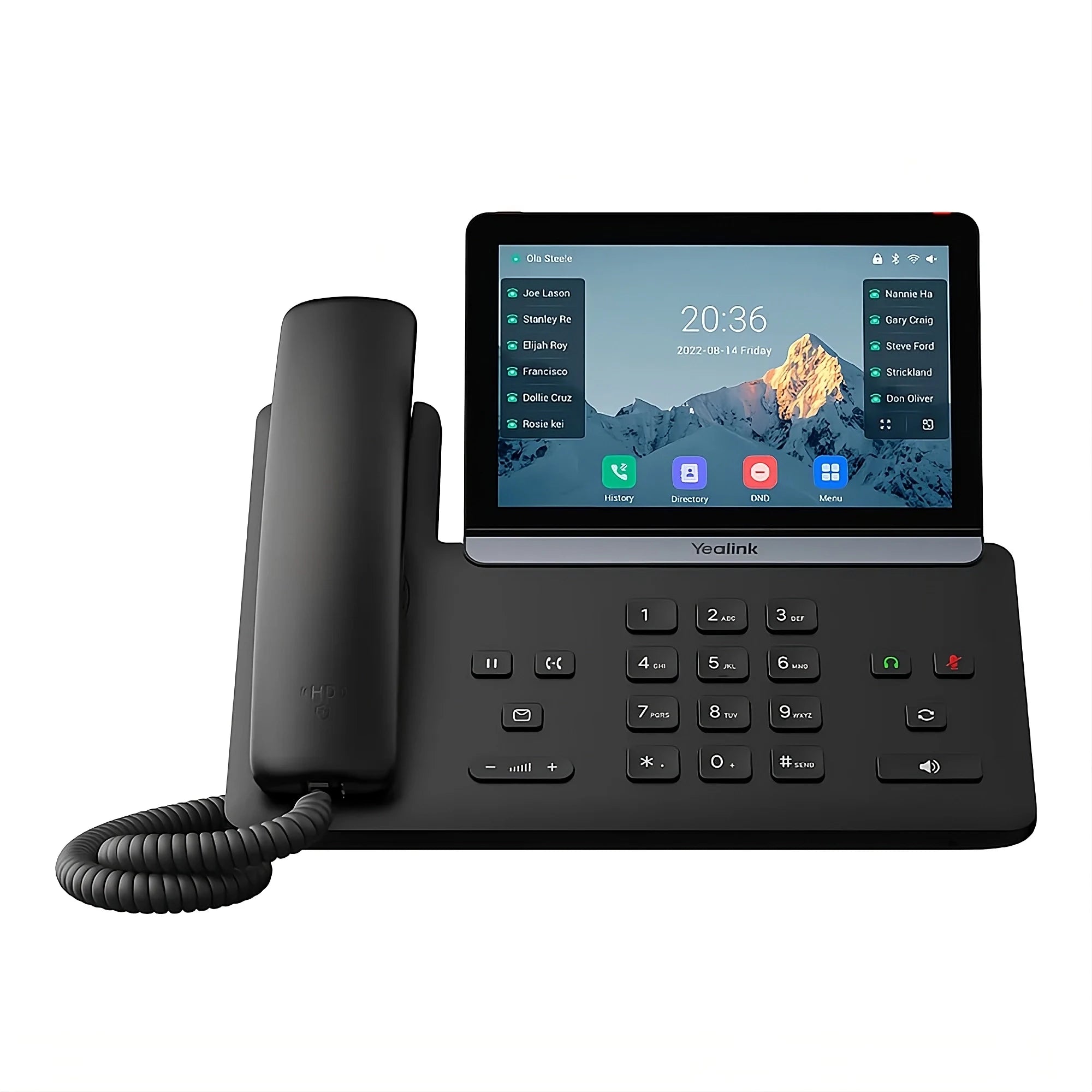
• The Yealink SIP-T87W is a flagship IP phone designed for C-level executives and power users who require maximum visual workspace and effortless control. Its key features include: • 7-inch adjustable capacitive touch screen for a smartphone-like user experience • Smartphones-like navigation with one-touch operation for complex call management • Key highlights of the Yealink SIP-T87W include: • Built-in Wi-Fi 6 & Bluetooth 5.0 for superior speed and stability, as well as connectivity to the latest wireless headsets and mobile devices • TEE Hardware Encryption for robust security and protection against network attacks • Support for up to 84 one-touch programmable features across five pages, ideal for managing a large number of direct lines or BLF contacts • AI Noise Cancellation with self-developed technologies for ultra-high-definition voice transmission • Additional key features: • Dual USB Ports (A & C) for connectivity, supporting call recording and expansion modules • Gigabit Connectivity with Dual-port Gigabit Ethernet (PoE enabled) • Unified Provisioning using a unified firmware template for effortless mass deployment via Yealink's YDMP/YMCS platforms • The package includes: • Yealink SIP-T87W IP Phone Unit • Handset with Handset Cord • Desk Stand • Ethernet Cable (2m CAT5E UTP Cable) • Quick Start Guide

About This Product

The Yealink SIP-T87W is built for executives and power users who manage a high volume of calls and need quick access to many contacts or lines. Its 7-inch touch screen and intuitive interface make it feel like a smartphone, which is ideal for busy professionals in corporate environments such as law firms, financial services, or large sales teams. The device supports up to 84 programmable keys across five pages, so it can replace a traditional receptionist console for some roles. Pair it with Yealink EXP50 expansion modules if you need even more direct lines or BLF monitoring.

Connectivity is a strong point: built-in Wi-Fi 6 and Bluetooth 5.0 let you use the latest wireless headsets and connect to mobile devices without cables. However, for the best reliability in a busy office, a wired Ethernet connection with PoE is still recommended. The dual USB ports (A and C) allow call recording to a thumb drive or connection to additional peripherals. Audio quality benefits from AI noise cancellation, which helps in open-plan offices. The TEE hardware encryption adds a layer of security for sensitive communications, making the T87W suitable for organizations that prioritize data protection.

This is a premium device with a price to match. It is overkill for a small office where only a handful of lines are needed, but it excels in deployments where a single executive needs to manage dozens of contacts. Canadian businesses in the GTA will find it compatible with major SIP-based VoIP providers such as Rogers, Bell, and Telus. The unified provisioning via Yealink’s YMCP or YDMP platforms simplifies large-scale rollouts, but for one-off setups, the web interface is straightforward enough.
Services We Provide
  • Professional Installation & Configuration
  • Ongoing Maintenance & Support
  • Troubleshooting & Repairs
  • System Upgrades & Updates



