
Yealink SIP-T88V Smart Video Business Phone | 7" Touchscreen, Android 13 & Wi-Fi 6-1301229

Frequently Asked Questions

Start by confirming whether the phone is connected to a 5 GHz or 6 GHz band (Wi‑Fi 6 prefers these) and if band steering or fast roaming is enabled on the access point; overly aggressive steering can force a disconnection mid‑call. Temporarily move the phone closer to the access point and disable any power‑saving features on the Wi‑Fi radio to see if stability improves. If the issue only occurs when a Bluetooth device is also active, reposition the USB or Bluetooth peripheral to reduce co‑channel interference.
Check whether the call is being handled through the handset, speakerphone, or a connected USB headset, because echo often indicates two audio paths are open at the same time. Lower the in‑call volume slightly and make sure the handset cord is fully seated at both ends. If the problem appears only on certain calls, it may be caused by the far‑end equipment or a carrier routing issue rather than the T88V itself.
Verify that the Ethernet cable is securely connected to the LAN port (not the PC passthrough port) and that the phone has obtained a valid IP address from your network; you can find this under the phone’s status or network menu. Next, confirm the SIP server address, transport protocol (UDP/TCP/TLS), and authentication credentials are typed exactly as provided by your IT administrator or VoIP provider. Temporarily disabling TLS 1.3 and testing with TLS 1.2 can isolate whether a handshake mismatch with a slightly older PBX is causing the failure.
First, remove any USB devices and gently clean the screen with a dry microfiber cloth to rule out a stuck touch input. A soft power-cycle—disconnect the Ethernet or power adapter, wait 15 seconds, then reconnect—usually restores normal operation without affecting configuration. If the screen remains unresponsive after restart, check whether a pending Android system update is consuming resources in the background before considering any deeper intervention.
Yes, the camera is recognized as a standard USB video device when the phone is connected to a computer via USB‑C, making it usable with Teams, Zoom, and other apps. If no video appears, ensure the USB‑C cable supports data transfer—not just charging—and that the phone is set to the correct USB tethering or device mode. On the computer side, check that the T88V camera is selected as the active video source in your meeting application’s settings.
Confirm the module is connected to the correct side port and that the phone is powered through its 12V adapter, because PoE alone may not supply enough power to run multiple expansion modules reliably. After connecting, restart the phone and check for a brief LED flash on the EXP55 that indicates it’s receiving power. If it still isn’t detected, try a shorter or known‑good USB cable and ensure you are following the port ordering specified in the T88V installation guide.
Make sure the speaker grille on the bottom or rear of the phone isn’t obstructed by papers, a monitor stand, or a desk mat. Disable any artificial sidetone or equalizer settings that may have been pushed by a provisioning template. If clarity only degrades on certain calls, have the remote party switch from a narrowband codec to a wideband option such as G.722, which the T88V supports natively.
The adjustable stand clicks into the rear of the phone at one of several angle settings; align the tabs with the slots marked on the back and press gently until you feel them lock. Connect the longer end of the handset cord to the handset and the shorter straight end to the port marked with a handset symbol on the phone’s underside. Route cables through the channels in the stand to avoid strain on the connectors when you adjust the tilt.
IP Phones

Yealink SIP-T88V Smart Video Business Phone | 7" Touchscreen, Android 13 & Wi-Fi 6-1301229
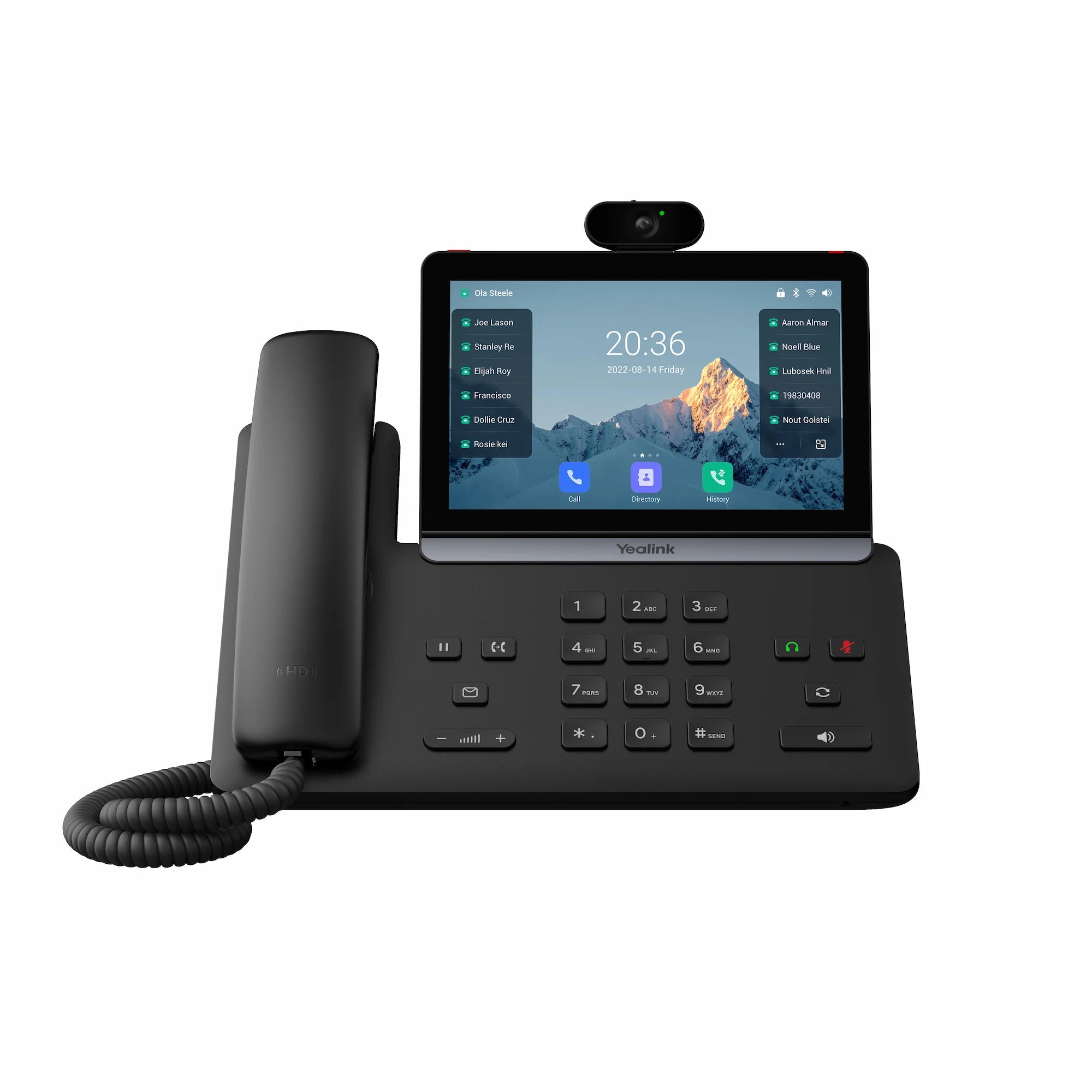
The Yealink SIP-T88V is a high-performance, video-enabled hub of the T88 series. Built on the advanced Android 13 platform, it is designed for executives and power users who need high-definition visual collaboration directly from their desktop. Key features: • Integrated HD camera for plug-and-play video meetings • 7-inch adjustable touchscreen with capacitive display and tilt-up to 30° for optimal viewing angles • AI-Powered Noise Proof Technology for crystal-clear audio • Three Rings of Security: TEE encryption, secure boot integrity, and TLS 1.3 transmission security • Professional 3W Speaker for high-fidelity audio and professional-grade loudness • Support for daisy-chaining up to three EXP55 expansion modules with over 200 programmable buttons • Wi-Fi 6 and Bluetooth 5.0 for superior wireless stability and pairing • Dual USB ports (Type-A & Type-C) for call recording, media storage, and simultaneous connection of USB headsets or expansion modules The package includes the Yealink SIP-T88V IP Phone Unit, Handset with Handset Cord, Adjustable Desk Stand, Ethernet Cable (2m CAT5E UTP), Quick Start Guide (QSG), and a 12V 1.25A AC Power Supply for T88 Series (sold separately). For a full list of specifications, please refer to the Yealink SIP-T88V IP Phone Datasheet.

About This Product

The SIP-T88V serves the professional whose daily work includes frequent video calls but who doesn’t want a dedicated conference room system. It lands naturally on the desk of an executive, a remote team lead, or a high-touch account manager. Because it runs Android 13 and supports Wi‑Fi 6, it fits offices that have moved away from hardwired Ethernet at every seat—common in renovated downtown Toronto floors or hybrid-hoteling setups. The tilt‑up touchscreen and onboard camera turn a personal desk into a capable video endpoint without extra peripherals, though users expecting the room-filling audio of a dedicated speakerphone should note this is still a desktop handset first.

Where this device really scales is in a reception or assistant station. The ability to chain up to three EXP55 expansion modules provides over 200 programmable keys, making it a viable replacement for older attendant consoles. It pairs naturally with hosted PBX platforms popular among Canadian SMBs, especially those that push configuration via zero-touch provisioning. Buyers coming from a simpler Yealink T5 series will notice the richer display and Android app flexibility, but should expect a different management profile—Android-backed phones often have longer boot cycles and periodic platform updates that IT teams need to plan for.

The practical limits are worth knowing. The integrated camera is fixed-focus and designed for a single user at arm’s length; it isn’t a substitute for a PTZ camera in a huddle room. Audio quality is strong thanks to the 3W speaker and AI noise suppression, yet the noise‑proofing works best on predictable background sound—chaotic open‑plan chatter is reduced, not eliminated. Also, while dual USB ports allow simultaneous headset and recording storage, power delivery over USB is limited; do not assume it will charge a high‑draw device while on a call.

For a small Canadian professional services firm—say, a law practice in Mississauga or a financial advisor in North York—the T88V covers both the everyday call experience and the occasional client video check‑in without adding a separate webcam or conferencing appliance. It is overkill for a lobby phone or a break‑room device where a simpler, lower-cost endpoint would serve. In large deployments, factor in the need for a PoE switch that can deliver sufficient power (or budget for the separate AC adapter) and confirm that your provisioning server’s Android device policy is mature enough to handle firmware audits cleanly.
Services We Provide
  • Professional Installation & Configuration
  • Ongoing Maintenance & Support
  • Troubleshooting & Repairs
  • System Upgrades & Updates



