
Yealink SIP-VP59 TEAMS Video Phone Power Supply Not Included

Frequently Asked Questions

First, verify the date and time are correct, as an incorrect clock will cause authentication to fail. Then, double-check that the username is in the full User Principal Name (UPN) format, not just an alias. Ensure the device firmware is updated to the latest Teams-certified version, as Microsoft frequently updates authentication protocols.
Since a power supply is not included, the VP59 is designed to be powered by PoE. Confirm your Ethernet cable is plugged into a PoE-enabled switch port or injector that supplies 802.3af power. If you are using a PoE injector, ensure it is plugged into a working AC outlet and that the Ethernet cable from the injector to the phone is functional.
Check the physical volume keys on the phone to ensure the speaker or handset volume is not muted or turned all the way down. If using a headset, verify it is securely connected and selected as the default audio path in the call screen. You can also test by switching to the speakerphone to isolate if the issue is with a specific audio device.
Connect a standard HDMI cable from the phone's HDMI port to your monitor or TV. The VP59 should automatically mirror its screen, but if it doesn't, check the display settings on the phone to confirm HDMI output is enabled. You may also need to select the correct HDMI input source on your TV or monitor.
First, ensure the physical privacy shutter on the camera is slid fully open. Next, check within the active call screen that the video function is enabled and the correct camera source is selected in the meeting controls. If the problem persists, a Toronto-based VoIP support provider can usually resolve this remotely.
A simple reboot often resolves temporary performance issues. Safely restart the phone through the settings menu or by disconnecting and reconnecting the PoE cable. Ensure the screen is clean and dry, as moisture or debris can interfere with touch sensitivity.
Yes, the VP59 supports Bluetooth 4.2. To pair, navigate to the phone's settings, enable Bluetooth, and put your headset in pairing mode. Select the headset from the list of discovered devices on the phone's screen to complete the pairing process.
Go to the phone's main settings menu and select the Wi-Fi option. Enable Wi-Fi, and the VP59 will scan for available networks; choose yours from the list and enter the password. For the most stable video call quality, a wired Gigabit Ethernet connection is strongly recommended.
Check the physical Ethernet cable for a solid connection at both the phone and the wall or switch port. If using Wi-Fi, verify the signal strength indicator is strong and that the phone isn't roaming between access points. Try swapping the Ethernet cable with a known good one to rule out a faulty cable.
An incorrect time is often caused by the phone not being able to reach the NTP server. Verify the phone has network access and that your firewall is not blocking NTP traffic. You can manually set the correct NTP server address in the network settings, using a public one like 'time.nrc.ca' for a Canadian business.
IP Phones

Yealink SIP-VP59 TEAMS Video Phone Power Supply Not Included
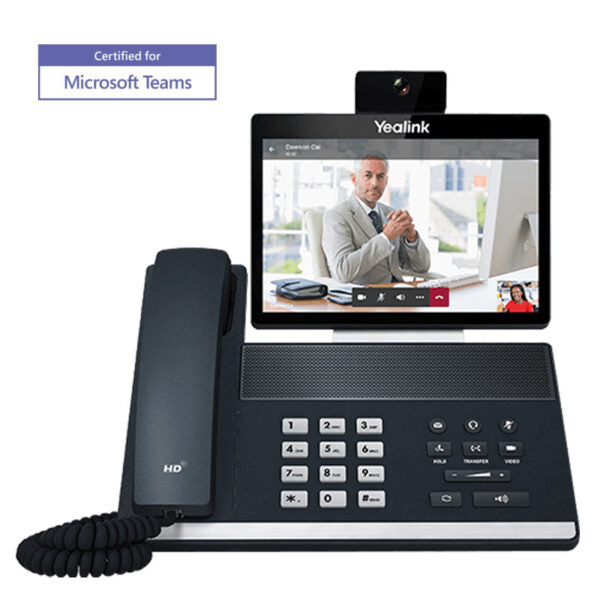
• The VP59 is an executive desk phone and huddle room solution, featuring an 8-inch adjustable touch screen for easy collaboration. It boasts Yealink’s Optima HD Voice technology and Yealink Noise Proof technology for unparalleled audio clarity. Key Features: • 8 inch (1280 x 800) capacitive adjustable touch screen • Optimal HD audio with Yealink Noise Proof technology • Based on Android 7.1 • HDMI for connection to monitor or TV • 2 mega-pixel HD camera with privacy shutter • Built-in Bluetooth 4.2 and dual band 2.4G/5G Wi-Fi • USB 2.0 port, Gigabit Ethernet, PoE support, and full-duplex hands-free speakerphone • Microsoft Teams-tailored user interface and device management platform Weight: 5.46 lbs Dimensions: 14 × 13 × 5 in Brand: Yealink Phone Type: Desk, Microsoft Teams Certified, Video

About This Product

The Yealink VP59 is a premium desk phone built for executives and designed to anchor huddle rooms. It’s a natural fit for a private office where video calls are frequent and the user wants a dedicated, always-ready endpoint without relying on a computer. In a huddle space, the HDMI output lets you push content to a larger display, making it a compact alternative to a full-room video system for small, ad-hoc meetings. It’s best paired with a Microsoft Teams voice plan or a direct routing setup, replacing a traditional handset and a separate conference camera with a single, streamlined device. For a Canadian business, this is ideal for a Toronto financial office or a Vancouver tech firm that runs on Teams and needs reliable, wired connectivity with PoE to minimize desk clutter.

The practical trade-off is that this device is a purpose-built Teams display, not a general-purpose Android tablet. Its value is in the integrated experience, not in running arbitrary apps. The power supply is not included, so you’ll need to budget for a PoE switch or injector, which is standard for this class of device but worth confirming before deployment. The camera includes a privacy shutter, a small but important detail for executives in open-plan areas or home offices.

This is overkill for a common-area phone or a user who only needs voice. It’s underpowered as a room system for a large boardroom, where you’d want a dedicated multi-microphone array and a pan-tilt-zoom camera. In a Canadian context, the dual-band Wi-Fi and Bluetooth provide flexibility, but the wired Gigabit Ethernet connection is what you’ll rely on for consistent video quality, especially when connecting to Teams servers often hosted in Canadian data centers for latency-sensitive calls.
Services We Provide
  • Professional Installation & Configuration
  • Ongoing Maintenance & Support
  • Troubleshooting & Repairs
  • System Upgrades & Updates



