
Yealink T31W Entry-level WiFi Phone with 2 Lines & HD voice

Frequently Asked Questions

First, verify that your SIP server address, username, and password are entered correctly in the phone's account settings. If those are correct, check that your network allows outbound SIP traffic (usually ports 5060/5061) and that your PBX or provider isn't blocking the phone's IP.
Ensure you're entering the correct Wi-Fi password and that the network is broadcasting on a 2.4GHz or 5GHz band the phone supports. Try power cycling the phone and your access point. If the issue persists, check if your network requires a captive portal or uses MAC filtering.
Most Canadian VoIP providers supply SIP credentials (server, username, password) for manual configuration. Access the phone's web interface via its IP address, go to Account > Register, and enter those details. Ensure your firewall allows SIP traffic and that you're using the correct codec (G.711 or G.729) as recommended by your provider.
First, reseat the handset cable at both ends and test the handset on another phone if possible. If the handset works, check that the phone is registered to your VoIP service—look for a 'Registered' status on the LCD. Also, verify that the volume is turned up and not muted.
Yes, the T31W supports EHS (Electronic Hook Switch) wireless headsets. You'll need a compatible headset base and an EHS cable to connect the phone to the base. Once connected, you can answer/hang up calls from the headset. Refer to your headset's manual for pairing and setup.
First, ensure the phone is receiving adequate power. If using PoE, confirm your switch provides 802.3af PoE. If using the optional power adapter, check that it's the correct voltage (5V DC, 1.2A) and that the adapter is plugged into a working outlet. Try a different power source if possible.
The T31W supports Yealink's YDMP/YMCS for centralized provisioning. You'll need a provisioning server (TFTP, HTTP, or HTTPS) with your configuration files. Set the server URL in the phone's web interface under Settings > Auto Provision. For small deployments, you can configure each phone manually via its web interface.
Check your Wi-Fi signal strength on the phone; a weak signal can cause packet loss. Move the phone closer to your access point or reduce interference. Also, ensure no other devices are consuming heavy bandwidth during calls. If using wired Ethernet, try a different cable.
Access the phone's menu by pressing the OK key, go to Settings > Advanced Settings (default password: admin) > Network > WAN Port / Wi-Fi, and set IP Mode to Static. Then enter the IP, subnet mask, gateway, and DNS addresses provided by your IT department or ISP.
IP Phones

Yealink T31W Entry-level WiFi Phone with 2 Lines & HD voice
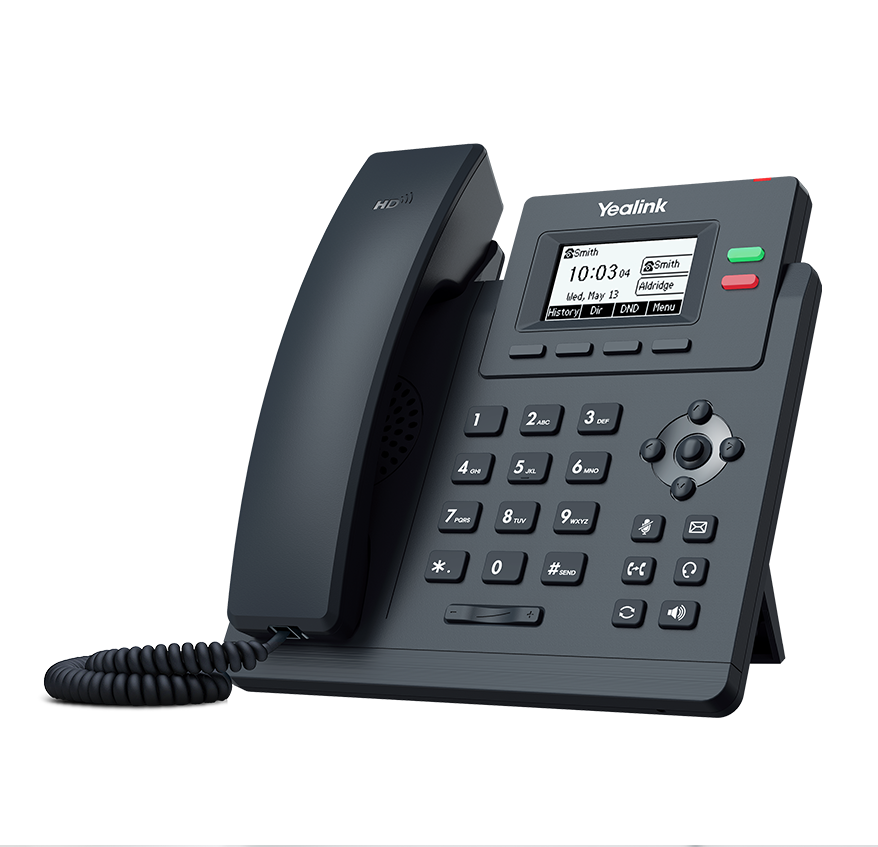
• A stylish and user-friendly entry-level IP phone, Yealink SIP-T31W boasts a large 132x64-pixel graphical LCD with backlight for a clear visual experience. The T31W supports two VoIP accounts and features local 5-way conferencing to boost productivity. • Key Features: • Built-in dual-band 2.4G/5G Wi-Fi (802.11a/b/g/n/ac) • Yealink HD Voice • 2.3” 132x64-pixel graphical LCD with back-light • Two-port 10/100M Ethernet Switch • PoE support • Up to 2 SIP accounts • Local 5-way conferencing • Support EHS Wireless Headset • Unified Firmware • Support YDMP/YMCS • Stand with 2 adjustable angles • Wall mountable • Handset with hall switch • Note: Power adapter and Ethernet Cable are not included. • Additional Information: • Weight: 2.5 lb • Dimensions: 8 × 8 × 4 in • Phone Type: Desk • Technical Specifications: • Box Contents: • Yealink SIP-T31W IP phone • Handset with handset cord • Stand (not applicable to US wall plate Standard) • Quick Start Guide • Color: Classic Grey • Wall mountable

About This Product

The Yealink T31W is an entry-level IP phone designed primarily for small offices, home offices, or individual workstations where a wired Ethernet drop isn't convenient. Its built-in dual-band Wi-Fi (2.4GHz and 5GHz) lets you place the phone anywhere within range of your wireless network, making it a practical choice for spaces that aren't wired for VoIP. The phone supports up to two SIP accounts, so it can handle a personal line and a second line for a team or assistant, and includes local five-way conferencing for small group calls without needing a bridge service.

For Canadian businesses, especially in the GTA where many offices are in older buildings with limited cabling, the T31W's Wi-Fi capability can simplify deployment. However, because it relies on wireless connectivity, you'll want to ensure your Wi-Fi network is stable and has sufficient bandwidth—voice traffic is sensitive to packet loss and jitter, so a congested or weak signal can affect call quality. The phone also includes a two-port 10/100M Ethernet switch, so you can optionally connect it via cable if you have a drop nearby, or daisy-chain a computer.

This phone is a good fit for a user who primarily makes and receives calls, uses basic call features like hold/transfer/conference, and doesn't need advanced desk-phone functions like multiple line keys or a large color touchscreen. It is overkill for a scenario where a simple corded analog phone would suffice, and it may be underpowered for a receptionist or power user who needs to manage many calls simultaneously across many lines. The T31W pairs well with a hosted VoIP service or an on-premises PBX that supports SIP, and its compatibility with EHS wireless headsets is handy for hands-free work.
Services We Provide
  • Professional Installation & Configuration
  • Ongoing Maintenance & Support
  • Troubleshooting & Repairs
  • System Upgrades & Updates



