
Yealink T58W Business IP Phone with Camera-1301112

Frequently Asked Questions

First, confirm the account credentials and SIP server address under the phone’s account settings. A common culprit is a mismatch in transport protocol (UDP, TCP, or TLS) between the phone and your provider. Also check that your network firewall isn’t blocking the SIP port. If the status still shows ‘Register Failed’, try rebooting the phone and your router; this often clears transient DNS or NAT issues.
A frozen screen can sometimes be resolved by simply unplugging the Ethernet or power cable for 10 seconds and plugging it back in. If the phone is powered via PoE, ask your IT team to briefly disable and re-enable the port on the switch. Avoid pressing the screen hard. If the problem recurs only when running a particular app, try closing that app from the recent apps view.
Ensure the camera is not obstructed and that the privacy shutter (if fitted) is open. In a call, tap the video icon to enable your video; sometimes it defaults to audio-only. If the camera still shows a black screen, check that another application isn’t using the camera—Android allows only one app at a time. A simple reboot often restores camera access.
First, verify that the handset, speakerphone, or headset is selected correctly—the phone may be routing audio to an unplugged headset. Check the mute button isn’t engaged. If you’re using a USB headset, try a different USB port. For Bluetooth headsets, ensure the device is paired and connected under the Bluetooth settings.
Confirm the Wi-Fi is enabled in the phone’s settings and that you’re selecting the correct SSID. Double-check the password, as the touch keyboard can sometimes introduce typos. If the network uses 5 GHz, ensure the phone isn’t trying to connect to a channel restricted in your region. Temporarily moving the phone closer to the access point can rule out signal strength issues.
If using PoE, verify the Ethernet cable is securely seated at both ends and that the switch port is providing sufficient power (802.3af/at). A faulty cable can cause intermittent power loss. Try a different known-good cable and, if possible, a different switch port. If the phone is on an AC adapter (sold separately), test the outlet and adapter with another device.
The door phone feature requires a compatible SIP door station. Configure the door station as a separate SIP account on the T58W, then assign a dedicated line key for monitoring and opening. Under the phone’s Features settings, enable ‘Doorphone’ and map the key. Test the one-button open function with the door station’s manual to ensure the relay trigger is correct.
Yes. Go to Settings > Bluetooth, turn it on, and pair your headset. Once connected, the phone will route audio to the headset when you answer or make a call. You can switch between handset, speaker, and Bluetooth during a call using the audio path button. Note that some wideband codecs may not be available over Bluetooth, so sound quality might differ.
Start by checking your network bandwidth—video calls need consistent upload and download speed, especially over Wi-Fi. If on Wi-Fi, switch to a wired Gigabit connection if possible. In the phone’s video settings, ensure the resolution is set to 720p and not a lower value. Closing background apps on the phone can also free up resources for smoother video. If the issue persists, a Toronto-based VoIP support provider can usually diagnose network congestion remotely.
IP Phones

Yealink T58W Business IP Phone with Camera-1301112
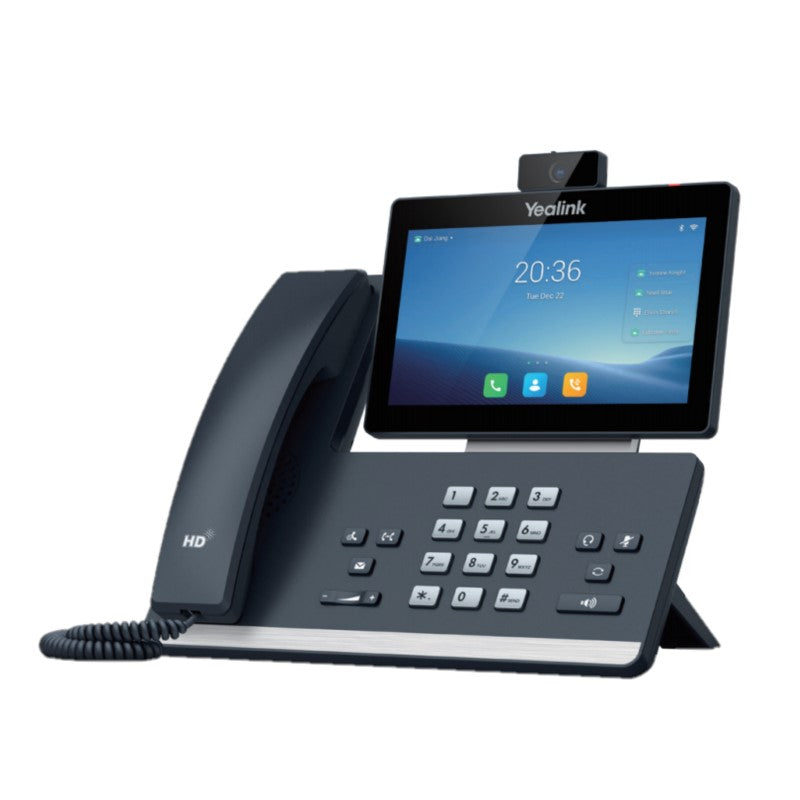
The Yealkin SIP-T58W with camera is a business phone that provides an enriched HD audio and video calling experience for professionals. It runs on Android 9.0 and features: • 7 inch (1024 x 600) capacitive adjustable touch screen • Supports Yealink Bluetooth Handset BTH58 (Optional) • 720p30 HD video • Optimal HD audio with Yealkin Noise Proof Technology • Yealkin's SDK for software development • DoorPhone Features, including one-button open and monitoring • Built-in Bluetooth 4.2 and Dual Band 2.4G/5G Wi-Fi • 2 x USB 2.0 ports for USB headset, media, and storage applications • Opus Codec support • Up to 16 SIP accounts • Up to 3-party video conferencing • Up to 10-party video/audio mixed conferencing (up to 2 video calls) • Dual-port Gigabit Ethernet, supports PoE • Wall mountable • Supports up to 3 Expansion Module EXP50 Technical Specifications: • HD voice: HD handset, HD speaker • Hearing aid compatible (HAC) handset • Acoustic Shield, Noise Proof • Smart Noise Filtering • Audio codec: Opus, G.722, PCMA, PCMU, G.729,G.729A, G.726, G.723.1, iLBC • DTMF: In-band, Out-of-band (RFC 2833) and SIP INFO • Full-duplex hands-free speakerphone with AEC • VAD, CNG, AEC, PLC, AJB, AGC Note: Power adapter is not included. For a full list of specifications, please refer to the product datasheet.

About This Product

The Yealink T58W is a premium desktop communicator built for professionals who rely on video as much as voice. Its large touchscreen and Android operating system make it a natural fit for executives, remote managers, and receptionists who need to juggle multiple lines or visually confirm callers. In a modern open-plan or private office, the T58W replaces the need for a separate webcam and speakerphone, consolidating everyday conferencing into the desk phone itself. It’s particularly well suited to Canadian businesses that want a single device for SIP calling, quick video huddles, and door-phone integration, without the complexity of a full-room system.

The T58W shines in environments where users move between a desk and nearby collaboration spaces. Built-in dual-band Wi-Fi and Bluetooth let it work where Ethernet cabling is scarce, while PoE support keeps desk clutter to a minimum. It pairs naturally with Yealink’s EXP50 expansion modules for attendant consoles, and the optional Bluetooth handset adds freedom for users who pace during calls. However, the integrated camera is fixed-focus and 720p—adequate for one-on-one or small team check-ins, but not a substitute for a PTZ camera in a boardroom.

There are practical tradeoffs. The Android 9.0 foundation offers flexibility for custom apps via Yealink’s SDK, but it also introduces a layer that IT teams must manage: app updates, security policies, and provisioning can be more involved than on simpler Linux-based IP phones. The 10-party audio bridge is generous, but only two video streams are supported, so larger video meetings will still need a separate conferencing service. For a hot-desking worker who only needs basic voice, this model is overkill; for a training room that needs multi-camera video, it’s underpowered.

In a Toronto-area deployment, the T58W integrates smoothly with major Canadian SIP trunks and hosted PBX platforms, and its dual Gigabit ports with PoE pass-through let it share a single wall jack with a nearby PC—a common requirement in older GTA office towers where cabling is limited. Just remember that a power adapter is not included; if your switch doesn’t supply PoE, you’ll need to budget for one.
Services We Provide
  • Professional Installation & Configuration
  • Ongoing Maintenance & Support
  • Troubleshooting & Repairs
  • System Upgrades & Updates



