
Yealink T58W Pro Business IP Phone with Camera-1201606

Frequently Asked Questions

First, double-check that your SIP credentials (username and password) are entered correctly in the phone’s account settings under Settings > Account. Ensure your network allows SIP traffic—common issues include firewalls blocking ports 5060/5061 or an incorrect SIP server address. If you’re using a provider like Rogers or Bell Business, confirm their required transport protocol (UDP vs TCP) matches your phone’s configuration.
Try a different PoE switch port or injector first, since the phone relies on PoE (802.3af). If you’re using the optional power adapter, verify it’s a 5V/2A unit meeting Yealink’s spec. A common cause is an underpowered PoE source; if the Ethernet cable is long or poor quality, it may not deliver enough voltage. Power-cycle the phone by unplugging the cable for 30 seconds.
Wi-Fi interference is a frequent culprit, especially in dense Toronto office buildings with many overlapping networks. Switch to the 5GHz band in the phone’s Wi-Fi settings for better throughput and less congestion. Also check that your router doesn’t have QoS settings that prioritise other traffic; temporarily disable any bandwidth-shaping rules for the phone’s IP.
Ensure the handset is charged and in pairing mode—press the call button until its LED flashes. On the phone, go to Settings > Bluetooth, enable Bluetooth, and scan for devices. Select the BTH58 from the list; the phone will confirm pairing. If it fails, reboot both devices and try again, staying within one metre during the process.
Begin by checking the handset connection and volume levels—sometimes the cord isn’t fully inserted. For speakerphone issues, reduce the speaker volume slightly; distortion often comes from overdriving the speaker. If the problem is network-related, run a ping test from the phone’s settings to your SIP server to see packet loss; anything over 1% indicates network congestion that your provider or IT team should address.
Yes, the T58W Pro supports IP video intercom integration. You’ll need to enable the DoorPhone feature under Features > DoorPhone and enter the intercom’s SIP credentials or IP address. Once configured, the phone will show a video preview when someone rings the door station, and you can unlock the door with a single tap. This is popular in GTA office lobbies.
Verify the camera slider on the top edge of the phone is open—there’s a physical shutter. In the phone’s Settings > Video, confirm the camera is enabled and the correct source is selected. On the call itself, tap the video icon to ensure you’ve turned on your own video; many endpoints default to audio-only.
A temporary software glitch is the most likely cause. Try a soft reboot by holding the power button for 10 seconds until the screen goes off, then power back on. If the issue recurs frequently, check for Android system updates under Settings > About > System Update, as patch releases often fix such behaviour.
Go to Settings > Account and tap Add to register up to 16 SIP accounts. For each, you’ll need the server address and credentials from your provider. After registering, you can assign a specific line key to each account via the DSS keys menu for quick switching. Note that too many accounts may clutter the interface; plan your layout in advance.
First confirm your provisioning server URL is correctly entered under Settings > Auto Provision. If you’re using a cloud management platform, ensure the phone’s MAC address is whitelisted. A common mistake is a missing HTTP/HTTPS prefix or a trailing slash—try both variations. If auto-provisioning still fails, you can manually configure the phone via its web interface as a temporary workaround.
IP Phones

Yealink T58W Pro Business IP Phone with Camera-1201606
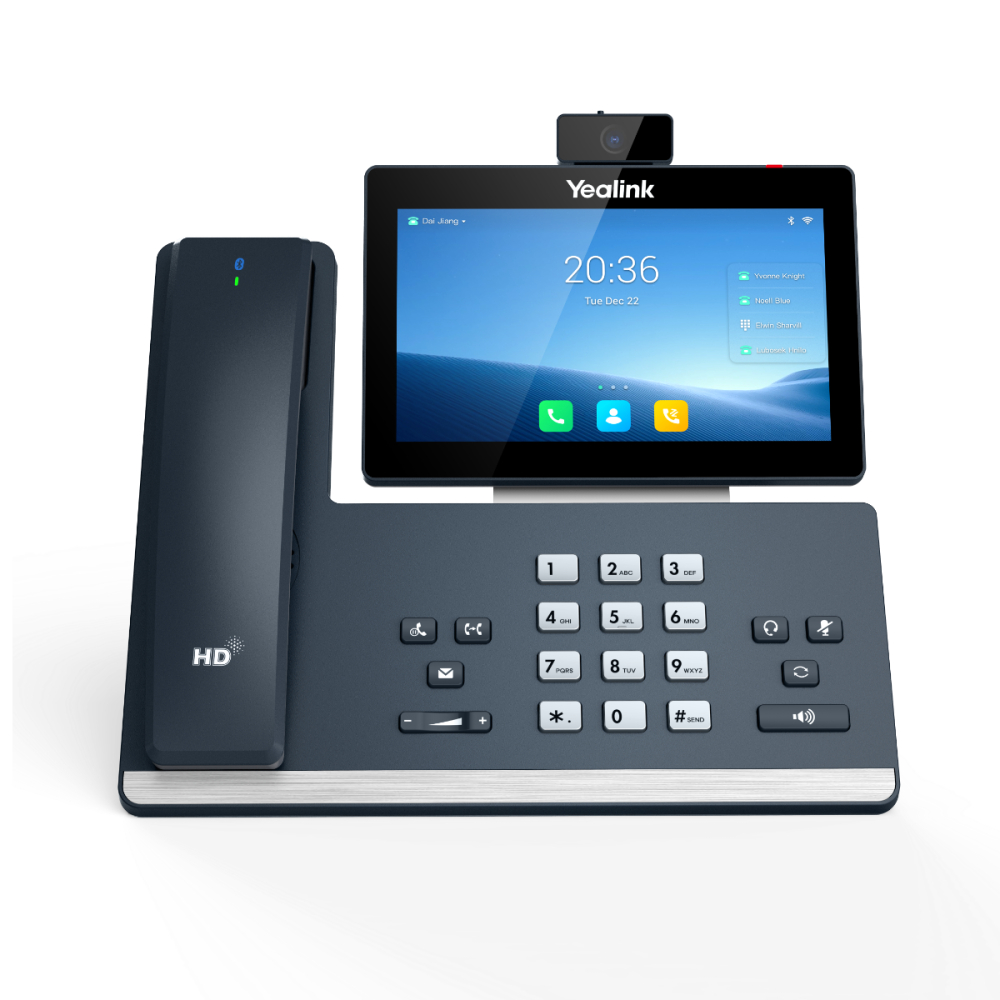
• A simple-to-use smart business phone providing an enriched HD audio and video calling experience for business professionals. • Supports Yealink Bluetooth handset BTH58, offering users more office flexibility when on a call. • Based on Android 9.0 operating system with a new user interface that improves work efficiency. • Integrates with IP video intercom systems from major vendors in the market. Features: • Runs Android 9.0 • 7-inch capacitive adjustable touch screen • Supports Yealink Bluetooth Handset BTH58 • 720p30 HD video • Optimal HD audio, Yealink Noise Proof Technology • Yealink’s SDK (Software Development Kit) • DoorPhone Features (Preview, One-button Open, Monitoring) • Built-in Bluetooth 4.2 and Dual Band 2.4G/5G Wi-Fi • Two USB 2.0 ports for USB headset, media and storage applications • Opus Codec support • Up to 16 SIP accounts • Up to 3-party video conferencing • Up to 10-party video/audio mixed conferencing (up to 2 video calls) • Dual-port Gigabit Ethernet, supports PoE • Wall mountable • Supports up to 3 Expansion Module EXP50 • Supports Yealink/Unify Square Device Management Platform Technical Specifications: • HD voice: HD handset, HD speaker • Hearing aid compatible (HAC) handset • Acoustic Shield, Noise Proof • Smart Noise Filtering • Audio codec: Opus, G.722, PCMA, PCMU, G.729, G.729A, G.726, G.723.1, iLBC • DTMF: In-band, Out-of-band (RFC 2833) and SIP INFO • Full-duplex hands-free speakerphone with AEC • VAD, CNG, AEC, PLC, AJB, AGC *Note: Power adapter is not included.*

About This Product

The Yealink T58W Pro is designed for professionals who need more than just a desk phone—it’s a smart video endpoint for executives, managers, or anyone managing multiple calls and requiring face-to-face communication from their desk. With its 7-inch touchscreen and Android operating system, it fits naturally in modern glass-walled boardrooms or high-traffic GTA offices where rapid meeting scheduling and video intercom integration are part of daily workflow. It pairs well with Yealink’s BTH58 Bluetooth handset, giving you the flexibility to walk away from the desk while staying on a call, and supports up to three EXP50 expansion modules for receptionists handling heavy call queues. The built-in camera and HD video (720p30) make it viable for one-on-one video calls or small team huddles, though the 3-party video limit means larger video conferences are better handled by a dedicated conference room system. A practical tradeoff to consider is that this phone is overkill for a simple call-answering role—its feature set is best leveraged by someone who truly needs video, intercom, and app integration rather than just voice. On the flip side, it may feel underpowered if you’re expecting a full Android tablet experience because the interface is optimised for telephony, not general web browsing. For Canadian deployments, the lack of an included power adapter is a minor nuisance, but PoE support (802.3af) makes it easy to power over your network, which is common in Toronto-area offices. Ensure your switch provides PoE or budget for a separate adapter to avoid a last-minute surprise during setup.
Services We Provide
  • Professional Installation & Configuration
  • Ongoing Maintenance & Support
  • Troubleshooting & Repairs
  • System Upgrades & Updates



