Yealink UVC86-Black 4K tracking camera – 1206663

Frequently Asked Questions

First, check that the camera’s tracking mode is enabled via the remote control or the Yealink camera plug-in software. If it still doesn’t respond, ensure the room is well lit and that participants are within the camera’s field of view. If the issue persists, a Toronto-based VoIP support provider can usually resolve this remotely.
Try connecting the camera directly to a different USB port on your computer, preferably a USB 3.0 port for reliable 4K video. Make sure the USB cable is securely attached at both ends. If the device still isn’t recognized, restart your computer and test with a fresh video call application.
First, confirm that your video conferencing app is set to at least 1080p resolution; the camera supports multiple resolutions, so the host app may default to a lower setting. Ensure the camera lens is clean and free of smudges. Also, verify that your room has adequate lighting—low light can cause the camera to reduce quality.
The UVC86 is designed to work seamlessly with Yealink audio devices via USB or through the Yealink ecosystem. Connect the audio device to the same USB hub or directly to your computer, and in your meeting app, select the Yealink audio device as the speaker and microphone. The camera’s speaker tracking will then automatically follow the active speaker.
Check that the remote control has fresh batteries and that there is a clear line of sight to the camera’s IR receiver. If using the Yealink camera control plug-in instead, ensure the software is installed and the camera is connected via USB. Reset the camera by powering it off and on again—this often resolves temporary communication glitches.
Yes, the UVC86 is compatible with Microsoft Teams and Zoom platforms as a USB video device. It works as a BYOD camera, so you can plug it into a laptop or a compatible Teams/Zoom Room system. For optimal performance, ensure your room system’s software is up to date.
Use the remote control or software to manually adjust the field of view via pan, tilt, and zoom. If auto-framing is active, the camera may crop based on detected faces—try disabling auto-framing temporarily and repositioning the camera physically to cover the entire table. You can also adjust the camera’s mounting height for a wider view.
Verify that the USB cable is securely connected and not loose. Try using a shorter, high-quality USB cable, as longer cables can cause signal degradation. Also, check that no other USB devices are drawing excessive power from the same port. A power cycle of both the camera and the host computer often stabilizes the connection.
Yes, firmware updates are available from Yealink’s support website. Download the latest firmware file to your computer, then use the Yealink camera control plug-in or a web interface (if available) to apply the update. Always follow the manufacturer’s instructions to avoid interrupting the update process.
The UVC86 is designed for tabletop or wall-mount use; if mounting in a drop ceiling, ensure the mount is securely anchored to structural supports rather than the ceiling tiles. Position the camera at a height that covers the full room without obstruction. Test the field of view before finalizing the installation to avoid excessive zooming.
IP Cameras

Yealink UVC86-Black 4K tracking camera – 1206663
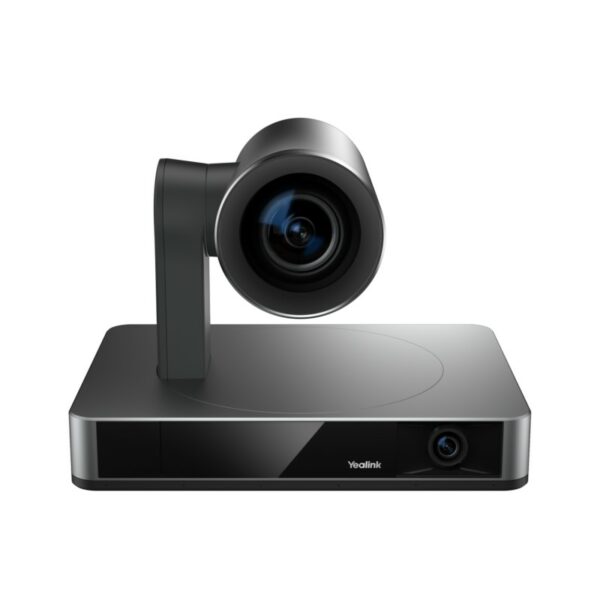
• 4K dual-eye tracking camera for medium and large rooms with display of every person and every detail. • Auto-framing, speaker tracking, and presenter tracking features provide a smooth video experience by precisely reproducing every moment and detail. • Built with a 90° diagonal field of view camera and mechanical pan, allowing for easy tilt up and down via remote control or Yealink camera control plug-in software. • Key features include: • Dual-eye 4K camera • 4K video at 30 frames per second • Auto Framing, Speaker Tracking, and Presenter Tracking • 12x optical zoom for crystal-clear video image • Mechanical Pan, Tilt, and Zoom • Smooth PTZ control by remote control or Yealink camera control plug-in • Audio integration perfect work with Yealink audio device • Additional information: • Weight: 6.38lb • Dimensions: 8.27 × 6.13 × 6.20 in • Video Conferencing: BYOD, Microsoft Teams, Zoom, Camera • Video Room Size: Large, Medium • Technical Specifications: • Maximum Resolution: 4K • Maximum FPS: 30FPS • Video Output: 4K(3840×2160) 30fps, 2560×1440 30fps, 1920×1080 30fps,<br>1280×720 30fps, 1024×576 30fps, 960×540 30fps, 800×448 30fps • Lens Focus Length: f=3.4mm to 40.3mm • Lens Aperture (F#): F/1.8-F/3.6

About This Product

The Yealink UVC86-Black is a dual-eye 4K tracking camera designed for medium to large meeting rooms where clear, automated video coverage is essential. It excels in boardrooms and conference spaces where participants may be spread across a wide table or room, thanks to its auto-framing, speaker tracking, and presenter tracking features. This camera pairs naturally with Yealink’s audio conferencing devices to create a complete, integrated video collaboration system, and it also works well as a BYOD peripheral for platforms like Microsoft Teams or Zoom.

Because it relies on a separate host device for video processing—typically a laptop or a Yealink touch console—it is not a standalone video conference appliance. You will need a computer or codec with a USB connection and sufficient processing power to handle 4K at 30 fps. The mechanical pan, tilt, and zoom give you precise manual control via remote or software, but the physical motors mean it may produce faint noise during movement in a quiet room.

For Canadian businesses, the UVC86 is well-suited to Toronto-area offices with existing Yealink phone or conferencing systems, as the audio integration is seamless. It is overkill for small huddle rooms (a fixed wide-angle webcam would suffice) and may be underpowered for large auditoriums with very distant subjects, despite its 12x optical zoom. Ensure your room has adequate lighting and a stable USB connection to the host device for best results.
Services We Provide
  • Professional Installation & Configuration
  • Ongoing Maintenance & Support
  • Troubleshooting & Repairs
  • System Upgrades & Updates