
Yealink W73H Entry-level DECT Handset-1302021

Frequently Asked Questions

First, ensure the handset is within range of the base station (typically up to 50 metres indoors). Check that the base station is powered on and that the DECT registration mode is active. On the handset, go to Menu > Settings > Registration and select the base station you want to pair with. If the issue persists, a Toronto-based VoIP support provider can usually resolve this remotely.
Try power cycling both the handset and the DECT base station: remove the handset battery for 10 seconds, then reinsert it, and unplug the base station for 30 seconds before plugging it back in. This often resolves temporary connectivity issues. If the problem continues, check for interference from other wireless devices or thick walls between the handset and base.
First, check that the handset's volume is set to a comfortable level using the side buttons during a call. Ensure the handset is not too far from the base station, as weak signal can cause audio issues. If you are using a headset via the 3.5 mm jack, try unplugging it to see if the echo disappears. If the problem persists, verify that the network connection is stable and that there are no bandwidth issues on your VoIP line.
Make sure the handset is properly seated in the charger and that the charging contacts are clean. Try using a different power outlet or USB charger if available. If the battery drains faster than expected, note that talk time and standby time depend on signal strength and usage patterns. If the battery is old or defective, it may need replacement.
The W73H must be registered to a Yealink DECT base station that is connected to your network and configured with your VoIP account credentials. On the base station, you will need to enter the SIP server details, extension number, and password provided by your VoIP provider. The handset itself does not require direct configuration for the VoIP account; it simply pairs with the base station.
First, ensure the handset is charged by placing it in the charger for at least 30 minutes. If the screen remains blank, try a soft reset by removing the battery, waiting 10 seconds, and reinserting it. If the screen still does not turn on, the handset may have a hardware issue and should be inspected by a technician.
Yes, the W73H has a 3.5 mm headset jack on the side of the handset. You can plug in any standard wired headset with a 3.5 mm connector. Note that Bluetooth headsets are not supported directly; you would need a wired headset or a Bluetooth adapter that connects via the 3.5 mm jack.
During an active call, press the Transfer soft key (or the Options button if available). Dial the extension number of the person you want to transfer the call to, then press the Send key. You can choose to announce the transfer (attended) or complete it immediately (blind). If the transfer fails, check that the target extension is registered and available.
After a power outage, the DECT base station may need to reboot and re-establish connections. The handset should automatically re-register once the base is back online. If it does not, manually re-register the handset by going to Menu > Settings > Registration and selecting the base station. If the problem happens frequently, consider using a UPS for the base station to maintain power during short outages.
The voicemail notification light and icon are triggered by a signal from your VoIP provider. First, check your voicemail by dialing the voicemail access number (usually *97 or a number provided by your provider). After listening to or deleting all messages, the notification should clear. If it persists, contact your VoIP provider to reset the message waiting indicator.
IP Phones

Yealink W73H Entry-level DECT Handset-1302021
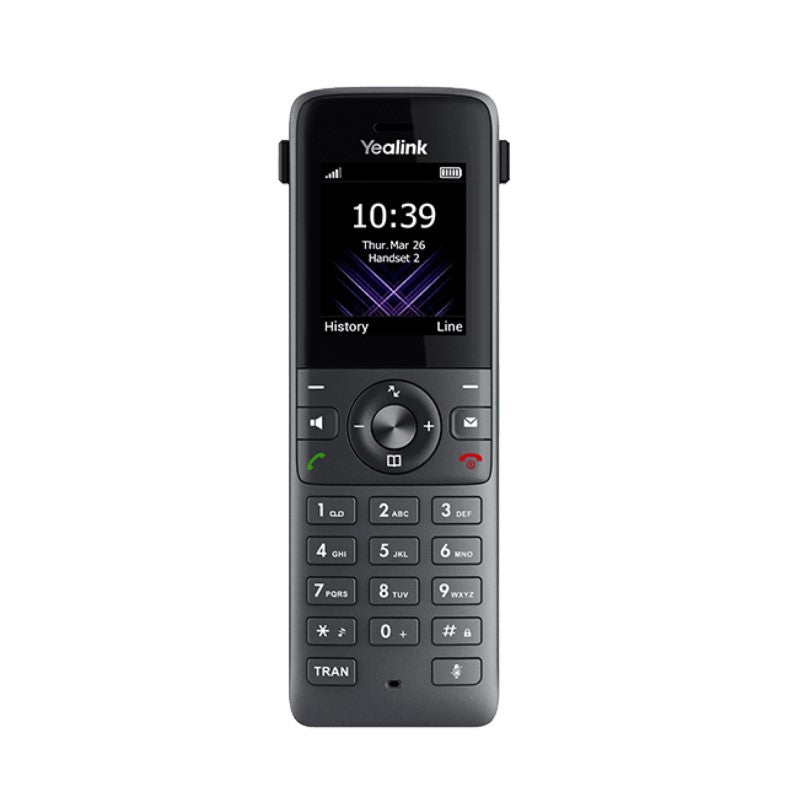
The Yealink W73H is a stylish modern wireless handset designed for business use. Its sleek design and convenient carry make it perfect for on-the-go professionals, while its improved battery life and communication quality ensure seamless connectivity. Key features: • New modern commercial design, more compact and easy to carry • Up to 35 hours talk time (in ideal conditions) • Up to 400 hours standby time • HD voice and noise cancellation • Headset connection via 3.5 mm jack • Sturdy and reliable belt clip Technical Specifications: • 1.8” 128×160 TFT color screen • Intuitive user interface with icons and soft keys • Caller ID with name and number • Notification Light: voice mail, missed call • Date & time (manual/auto synchronization) • Screen saver • Multilingual user interface • Keypad backlight For a full list of specifications, please refer to the product datasheet.

About This Product

The Yealink W73H is an entry-level DECT handset aimed at professionals who need a reliable wireless phone for day-to-day communication within an office or warehouse environment. It is a good fit for desk workers, receptionists, or mobile staff who move around a building but do not require advanced features like video calling or extensive line support. The handset pairs naturally with a Yealink DECT base station (such as the W70B or W80B) and can replace a traditional desk phone where cordless mobility is preferred. Its compact design and included belt clip make it easy to carry, though the small 1.8-inch screen and limited feature set mean it is not ideal for power users who need to manage multiple calls or complex integrations. For a small to medium-sized business in the GTA looking to equip a team with basic, cost-effective cordless phones, the W73H is a practical choice, but it would be underpowered in a high-call-volume contact centre or for anyone needing advanced call handling or video capabilities.
Services We Provide
  • Professional Installation & Configuration
  • Ongoing Maintenance & Support
  • Troubleshooting & Repairs
  • System Upgrades & Updates



