
Yealink W78P VoIP SIP Device Handset W70B+W78H

Frequently Asked Questions

First, verify that the SIP account credentials (username, password, and server address) entered in the handset's settings are exactly correct, including any required domain or port. Then check that the base station is connected to your network and has a valid IP address. If the issue persists, a Toronto-based VoIP support provider can usually resolve this remotely.
Ensure the base station is powered on and that the handset is within the DECT range (typically up to 50 meters indoors). Try moving the handset closer to the base and check for physical obstructions like thick walls or metal shelving. If the problem continues, power cycle both the base station and the handset by unplugging them for 30 seconds.
Check that the handset's microphone is not blocked by a case or debris, and ensure you are not on mute. If the issue is intermittent, try switching to a Bluetooth headset or the handset's speakerphone to isolate whether the problem is with the handset microphone. If the problem persists across all audio paths, contact your VoIP provider to check for codec mismatches.
This is often a network stability issue. First, confirm that your internet connection is stable and that the base station has a strong Ethernet connection to your router or switch. If you are using Wi-Fi for the base station (not recommended), switch to a wired connection. Also, check that your VoIP provider's server is not experiencing issues.
On the handset, go to the Settings menu, select Bluetooth, and enable Bluetooth. Then put your headset into pairing mode. The handset should detect it; select the headset from the list and confirm the pairing. Once paired, you can switch audio to the headset during calls.
First, ensure the handset is fully charged and that the charging contacts on both the handset and charger are clean. If the battery still drains fast, try a different power outlet for the charger. If the handset is several years old, the battery may need replacement. For a new unit, contact support to rule out a defective battery.
Yes, the W78P is a standard SIP device and should work with any Canadian VoIP provider that supports SIP trunking, including Rogers Business Phone and Bell Business VoIP. You will need to configure the SIP account settings provided by your carrier. If you encounter issues, confirm that your provider allows BYOD devices and supports the required codecs (like Opus or G.711).
Static or noise can be caused by interference from other electronic devices or poor DECT signal. Try moving the base station away from Wi-Fi routers, microwaves, or cordless phone bases. Also, ensure the handset is within good range of the base. If the noise is consistent, check your network for packet loss or jitter, which can affect audio quality.
Each handset can be registered to the same SIP account on the base station. On the base station's web interface or through the handset menu, assign the same SIP account to multiple handsets. Then, when a call comes in, all registered handsets will ring. You can also set up intercom or paging between handsets if needed.
First, try a soft reset by removing the battery for 30 seconds and then reinserting it. If the screen remains frozen, remove the battery again and leave the handset off for a few minutes. If the issue persists, contact support before attempting a factory reset, as that will erase all settings.
IP Phones

Yealink W78P VoIP SIP Device Handset W70B+W78H
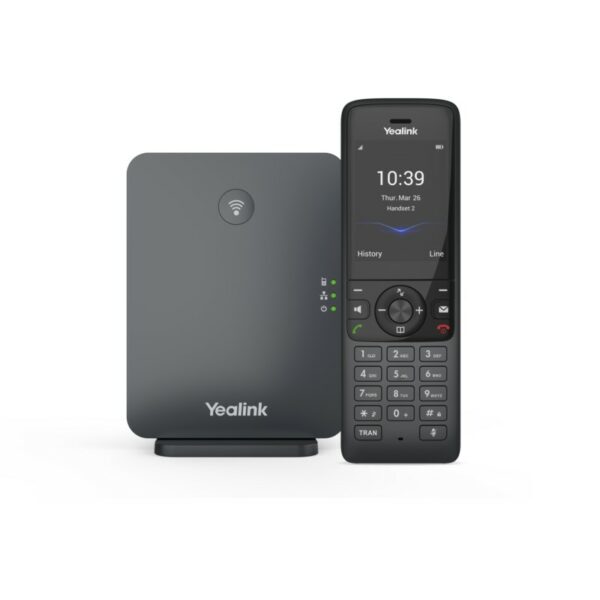
• High-performance SIP cordless phone system for small and medium-sized businesses • Supports up to 10 DECT cordless handsets and 20 simultaneous calls • Features vibration alarm, Bluetooth headset connection via Bluetooth or 3.5 mm jack, and Opus audio codec support • Ideal solution for maximum freedom and flexibility with up to 21-hour talk time and 166-hour standby time • Compatible with up to 10 SIP accounts and supports TLS and SRTP security encryption Key features: • High-performance SIP cordless phone system for small and medium-sized businesses • 2.4″ 240 x 320 TFT color screen with intuitive user interface • Up to 20 simultaneous calls • Up to 10 DECT cordless handsets • Up to 10 SIP accounts • Support Opus audio codec • Flexible Noise Reduction (FNR)/Noise Cancellation • Quick charge: 10-minute charge time for 2-hour talk time • Headset connection via Bluetooth or 3.5 mm jack • Vibration alarm guarantees you not to miss any call even in noisy situations • Wall mountable charger Additional information: • Weight: 1.51 lbs • Dimensions: 8.07 × 7.17 × 3.74 in • Phone Type: DECT

About This Product

The Yealink W78P is a DECT-based cordless phone system designed for small to medium-sized businesses that need the flexibility of wireless communication without sacrificing call quality or security. It is a good fit for open-plan offices, retail spaces, warehouses, or any environment where staff need to move around while staying reachable. The system pairs naturally with a hosted VoIP service or an on-premises PBX that supports SIP trunking, and it can replace older analog cordless setups or basic desk phones in areas where mobility is a priority.

A practical tradeoff to consider is that DECT range, while solid within a typical office, can be limited by building materials like concrete or metal; in a multi-floor or dense urban office, you may need to plan base station placement carefully. The system supports up to 10 handsets and 20 simultaneous calls, which is ample for a busy small office but could be underpowered for a larger call centre or a floor with dozens of users. Conversely, for a single-user home office, this system is overkill—a simpler cordless SIP phone would suffice.

For Canadian businesses, the W78P works well with most major SIP providers, including those serving the GTA, as long as they support standard SIP and the security protocols (TLS/SRTP) this device offers. The quick-charge feature and vibration alert are practical touches for a busy workday, and the Bluetooth headset pairing adds flexibility for hands-free calls. Just be aware that DECT phones are not Wi-Fi dependent, so they avoid the congestion and interference issues that can affect Wi-Fi calling in dense office environments.
Services We Provide
  • Professional Installation & Configuration
  • Ongoing Maintenance & Support
  • Troubleshooting & Repairs
  • System Upgrades & Updates



