
Yealink W80B DECT IP Multi-Cell Base Station

Frequently Asked Questions

First, confirm the base station has a valid IP address and can reach the server. Check that the SIP registrar address, port, and transport protocol (UDP/TCP/TLS) in the web interface match exactly what your provider requires. If you’re using a local PBX, verify the extension credentials and that the handset is assigned to the correct base. A quick network capture or SIP trace can reveal where the registration attempt is failing.
Ensure the Ethernet cable is plugged into a PoE-enabled switch port that delivers sufficient power (802.3af is typical for this device). Try a different port or a known-good cable to rule out a faulty connection. If the switch shows the port is providing power but the base’s LED stays dark, test with a PoE injector to isolate whether the switch or the base is at fault.
This often points to a NAT or firewall issue. Verify that the RTP port range configured on the W80B matches what your SIP provider or firewall expects, and that those UDP ports are open. On the base station’s web interface, under Network settings, confirm the correct NAT traversal method (STUN, static NAT IP, etc.) is set. A quick test is to place a call while checking if the RTP packets are being sent and received on both ends.
Log into the web interface of the primary base station and navigate to the Multi-Cell settings. Set the mode to ‘Master’ if not already, then on the new base, set it to ‘Slave’ and point it to the Master’s IP address. Both bases must be on the same LAN subnet and running compatible firmware versions. After a reboot, the slave base will sync and extend the DECT coverage automatically.
Seamless handover depends on proper DECT sync. Check that all W80B units are on the same firmware version and that the DECT sync source (usually the master) is correctly set. Also verify that the bases are not too far apart—overlapping coverage is needed for handover. If you’re using multiple bases, try repositioning them so that signal areas overlap by at least 10-15 meters.
Yes, as long as the service provides standard SIP credentials. You’ll configure the account on the base station’s web interface with the provider’s server address, username, and password. For Canadian cloud providers, you may need to adjust registration intervals or use a specific outbound proxy; these details are usually in the provider’s setup guide. Once configured, all paired handsets will share that SIP account unless you set up multiple accounts.
Start by confirming the base’s IP address (check your router’s DHCP client list or use the Yealink IP scanner tool). Ensure your computer is on the same subnet and that no firewall rules or VLANs are isolating the management traffic. If you recently changed network settings, a simple power cycle might restore access. If the issue persists, contact support before attempting a factory reset, as that will erase all configuration.
Download the correct firmware file from Yealink’s support site and upload it via the web interface under Maintenance > Upgrade. The base will reboot after the update, so schedule this during a maintenance window when handsets are idle. It’s wise to first upgrade a single slave base in a multi-cell setup to test compatibility before updating all units. Avoid interrupting the power during the upgrade process.
IP Phones

Yealink W80B DECT IP Multi-Cell Base Station
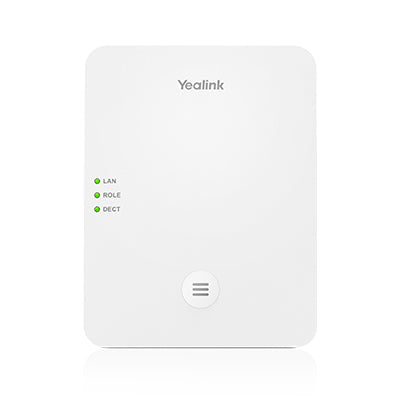
• The Yealink W80B is a DECT IP multi-cell base station designed to provide organizations with wireless coverage and ease of deployment. It supports up to 100 handsets and 100 simultaneous calls, ensuring reliable communication across multiple zones. • Key features: • Seamless handover and roaming between handsets • Up to 30 base stations supported • Compatible with Yealink W56H/W53H handsets • Supports PoE for power management • The system offers a range of advanced features, including: • Call hold, call transfer, 3-way conference • Switching between calls, call waiting, mute, silence, DND • Caller ID with name and number • Anonymous call and call rejection • Call forward (always/busy/no answer) • Speed dial, voicemail, redial • Message Waiting Indication (MWI) • Music on hold (server-based) • Local phonebook for up to 100 entries per handset • Remote phonebook/LDAP/XML phonebook • Phonebook search/import/export • Call history (all/missed/placed/received) • Additional information: • Weight: 1 lb • Dimensions: 8 × 7 × 3 in • Brand: Yealink • Technical specifications can be found in the product datasheet, available for download on the manufacturer's website.

About This Product

The Yealink W80B is built for businesses that need reliable cordless communication across a larger footprint—think multi-floor offices, warehouses, or retail spaces where staff move between zones. It acts as the backbone of a DECT network, connecting multiple base stations to deliver consistent coverage and allowing handsets to roam without dropping calls. For organizations already using a SIP-based VoIP platform, this base station slots in as the wireless extension layer, pairing naturally with Yealink’s W56H and W53H handsets.

A practical strength is its scalability: you can start with a single base and add more as coverage needs grow, up to 30 units in a single system. This makes it a sensible choice for mid-sized deployments that don’t yet need the complexity of a full DECT server but still require handover between cells. The reliance on PoE simplifies cabling, so installation in a typical Toronto office with managed switches is straightforward.

However, the W80B is not a standalone phone system—it requires an external SIP server or IP PBX. If your business is very small and only needs a few cordless handsets in one open area, a simpler single-cell base like the Yealink W60B may be more cost-effective. Conversely, an enterprise with hundreds of handsets across a campus might find the 100-handset limit per system restrictive and should evaluate higher-capacity DECT solutions.

Compatibility is limited to Yealink’s own DECT handsets, which is worth noting if you have existing cordless phones from another brand. On the other hand, for a greenfield deployment, this keeps management uniform. The base station’s feature set—call transfer, conferencing, phonebook integration—covers everyday business needs without excess complexity, making it a practical fit for Canadian SMBs that want dependable wireless voice without a steep learning curve.
Services We Provide
  • Professional Installation & Configuration
  • Ongoing Maintenance & Support
  • Troubleshooting & Repairs
  • System Upgrades & Updates



