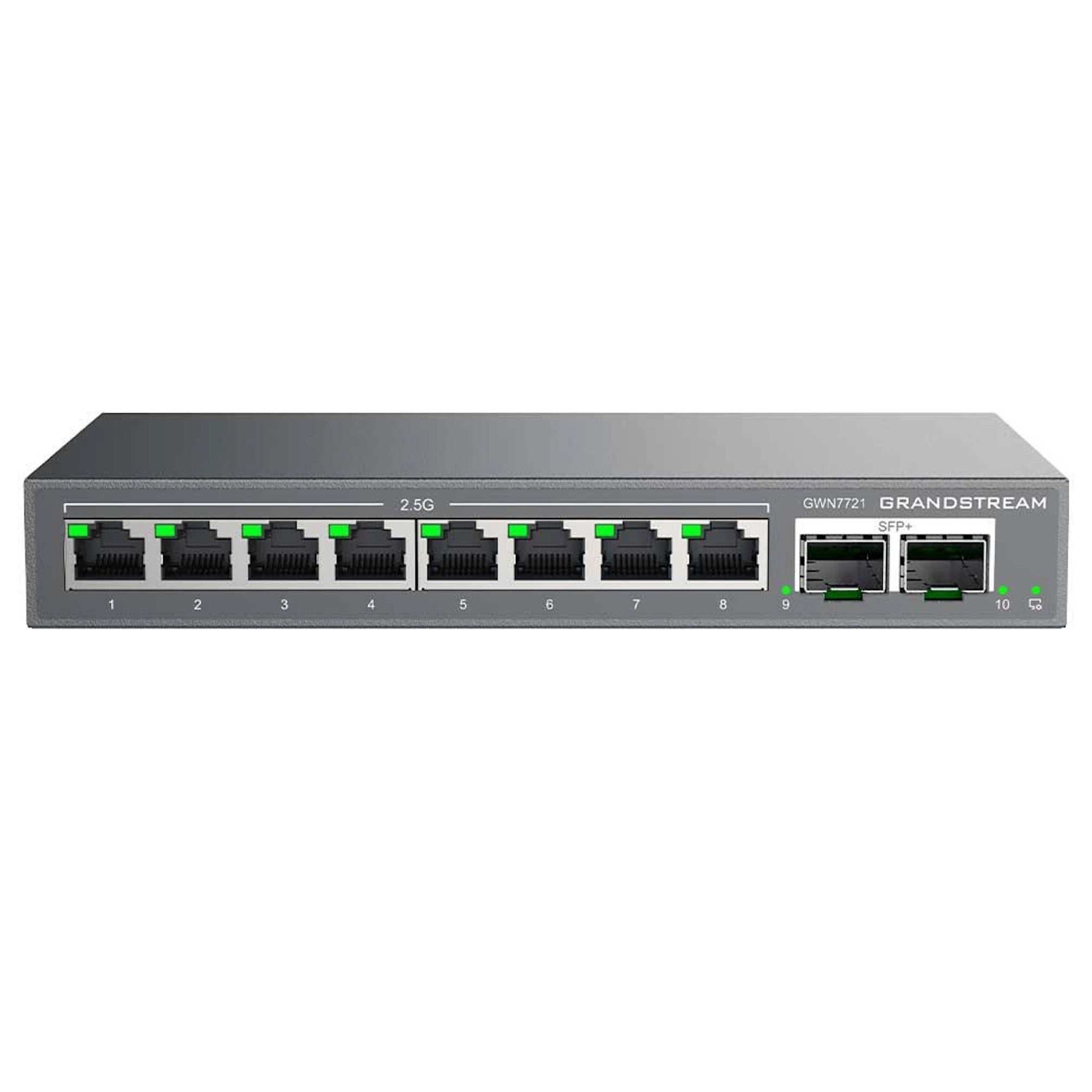
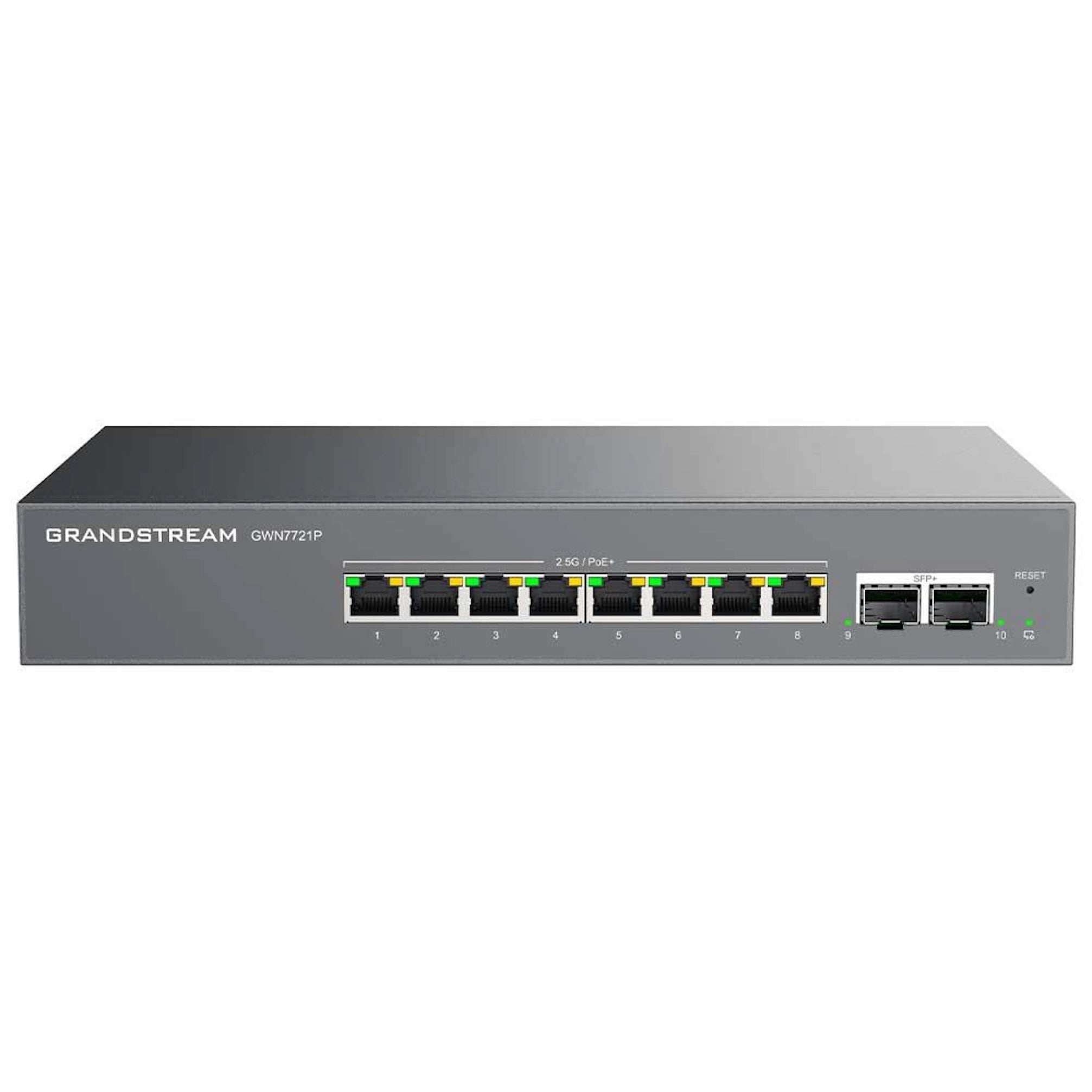
Grandstream GWN7813P Enterprise Layer 3 Managed PoE Network Switch, 24 x GigE, 4 x SFP+

Frequently Asked Questions

First, check that the device is connected to a PoE-enabled port (all 24 ports support PoE, but ports 1–8 can deliver up to 60W, while ports 9–24 deliver up to 30W). Verify the total PoE budget hasn't been exceeded; the switch can supply 360W total. If a port is disabled in the web interface or via a PoE schedule, enable it. Try power-cycling the switch by unplugging its AC cord for 30 seconds. If the issue persists, a Toronto-based VoIP support provider can usually resolve this remotely.
Ensure the SFP+ module is compatible with Grandstream switches (use supported brands and type). Reseat the module firmly. Check that the cable (fiber or DAC) is in good condition and both ends are correctly connected. Log into the switch web interface and verify the SFP+ port is enabled and not administratively down. If using auto-negotiation, confirm the far-end device also supports 10G.
Access the switch web GUI, go to VLAN settings, and create a new VLAN (e.g., VLAN 20 for voice). Assign the desired ports to that VLAN as access ports or trunk ports. Then configure QoS to prioritize the VLAN’s traffic (e.g., trust DSCP or set 802.1p priority). Your IP phones will need to be configured with the correct VLAN ID, typically via DHCP option 132 or 176.
If the switch was acting as a DHCP server (via DHCP snooping or default settings), a power cycle may have cleared the DHCP lease table. Restart the DHCP service on the switch or wait for clients to renew leases. More likely, your router acts as the DHCP server – check that the router is powered on and the switch’s uplink port is up. If the switch is configured with DHCP snooping, verify the trusted port settings.
The GWN7813P has active cooling fans that ramp up with heat. Ensure proper ventilation around the rack, with intake and exhaust vents unobstructed. Check that the ambient temperature is within the rated range (0–50°C). PoE load generates heat; if many devices are drawing maximum power, consider spreading the load across multiple switches or lowering the PoE power limit per port through the management interface.
If you locked yourself out by misconfiguring the management VLAN, connect a laptop directly to a console port (if available via an optional console cable) or use the reset pinhole on the front panel. Press and hold the reset button for about 10 seconds until the switch reboots with factory defaults. Note that this will erase all settings, so use it only as a last resort after verifying you cannot regain access through other means.
Download the latest firmware from Grandstream’s support website. Log into the switch web UI, go to Maintenance > Firmware Upgrade, and upload the file. Do not power off the switch during the update. After the upgrade completes, the switch will reboot. It’s best to perform firmware updates during a maintenance window, as all network services will briefly drop.
Start by checking the switch’s CPU and memory utilization via the dashboard. If it’s high, broadcast storms or an overloaded VLAN can cause drops. Verify that all Ethernet cables are plugged securely and not damaged. Disable any unnecessary features like STP on edge ports where not needed. Also check for any loop in your network topology; a simple way is to look at the port LEDs for rapid blinking or high collision counters.
Yes, the GWN7813P supports up to 14 link aggregation groups (LAGs). Configure LACP (802.3ad) on the switch and on the server for dynamic negotiation, or set up a static trunk. Ensure both ends use the same speed/duplex and that the aggregated ports are all on the same switch chip (ports 1–12 or 13–24 are in a single chip group for better performance). After configuration, the server will see a single logical link with combined bandwidth.
Navigate to Security > DHCP Snooping in the web interface. Enable DHCP snooping globally. Define which ports are trusted (e.g., the uplink port connected to your legitimate DHCP server) and which are untrusted (all other ports). The switch will then only forward DHCP replies from trusted ports, blocking rogue offers. This is a key security feature for any business network, especially in multi-tenant office environments.
Network Switches

Grandstream GWN7813P Enterprise Layer 3 Managed PoE Network Switch, 24 x GigE, 4 x SFP+
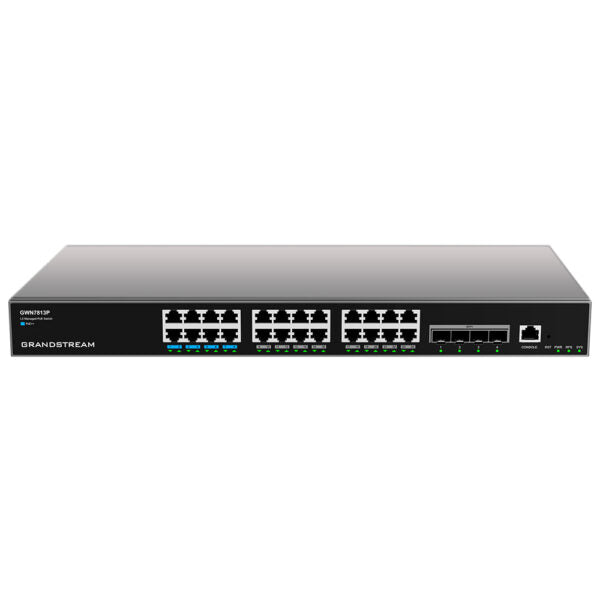
24 x Managed PoE Network Switch, 4 x SFP+, Smart power control to support dynamic PoE/PoE+ power allocation per port for the PoE models. Supports deployment in IPv6 and IPv4 networks. ARP Inspection, IP Source Guard, DoS protection, port forwarding security & DHCP snooping. • Managed switch with advanced VLAN and QoS features • Supports up to 28 ports and Gigabit Ethernet speed • Dynamic PoE power allocation for devices • Redundant Power Supply (RPS) for high availability • IPv6 and IPv4 network support • Built-in security features, including ARP Inspection, IP Source Guard, DoS protection, and DHCP snooping Weight: 11.68 lb Dimensions: 19.53 × 17.15 × 3.43 in Switch Type: Managed Switches, PoE Switches Number of Ports: 24-28 Main Port Speed: Gigabit Uplink Ports: 10G SFP+ Layer Support: L3 PoE Support: Yes PoE Budget: High (≥200) Redundant Power Supply: Yes Model: GWN7813P Box Contents: • 1x Switch • 1x 1.2m(10A) AC Cable • 1x 25cm Ground Cable • 4x Rubber Footpads • 1x Power Cord Anti-Trip • 8x Screws (KM 3*6) • 1x Quick Installation Guide • 1x Console Cable(Optional) Network Protocol: • IPv4, IPv6, IEEE 802.3, IEEE 802.3i, IEEE 802.3u, IEEE 802.3ab, IEEE 802.3z, IEEE 802.3ae, IEEE 802.3x, IEEE 802.3af/at/bt, IEEE 802.1p Gigabit Ethernet Ports: 24 10Gigabit SFP+ Ports: 4 Console: 1 Number of PoE Ports: 24 Link Aggregation: 14 External Redundant Power Supply (RPS): 54V(300W) Max Output Power per PoE Port: 60W(1-8,PoE++) 30W(9-24) Max Total PoE Output Power: 360W PoE Standards: IEEE 802.3af/at/bt Auxiliary Ports: 1x Reset Pinhole Forwarding Mode: Store-and-forward Total non-blocking throughput: 64Gbps Switching Capability: 128Gbps Forwarding Rate: 95.232Mpps Packet Buffer: 12MB

About This Product

The Grandstream GWN7813P is a Layer 3 managed PoE switch designed for medium-to-large business networks that demand both power and performance. With 24 Gigabit Ethernet ports (all PoE+ capable, with PoE++ on the first eight ports delivering up to 60W each) and four 10G SFP+ uplinks, it can handle a dense deployment of IP phones, security cameras, and wireless access points—common in a Toronto office building or a GTA warehouse. The switch’s 360W total PoE budget means you can power multiple high-draw devices without needing separate injectors, and the optional redundant power supply (RPS) adds uptime confidence for critical operations.

This switch fits naturally in a VoIP environment, especially one using Grandstream IP phones or other SIP endpoints. It supports advanced VLAN segmentation, QoS tagging, and Layer 3 routing, so you can carve out a voice VLAN and prioritize RTP traffic without a separate router. The built-in security features (ARP inspection, IP Source Guard, DHCP snooping) help protect against common LAN-level attacks—a practical advantage for any Canadian business handling sensitive client data. However, the GWN7813P is not a data-center core switch; its 10G uplinks are sufficient for aggregating access-layer traffic but may be limiting if you need 25G or 40G spine connectivity.

Before purchasing, consider whether you need all 24 PoE ports and the full L3 capabilities. For a small office with fewer than 15 devices and no routing needs, a simpler, lower-cost switch would suffice. Conversely, if you plan to expand your network with many PoE devices or require inter-VLAN routing, this switch will serve well for years. It’s rack-mountable but weighs nearly 12 pounds, so proper rack support is advised. Canadian resellers often bundle this with Grandstream IP phones and UCM PBXs for seamless provisioning.
Services We Provide
  • Professional Installation & Configuration
  • Ongoing Maintenance & Support
  • Troubleshooting & Repairs
  • System Upgrades & Updates