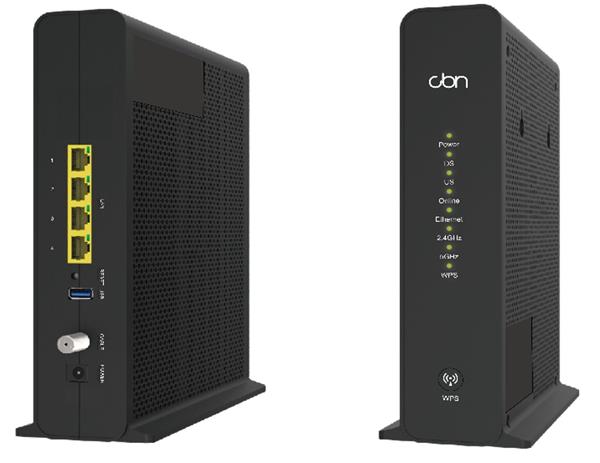
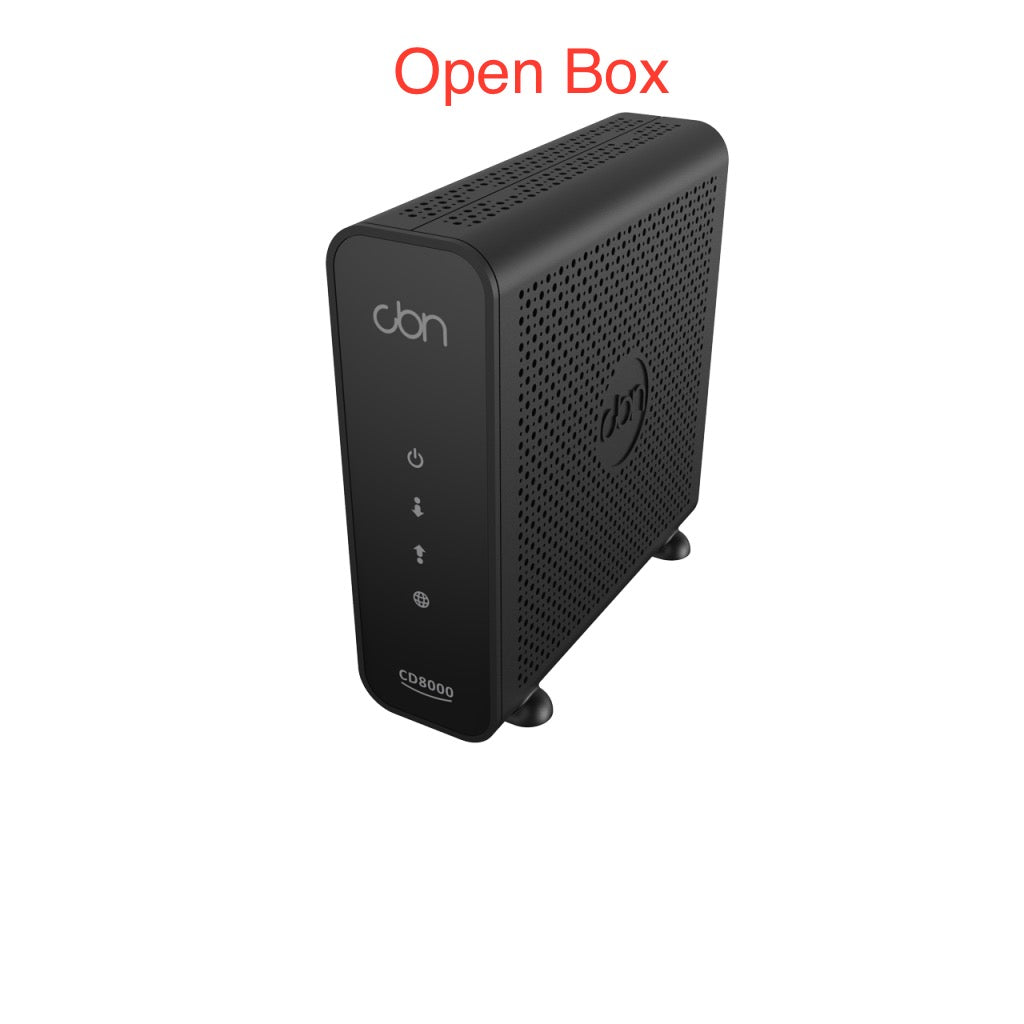
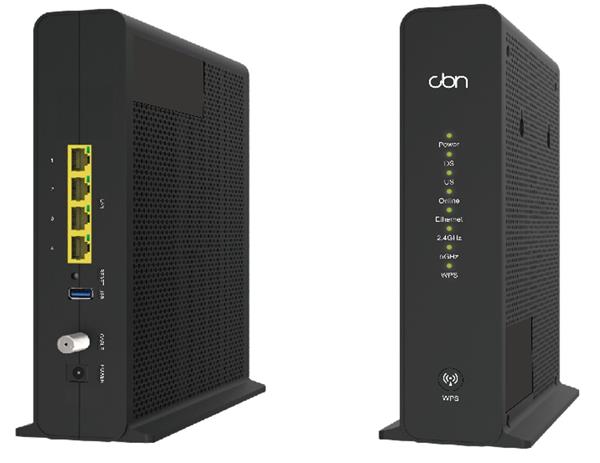
CBN CD8000 DOCSIS 3.1 Cable Modem
Frequently Asked Questions
First, check that the coaxial cable is securely connected to both the modem and the wall outlet. If that's tight, power cycle the modem by unplugging it for 30 seconds and plugging it back in. If the light still doesn't come on, verify with your ISP that your account is activated and provisioned for this modem's MAC address.
Start by inspecting the coaxial cable for any kinks, damage, or loose connections. Temporary signal issues can also be caused by electrical interference; try moving the modem away from other electronics. If the problem persists, check the modem's signal levels through its web interface (usually at 192.168.100.1) and compare them to your ISP's recommended ranges. For ongoing drops, a technician may need to check the line quality.
Contact your ISP's customer support and provide the modem's model number and MAC address (printed on the back label). They will provision it on their network. Some providers offer self-activation via a webpage—connect the modem, visit the activation URL in your browser, and follow the prompts. Keep your account number handy.
Yes, as long as you have a router connected to the modem, the VoIP phone can plug into the router's LAN. The modem itself just passes internet data. For best voice quality, ensure your internet plan has sufficient upstream speed and that your network router prioritizes VoIP traffic (QoS). If you experience choppy calls, check if your connection is saturated with other downloads.
First, verify you are testing via a wired Ethernet connection directly to one of the modem's LAN ports—Wi-Fi through a separate router can cap speed. Also confirm your computer's network adapter supports gigabit. If wired speeds still fall short, log into the modem's status page (192.168.100.1) and check if all 32 downstream channels are locked. Partial bonding can reduce throughput. Contact your ISP if the modem shows good signal but speed remains low.
Absolutely. This modem works with any standard router that has an Ethernet WAN port. Simply connect an Ethernet cable from the modem's LAN port to the router's WAN port. Configure the router to use DHCP (automatic) for its WAN connection. No special setup is needed on the modem side; it just passes through the public IP from your ISP.
Frequent reboots often point to an overheating modem or a weak power supply. Check that the modem is in a well-ventilated area and not stacked on other equipment. Also try a different power outlet to rule out power fluctuations. If the problem continues, inspect the coaxial cable for damage or loose connectors—signal dropouts can cause the modem to reset. Contact your ISP if these steps don't help, as they may need to check the line signal levels.
Access the modem's web interface at 192.168.100.1 (default address). Look for a status or administration tab that shows the firmware version. Compare it to the latest version listed on the manufacturer's support site. If an update is available, you can usually upload the firmware file through the same interface. If you're unsure, your ISP may push firmware updates automatically.
The CD8000 supports 32 downstream and 8 upstream channels, but the actual number locked depends on your ISP's configuration and the DOCSIS version in use. If you see fewer upstream channels, it is normal for your area. Your internet speed should not be affected significantly, as ISPs often bond fewer upstream channels. If you suspect a problem, run a speed test directly wired to the modem; if speeds match your plan, it is fine.
No—the CD8000 is a DOCSIS cable modem designed for cable networks only. It will not work with fibre-optic services that require an ONT (optical network terminal) or DSL connections. Stick to cable providers on the TPIA list: Cogeco, Eastlink, Rogers, or Shaw. If you are with a fibre provider, you need a dedicated fibre modem or router.
Broadband
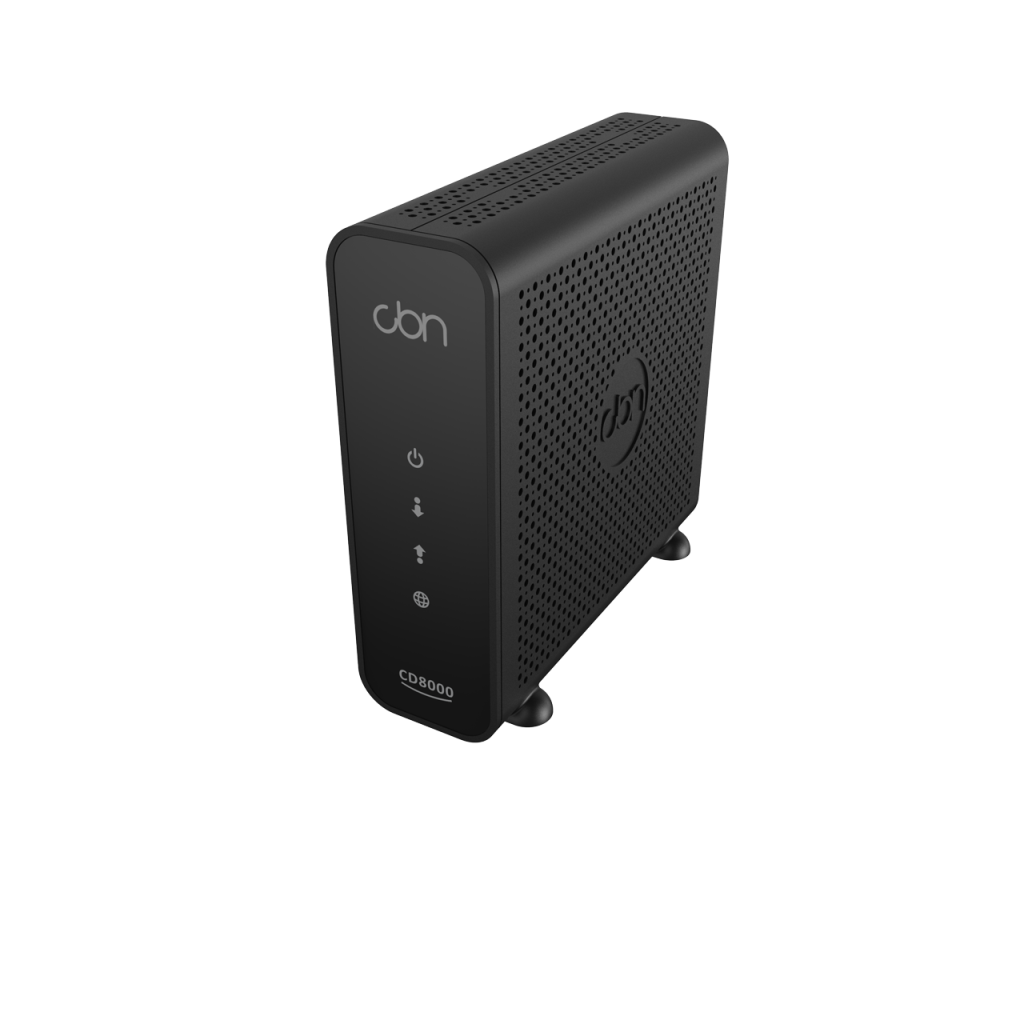
CBN CD8000 DOCSIS 3.1 Cable Modem
• CD8000 DOCSIS 3.1, 32x8 cable modem with 2 x Gigabit Ethernet LAN for fast internet connectivity • Compatible with TPIA ISPs on Cogeco (Ontario and Quebec), Eastlink, Rogers, and Shaw cable networks • Key features: • High-speed performance for seamless online experience • Reliable and stable connection with 32x8 technology • Dual Gigabit Ethernet LAN ports for multiple device connections • For a full list of specifications, please refer to the product datasheet.
About This Product
The CBN CD8000 is a DOCSIS 3.1 cable modem designed for Canadian homes and small offices that subscribe to third-party internet access (TPIA) providers operating on major cable networks like Cogeco, Eastlink, Rogers, and Shaw. This device replaces the ISP's rental modem, giving you direct control over your network hardware without ongoing monthly fees. It is best suited for users who already have a separate router or mesh system, as the CD8000 is a pure modem with no built-in Wi-Fi or routing features. If you need an all-in-one gateway, a modem-router combo would be more appropriate; but for those who prefer to pair their own router for better performance or security, this modem is a solid choice. The two Gigabit Ethernet ports allow connecting multiple devices directly, though true load balancing requires a router with multi-WAN support. In a GTA office environment, the CD8000 can handle gigabit-class cable internet plans, but be aware that the 32x8 channel bonding may be overkill if your plan is below 300 Mbps. Conversely, if your plan exceeds 1 Gbps, this modem’s single Gigabit port (per device) may become a bottleneck. Overall, it is a straightforward, cost-effective modem for Canadians who want to own their cable internet equipment and have a compatible router to manage their network.
Services We Provide
- Professional Installation & Configuration
- Ongoing Maintenance & Support
- Troubleshooting & Repairs
- System Upgrades & Updates