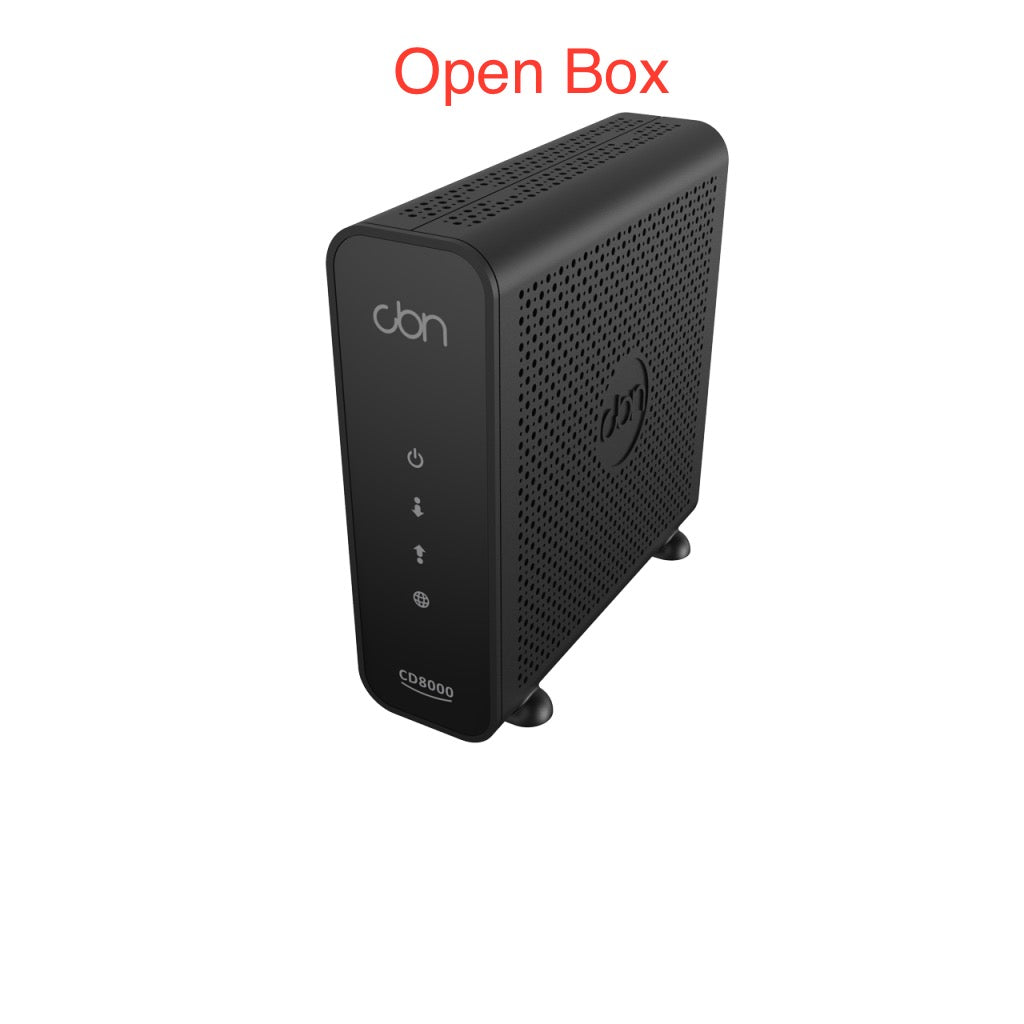
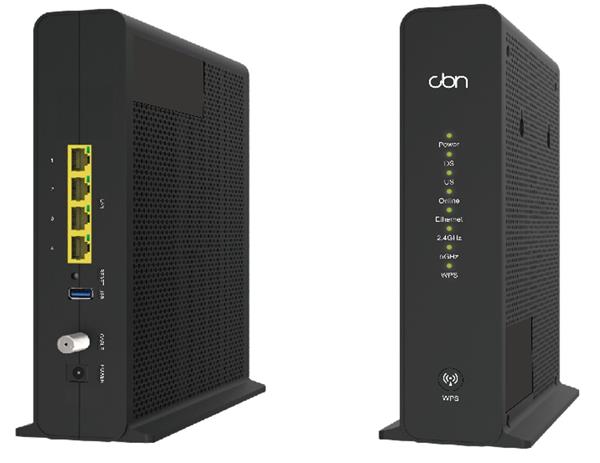
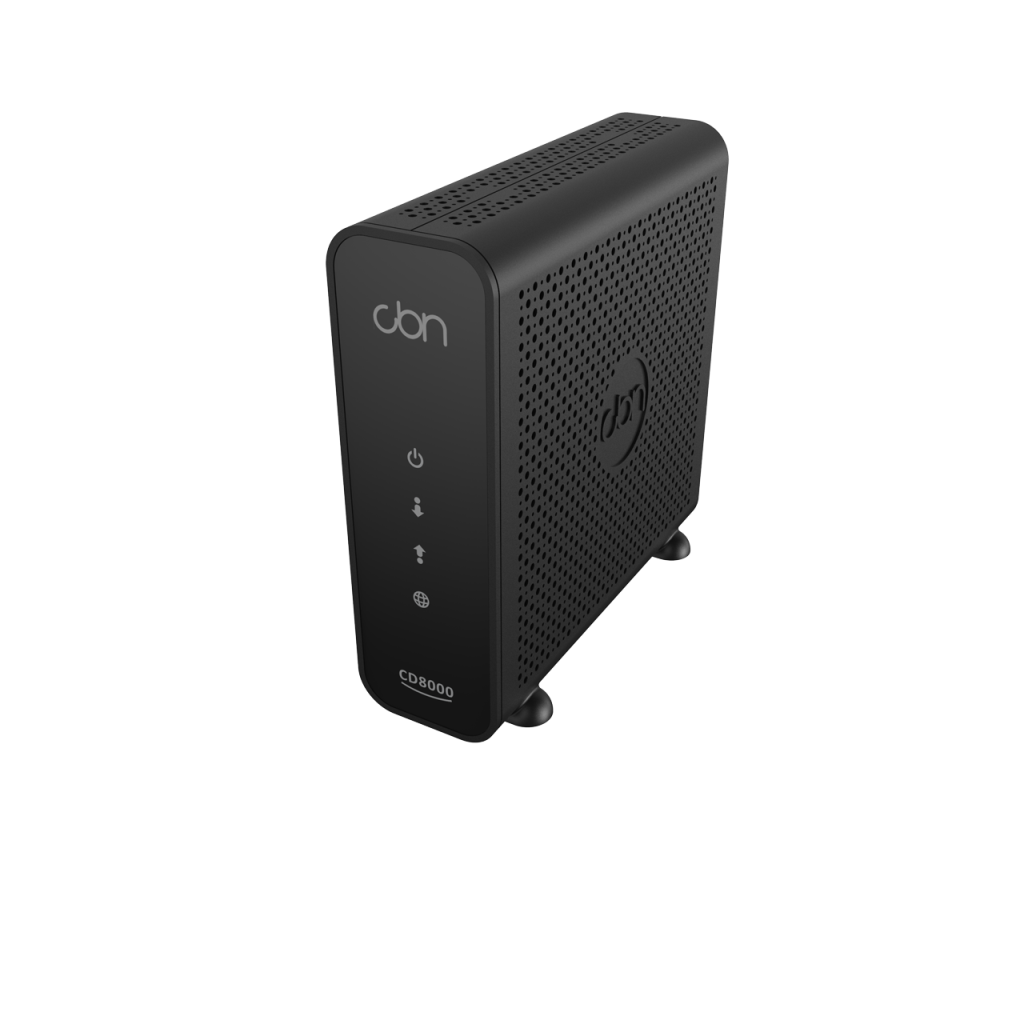
CBN CH8568 DOCSIS 3.1, 32x8 cable modem / gateway

Frequently Asked Questions

Start by checking the Ethernet connection between the phone and one of the modem’s LAN ports. If the link lights are active, the most common culprit is a SIP ALG (Application Layer Gateway) setting that interferes with VoIP traffic. Log into the modem’s interface and look for any SIP or VoIP ALG option, and try toggling it off as a safe, reversible test.
First, confirm whether the issue happens only on Wi-Fi calls or also on wired Ethernet phones. If it’s only on Wi-Fi, the problem is likely local wireless interference, and moving the phone closer to the gateway or switching to a wired connection is a good diagnostic step. If wired phones also drop, check the modem’s status page for uncorrectable codeword errors or T3/T4 timeouts, which point to a coax line issue needing your ISP’s attention.
One-way audio almost always points to a firewall or NAT traversal problem. As a first step, power-cycle both the modem and the VoIP phone, which forces a fresh network session. If the problem returns, check that the modem’s firewall is not blocking the RTP port range your VoIP provider uses.
Yes, this is a common and recommended setup for business VoIP. You can place the CH8568 into bridge mode, which disables its routing and Wi-Fi functions so it operates purely as a cable modem. Your own router then handles all traffic, letting you choose a model with advanced QoS features to prioritize voice packets.
It is compatible with TPIA providers using the Rogers and Shaw networks, but for a direct business plan with Rogers or Shaw themselves, you must confirm with the carrier. Some primary ISPs restrict customer-owned modems on certain business tiers, so checking their current approved hardware list before purchasing is the safest course.
Your third-party provider will need the modem’s MAC address and serial number, usually printed on a label on the bottom or back of the unit. Provide these to your ISP during signup or when you call in to swap hardware. The provisioning is done remotely, and the modem will typically download its configuration and reboot within an hour of the ISP submitting the work order.
Adding an unmanaged Gigabit Ethernet switch to one of the LAN ports is the simplest solution and will not cause any conflicts. The modem will treat the switch and its connected devices as part of the same local network, which is fine for a handful of extra clients. If your network is growing beyond a dozen wired devices, it may be time to consider a dedicated router with the modem in bridge mode.
First, try repositioning the modem so it is higher up and away from metal filing cabinets or concrete walls. If that is not practical, adding a wireless access point connected to one of the Ethernet ports will give you a strong signal in the problem area without needing to replace the gateway itself. Disabling the modem’s internal Wi-Fi when you add the access point can also reduce interference.
Broadband

CBN CH8568 DOCSIS 3.1, 32x8 cable modem / gateway
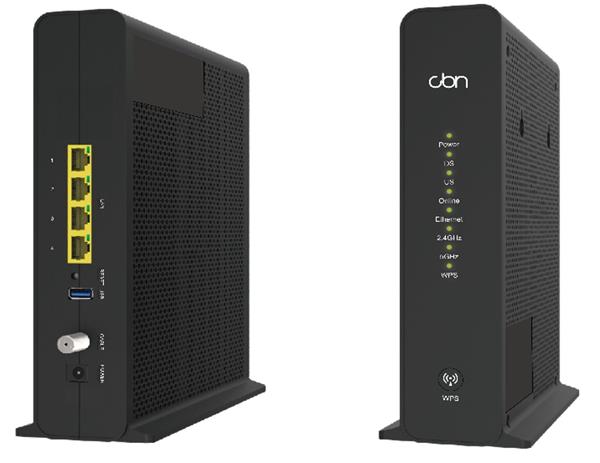
• CH8568 DOCSIS 3.1, 32x8 cable modem / gateway with Wi-Fi 802.11ac Wave-2 and 4 x Gigabit Ethernet LAN • Compatible with TPIA ISPs on Cogeco (Ontario and Quebec), Rogers, and Shaw cable networks • Key features: • DOCSIS 3.1 technology for fast speeds • 32x8 channel bonding for high bandwidth • Wi-Fi 802.11ac Wave-2 for reliable wireless connectivity • 4 x Gigabit Ethernet LAN ports for multiple device connections • For a full list of specifications, please refer to the product data sheet: <a href="https://cdn.shopify.com/s/files/1/0643/6736/2234/files/e059cd2c4ac5da4df34f529eafc857d234ae87dda701e33b04b4bb399cabfc5a_optim.pdf?v=1730313609" target="_blank" title="Product Data Sheet" rel="noopener">CH8568 Product Data Sheet</a>

About This Product

The CBN CH8568 is a capable cable gateway for Canadian homes and small offices that need a straightforward, all-in-one networking device. It is particularly relevant for subscribers on third-party internet access (TPIA) providers using Cogeco, Rogers, or Shaw infrastructure, offering a path to avoid rental fees on carrier-supplied equipment. With its integrated DOCSIS 3.1 modem, four-port Gigabit switch, and Wave-2 Wi-Fi, it covers the essential connectivity bases in a single unit, making it a practical choice for a small Toronto condo setup or a branch office in the GTA with a handful of wired workstations.

This device pairs well with hosted VoIP deployments where the phones connect over Ethernet and the total device count, wired and wireless, stays within a modest range. The four LAN ports are sufficient for a couple of IP phones, a desktop computer, and a printer without immediately needing an extra switch. Its built-in wireless can serve laptops and mobile devices, though anyone running a dense office with many simultaneous voice calls might eventually want to separate the Wi-Fi function onto a dedicated access point to maintain call quality.

A buyer should understand the practical limits of this kind of integrated gateway. The routing and NAT performance, while adequate for a typical small-office internet package, can become a bottleneck under heavy simultaneous traffic from multiple VoIP calls, large file transfers, and streaming. There is no built-in telephony port or advanced QoS specifically tuned for SIP traffic, so voice quality relies on the available bandwidth and the modem’s general handling of packet priority. It is a great fit for a self-contained small business, but it is underpowered for a multi-tenant office or any scenario requiring VLAN segmentation, VPN termination, or failover WAN links.

For a larger deployment, or one where voice is mission-critical, this modem is best used in bridge mode with a separate, VoIP-aware router handling the traffic management. The CH8568 then does the one job it excels at—acting as a pure cable modem—while a more sophisticated device manages the internal network. This approach keeps the investment sensible and the voice quality predictable.
Services We Provide
  • Professional Installation & Configuration
  • Ongoing Maintenance & Support
  • Troubleshooting & Repairs
  • System Upgrades & Updates