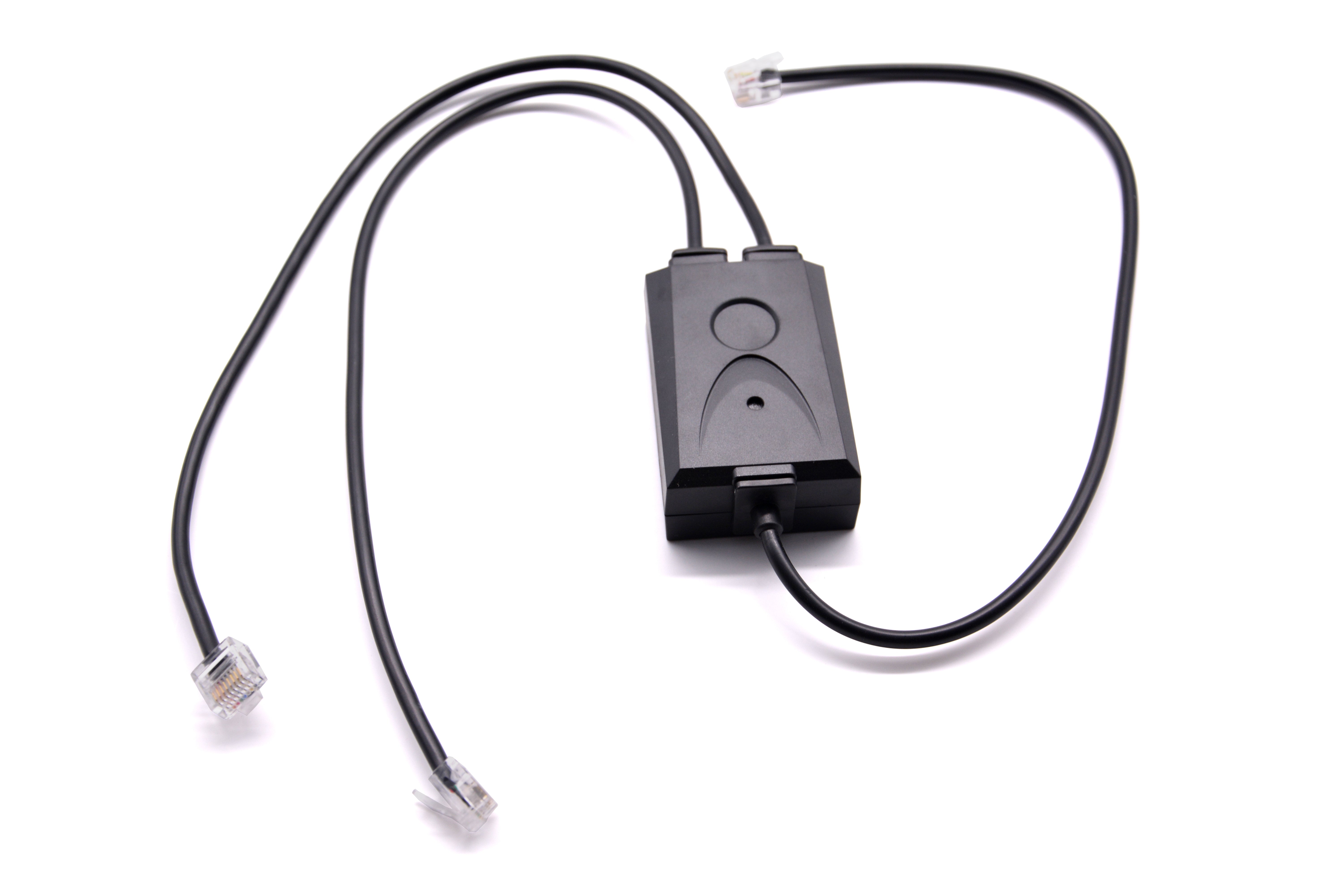
Fanvil EHS20 EHS Adapter
Frequently Asked Questions
First, confirm the EHS20 is firmly plugged into the headset port on the back of your Fanvil phone, and that the headset base is connected to both the EHS20 and a power source. Then check the phone’s audio settings to ensure the headset is selected as the active audio device, not the handset or speakerphone.
Check that the headset base is powered on and paired correctly with your headset. Also verify the EHS20 cable is inserted fully into both the phone and the headset base. If the headset has its own ring settings, make sure they are enabled.
The EHS20 is only guaranteed to work with the Fanvil X-series models listed in the product description. For phones not on that list, contact your VoIP provider or Fanvil support for guidance, as using it with an incompatible model may not function properly.
First, check that the phone’s mute function is not already controlled by a different setting. On the phone, go to the audio or headset settings and ensure the EHS20 is configured to pass the mute command. If the issue persists, test the headset mute button while the phone is in a call—it may only work during an active conversation.
Yes, this can happen if the phone detects the EHS adapter as the primary audio device. Try disconnecting the EHS20 and restarting the phone to restore speakerphone functionality. If you need both, check the phone’s audio routing settings to see if you can toggle between the headset and speakerphone as needed.
This is usually a wiring or connection issue. Check that the EHS20 cable is not loose or damaged. Also ensure the headset base is not set to a timer or auto-end feature. If the problem continues, test with a different USB port or power source for the headset base.
In most cases, the EHS20 works as soon as it is connected, but you may need to enable the EHS function in the phone’s audio or accessory settings. Refer to the phone’s manual for the exact menu path, as it varies between models.
Yes, the EHS20 only works with the headset base physically connected to the adapter. The range of the headset from its base depends on the headset model. If you need longer range, consider a DECT headset system that does not require a base connected via EHS.
No, the EHS20 is specifically designed to connect to a headset base that has an EHS port. It does not support USB headsets. For USB headsets, plug the headset directly into the phone’s USB port if available, or use a USB-to-phone adapter.
Disconnect the EHS20 from both the phone and headset base, then reconnect it firmly. Restart the phone. If it still isn’t detected, try plugging the adapter into a different Fanvil phone that is on the compatibility list to see if the adapter itself is faulty.
Accessories
Fanvil EHS20 EHS Adapter
The Fanvil EHS20 EHS Adapter allows you to connect your Fanvil X-series IP Phone to a headset base, enabling direct call answers from your Jabra headset. Compatible with the following models: • Fanvil XU Series • X2 • X2P • X3S • X3SP • X3G • X4 • X4G • X5S • X6 • X7 • X7C • X210 Key features include: • Hear ring tones • Answer calls • End calls • Mute the microphone For detailed specifications, please refer to the product datasheet.
About This Product
The Fanvil EHS20 is an electronic hook switch adapter designed for users who need a seamless wired headset experience with a compatible Fanvil X-series desk phone. It is especially useful in busy office environments, such as those in the GTA, where keeping hands free for typing or note-taking during calls increases productivity. The adapter connects the phone to a Jabra headset base, so you can answer, hang up, and mute calls directly from the headset, without reaching for the phone. It works with a broad range of Fanvil models, from the compact X2 to the larger X210, but you should verify your specific phone is on the compatibility list before purchasing. Keep in mind that this adapter is strictly for wired headsets that use an EHS interface; it does not enable Bluetooth or wireless features not already supported by the phone or headset. For a small office or individual desk setup, it adds convenience without requiring a new phone, but it may be unnecessary if you only use a handset or a USB headset.
Services We Provide
- Professional Installation & Configuration
- Ongoing Maintenance & Support
- Troubleshooting & Repairs
- System Upgrades & Updates