
Fanvil V62G Prime Business PoE IP Phone - Black

Frequently Asked Questions

Check that the network cable is securely connected and the phone receives a valid IP address (check via phone menu). Ensure the SIP credentials (username, password, server address) are entered correctly in the account settings. Many registration issues are due to typos or incorrect server port.
Verify that your PoE switch is 802.3af/at compliant and that the port is supplying power. Try a different port or cable. If the phone still doesn't power on, test with the included power adapter (if available) to isolate the issue. If it works with the adapter, the issue is with PoE infrastructure.
First, check that the handset cord is fully inserted and that the handset's microphone is not obstructed. On the phone, reduce the handset volume slightly and test in a different call. If the issue persists, the problem may be network-related; contact your VoIP provider to check for jitter buffers or codec mismatches.
Ensure the headset is in pairing mode and within 1 meter of the phone. On the phone, navigate to Bluetooth settings and scan. If the headset doesn't appear, power cycle the phone and retry. Some headsets require a fresh reset; consult your headset manual.
Verify that the DSS keys are configured correctly in the phone's web interface or via provisioning. For BLF, the PBX must support and send presence information. Check also that the monitored extension is valid and you have permission.
Try a power cycle first: unplug the Ethernet cable (or power) for 10 seconds. Check if the LCD cable is loose (if comfortable). If the problem persists after reboot, it may be a hardware defect; contact your supplier for warranty support.
Press the Menu button, go to Features > DSS Keys. Choose an idle key, set its type to Speed Dial, and enter the desired extension or phone number. Save the setting. You can also configure multiple speed dials via the web interface under Phone > DSS Keys.
Yes, the V62G supports standard SIP and works with most Canadian providers, including Vonage, RingCentral, and local ones like Rogers Business. You'll need to input the specific server, port, and credentials provided by your carrier.
Press the DND button on the phone (if available) or navigate to Menu > Features > DND. You can also set a schedule via the web interface. When DND is active, incoming calls will be forwarded per your settings or rejected.
If the phone is configured via auto-provisioning, it may reapply the default config. Check with your IT administrator to ensure provisioning is set to retain custom settings. For standalone use, the settings are stored in non-volatile memory; if they do reset, you may need to reconfigure manually. To prevent loss, consider using a redundant provisioning server.
IP Phones

Fanvil V62G Prime Business PoE IP Phone - Black
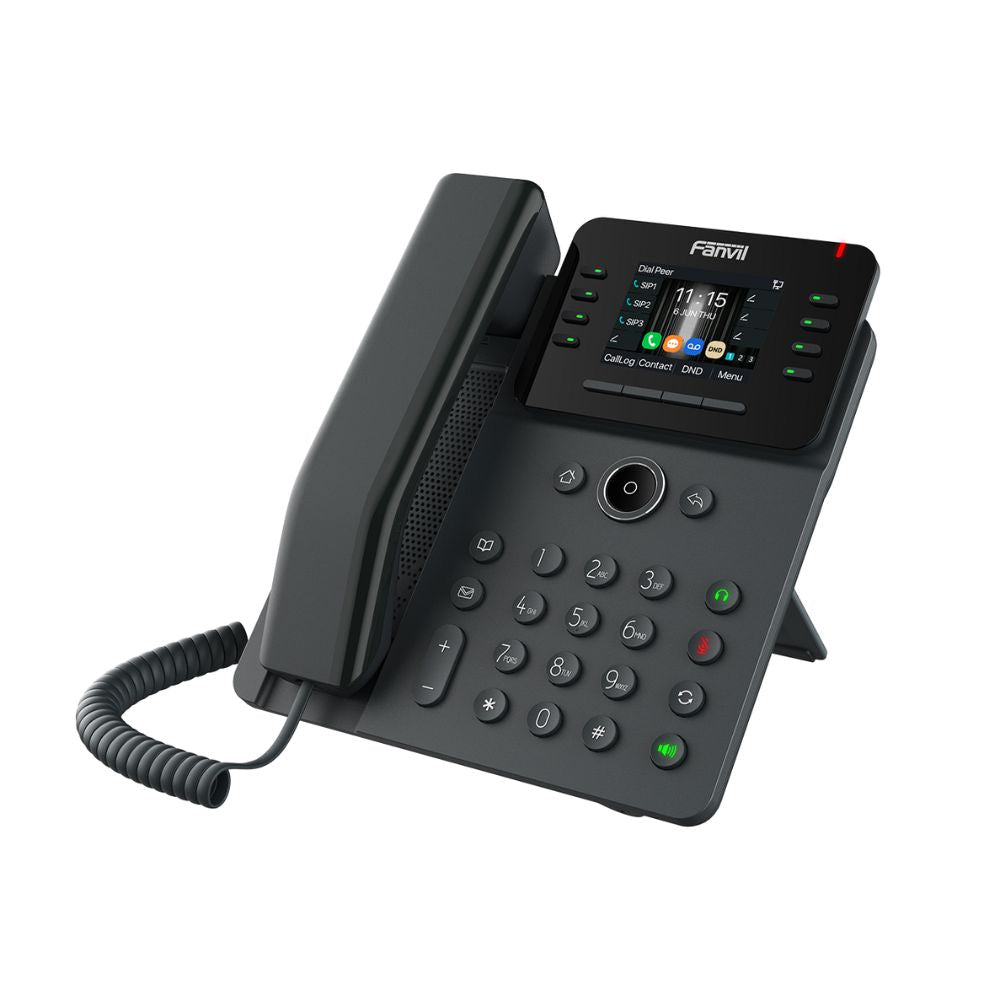
The Fanvil V62G Prime Business Phone in White features a 2.8-inch high-definition color display (320x240) and supports up to 12 SIP lines, enabling a 6-way audio conference with HD audio quality. This phone boasts dual Gigabit ports, integrated Power over Ethernet (PoE), and is well-suited for various business environments. Key Features: • Supports audio codec G.722 and Opus • 2.8" Color Screen • Dual Gigabit, PoE, IPv4 & IPv6 • Available to link with security products, customizable into various security solutions • Up to 21 DSS keys, every key can be set as Line/BLF/ Speed Dial Key • Hall-effect sensor switch for reliable handset detection • HAC functionality for hearing aid accessibility • LED lighting effects • Easy deployment and intelligent management through the FDMS • Built-in Bluetooth 5.4 • HD Voice For a full list of specifications, please refer to the product datasheet.

About This Product

The Fanvil V62G is designed for business users who need to manage multiple calls and lines efficiently. It fits well in small to medium-sized offices, meeting rooms, or open plan areas where desk phones are used. With support for up to 12 SIP lines and 21 programmable DSS keys, it suits receptionists, managers, or anyone handling moderate call volume.
Services We Provide
  • Professional Installation & Configuration
  • Ongoing Maintenance & Support
  • Troubleshooting & Repairs
  • System Upgrades & Updates



