
Fanvil X3SP Pro Entry Level IP Phone
AIM Telecom provides troubleshooting and configuration support for this product to businesses across Canada and the USA. Contact us to confirm whether the issue can be handled by phone or requires on-site service.
Get Support Call 416-312-4819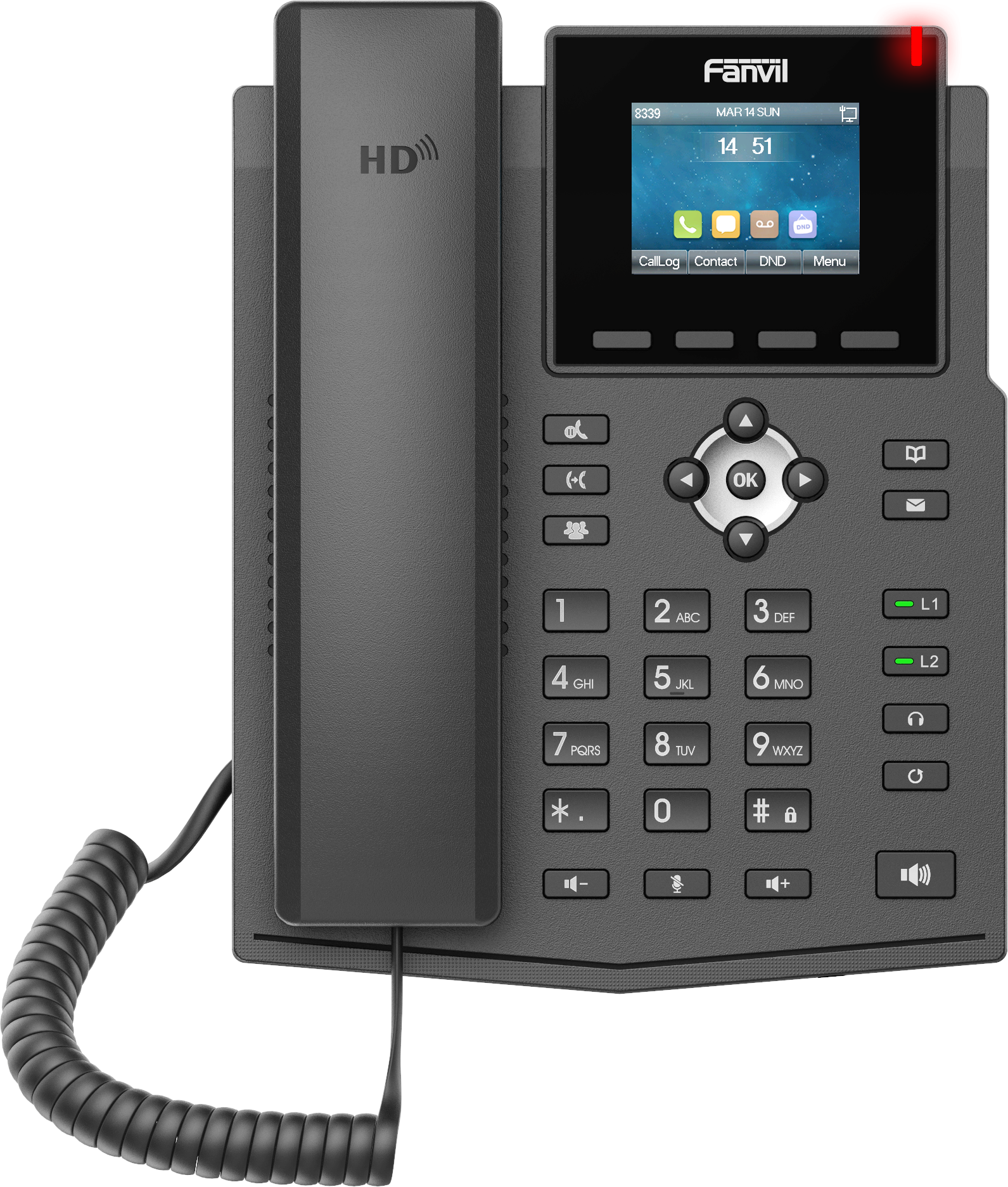
Common issues and fixes
Reviewed troubleshooting steps are not yet available for this model.
Ask AIM Telecom about this productAbout this product
• High-definition voice and 320x240 2.4-inch color main screen provide a high-quality experience
• Key features:
• 4 SIP lines with SIP hotspot for flexibility and connectivity
• 1000 local phonebook, caller ID, call hold, and transfer for efficient communication
• 2.4” color display for easy navigation and settings adjustments
• HD audio on speakerphone and handset for clear sound quality
• Opus voice support for various audio applications and compatibility
• 6-way audio conference capability for seamless team collaboration
• EHS wireless headset support for hands-free calls and convenience
• Dual Fast Ethernet ports with integrated PoE for reliable network connectivity
• Adjustable stand with two angles: 45 and 50 degrees for comfortable viewing
For a full list of specifications, please refer to the product datasheet.
• Key features:
• 4 SIP lines with SIP hotspot for flexibility and connectivity
• 1000 local phonebook, caller ID, call hold, and transfer for efficient communication
• 2.4” color display for easy navigation and settings adjustments
• HD audio on speakerphone and handset for clear sound quality
• Opus voice support for various audio applications and compatibility
• 6-way audio conference capability for seamless team collaboration
• EHS wireless headset support for hands-free calls and convenience
• Dual Fast Ethernet ports with integrated PoE for reliable network connectivity
• Adjustable stand with two angles: 45 and 50 degrees for comfortable viewing
For a full list of specifications, please refer to the product datasheet.
More product details
The Fanvil X3SP Pro is an entry-level IP phone designed for small offices, home offices, or front-desk roles where basic call handling and reliability matter more than flashy features. It fits comfortably on a desk with its 2.4-inch color display and adjustable stand, and its integrated Power over Ethernet (PoE) means one cable carries both data and power—a clean setup for busy workspaces. The phone pairs well with most SIP-based PBX systems and works reliably with many Canadian VoIP carriers, making it a practical choice for a small Toronto office or a remote worker needing a dedicated line.
While the X3SP Pro offers four SIP lines and a 1000-entry phonebook, its modest screen and lack of Gigabit Ethernet or expansion modules limit its appeal for power users who need many programmable keys or advanced call center features. It is overkill for someone who only needs a single line, yet underpowered for a receptionist juggling high call volumes who would benefit from a larger display or sidecar. The HD audio on speakerphone and handset is a genuine plus for clear conversations, though the two-angle stand (45 and 50 degrees) may not suit every user’s ergonomic preference.
For Canadian businesses, the phone's support for Opus voice codec and EHS wireless headset compatibility adds flexibility, but it lacks a built-in Bluetooth module—so Bluetooth headsets require an adapter. The dual Fast Ethernet ports (100 Mbps) are adequate for typical VoIP traffic but not ideal if you need to daisy-chain a high-bandwidth device. Overall, the X3SP Pro is a focused, no-nonsense tool for users who want a reliable, affordable desk phone without unnecessary complexity.
While the X3SP Pro offers four SIP lines and a 1000-entry phonebook, its modest screen and lack of Gigabit Ethernet or expansion modules limit its appeal for power users who need many programmable keys or advanced call center features. It is overkill for someone who only needs a single line, yet underpowered for a receptionist juggling high call volumes who would benefit from a larger display or sidecar. The HD audio on speakerphone and handset is a genuine plus for clear conversations, though the two-angle stand (45 and 50 degrees) may not suit every user’s ergonomic preference.
For Canadian businesses, the phone's support for Opus voice codec and EHS wireless headset compatibility adds flexibility, but it lacks a built-in Bluetooth module—so Bluetooth headsets require an adapter. The dual Fast Ethernet ports (100 Mbps) are adequate for typical VoIP traffic but not ideal if you need to daisy-chain a high-bandwidth device. Overall, the X3SP Pro is a focused, no-nonsense tool for users who want a reliable, affordable desk phone without unnecessary complexity.