Grandstream CloudUCM SOHO
Frequently Asked Questions
First, confirm the phone is on the same subnet or can reach the provisioning server over the internet—check that DNS resolves and that the UCM’s FQDN is correctly entered in the phone’s SIP server field. Next, ensure the extension credentials (username, password, and SIP port) match exactly what appears in the CloudUCM portal. If the phone still shows ‘registration failed,’ reboot the phone and your local router, then verify that no firewall is blocking the required SIP and RTP ports.
Start by running a quick VoIP quality test from a browser on the same network to see if jitter or packet loss is high. Reboot the internet modem and router, and if you’re on Wi‑Fi, temporarily connect the phone or softphone computer directly via Ethernet to rule out wireless interference. Inside the CloudUCM portal, confirm the preferred codec (usually G.722 or PCMU) is selected and that the ‘SBC’ feature is enabled, as it often smooths out NAT‑related audio issues.
Make sure you’re using the CloudUCM’s FQDN as the server address, not an IP, and that you type the extension number and password exactly as set. If the app still fails, uninstall and reinstall the latest version of Wave from the official app store, clearing its cache. Also, temporarily disable any VPN on the device—it can change the network path and prevent the app from reaching the cloud service.
First, verify that recording is enabled for the extension in the CloudUCM portal and that the call was actually answered. Check the storage usage gauge—if the 1 GB limit is full, older recordings may be overwritten or new ones rejected. For a quick test, manually trigger a recording during a call and wait a few minutes; if it still doesn’t show, confirm the browser isn’t blocking file downloads from the portal.
Look at the outbound route rules in the CloudUCM portal and ensure the extension is included in a valid route, with a correct dial pattern (such as ‘9+’ or a specific prefix). Then check that no call barring or time‑based restriction is accidentally enabled for that extension. If you’re using a SIP trunk, test with a different extension to isolate whether the issue lies with the trunk configuration or the extension permission.
Confirm that you have created a CNAME record in your DNS pointing your custom domain (e.g., ucm.yourcompany.ca) to the CloudUCM hostname provided in the portal. DNS changes can take up to 48 hours to propagate, so try again after a day. Also, make sure you’ve uploaded any required SSL certificate in the CloudUCM interface, because the service typically expects HTTPS.
Log into the CloudUCM portal as an administrator, navigate to ‘Extension/Trunk’ > ‘Extensions,’ and click ‘Add.’ Fill in the extension number, display name, and password, then save. Once created, you can email the auto‑generated provisioning link to the user, or manually enter the credentials into their desk phone or Wave softphone app.
Power‑cycle the phone and the network switch it’s connected to; sometimes the phone’s onboard network stack needs a fresh start. While the phone reboots, log into the CloudUCM portal and check whether the extension shows as ‘Registered’—if it’s ‘Offline,’ the phone isn’t reaching the server at all. Temporarily connect the phone to a different network port and, if possible, bypass any managed switch VLAN settings to see if the issue follows the phone or the network segment.
Yes, the API integrates with common workflows such as screen‑popping customer records or logging call details. You’ll need to generate an API key in the CloudUCM portal and then follow the developer documentation to craft requests. Test with a simple query first—like pulling a list of extensions—before building more complex automation, so you can confirm the connection and permissions are working.
This is often a NAT or firewall issue. In the CloudUCM portal, ensure the built‑in SBC is enabled for the extension; it helps the audio stream find its way back through routers. Next, check the phone’s network settings—if it’s using a static IP, confirm the default gateway and DNS are correct. As a test, move one phone to a different internet connection (e.g., a mobile hotspot) and see if the problem disappears; if it does, the local router’s SIP ALG or firewall rules likely need adjusting.
Accessories
Grandstream CloudUCM SOHO
• SOHO Annual Subscription: Unlock seamless communication and collaboration with your team. • Up to 20 extensions for easy management • 8 concurrent audio/video calls for efficient multitasking • Built-in SBC (Superior Sound Code) for high-quality voice communications • Wave softphone app for flexible access on any device • 1GB Cloud storage for secure data backup and retrieval • Recording capabilities for meetings and presentations • API integration for customized workflows • Custom domain name for branding flexibility
About This Product
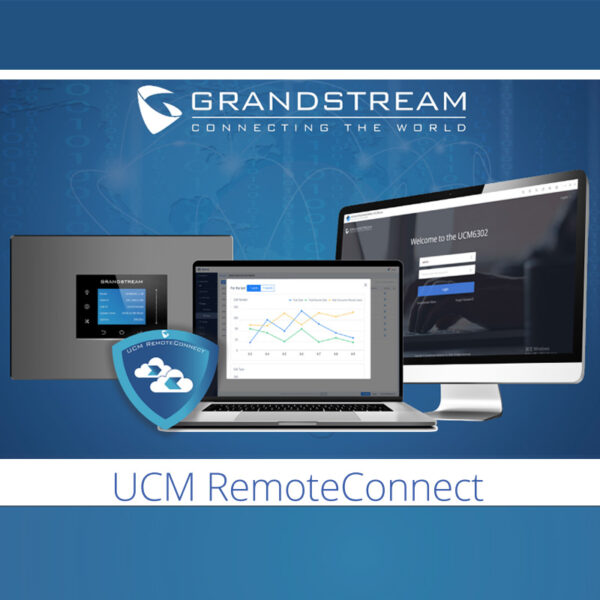
Grandstream’s CloudUCM SOHO is a subscription-based unified communications platform built for small offices, home offices, and lean teams that want a full-featured phone system without on‑premises hardware. It fits especially well where a handful of employees work remotely or across a couple of locations and need a common extension dial plan, video calling, and call recording—without the complexity of maintaining a local server. For a Toronto startup or a GTA satellite office with under 20 people, the service covers core telephony needs alongside extras like a cloud‑based session border controller and the Wave softphone app, keeping setup light and management entirely browser‑based.
The service pairs naturally with Grandstream SIP desktop phones and any device that runs the Wave client, but it can also work with third‑party SIP endpoints that support standard provisioning. It’s a logical step up from consumer‑grade VoIP lines or a standalone IP phone that lacks group features; it replaces the need for a small hardware UCM appliance while shifting maintenance and updates to the cloud. For businesses already using Grandstream gear, the zero‑touch provisioning streamlines rollout, though mixed‑vendor environments may require manual configuration and extra attention to codec compatibility.
Buyers should weigh a few practical limits. The eight concurrent call path ceiling means that if the team habitually runs several conference calls simultaneously while handling customer queues, capacity might be strained sooner than expected. The 1 GB of cloud storage for recordings is modest—suitable for occasional call logging or short meetings, but not for archiving hours of daily recordings. Custom domain branding is a nice touch, but it demands proper DNS setup and SSL certificate management, which can be a friction point for non‑technical owners. Being a cloud service, the system’s reliability and call quality are tied to the internet connection at each endpoint; a poor uplink at a home office will degrade experience for that user regardless of what the platform provides.
This solution is over‑engineered for a solo entrepreneur who only needs one or two extensions and can handle voice needs with a softphone alone. Conversely, a growing firm approaching the 20‑extension mark, or one that regularly needs more than eight simultaneous conversations, will find itself outgrowing the SOHO tier relatively quickly. In those cases, stepping up to a larger cloud plan or an on‑premise UCM with perpetual licensing may be more appropriate.
The service pairs naturally with Grandstream SIP desktop phones and any device that runs the Wave client, but it can also work with third‑party SIP endpoints that support standard provisioning. It’s a logical step up from consumer‑grade VoIP lines or a standalone IP phone that lacks group features; it replaces the need for a small hardware UCM appliance while shifting maintenance and updates to the cloud. For businesses already using Grandstream gear, the zero‑touch provisioning streamlines rollout, though mixed‑vendor environments may require manual configuration and extra attention to codec compatibility.
Buyers should weigh a few practical limits. The eight concurrent call path ceiling means that if the team habitually runs several conference calls simultaneously while handling customer queues, capacity might be strained sooner than expected. The 1 GB of cloud storage for recordings is modest—suitable for occasional call logging or short meetings, but not for archiving hours of daily recordings. Custom domain branding is a nice touch, but it demands proper DNS setup and SSL certificate management, which can be a friction point for non‑technical owners. Being a cloud service, the system’s reliability and call quality are tied to the internet connection at each endpoint; a poor uplink at a home office will degrade experience for that user regardless of what the platform provides.
This solution is over‑engineered for a solo entrepreneur who only needs one or two extensions and can handle voice needs with a softphone alone. Conversely, a growing firm approaching the 20‑extension mark, or one that regularly needs more than eight simultaneous conversations, will find itself outgrowing the SOHO tier relatively quickly. In those cases, stepping up to a larger cloud plan or an on‑premise UCM with perpetual licensing may be more appropriate.
Services We Provide
- Professional Installation & Configuration
- Ongoing Maintenance & Support
- Troubleshooting & Repairs
- System Upgrades & Updates