Grandstream CloudUCM Startup
Frequently Asked Questions
First, confirm that your softphone credentials (extension number and password) are entered exactly as shown in the CloudUCM portal. Also check that your internet connection allows SIP traffic—some office networks block the default ports. If you’re behind a strict firewall, try switching to the Wave app’s built-in SBC mode, which often bypasses such restrictions. If the issue persists, a Toronto-based VoIP support provider can usually resolve this remotely.
This is often a network stability or bandwidth issue. Run a simple ping test to a reliable server (like 8.8.8.8) to see if you have packet loss. Also verify that no other application is saturating your upload speed during calls. If you’re using Wi-Fi, try switching to a wired connection temporarily. These checks will help pinpoint whether the problem is local or with the cloud service itself.
Log into the CloudUCM web portal, go to the Extensions section, and click Add. Choose the extension number, set a SIP password, and assign a user. Then on the desk phone, enter the CloudUCM server address (provided in the portal) and that extension’s credentials. The phone should register within a minute. If it doesn’t, verify that the phone is set to use SIP and not another protocol.
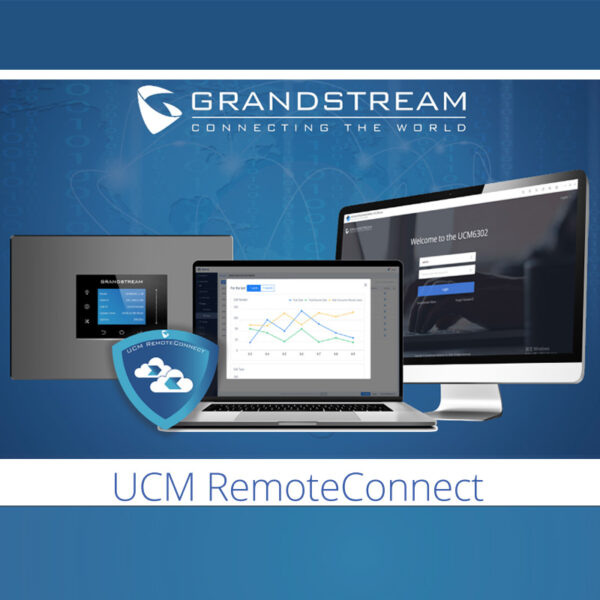
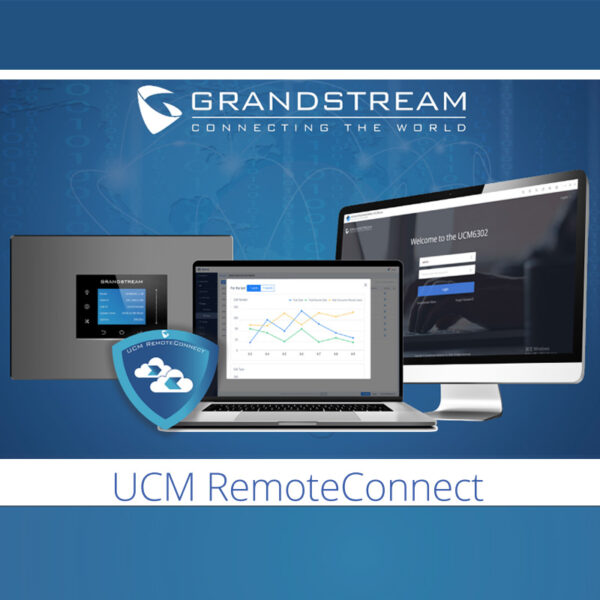
This usually points to a one-way audio issue, often caused by a firewall or NAT configuration. First, check that your device’s audio settings are correct (microphone not muted, correct input selected). If that’s fine, the problem is likely network-related. Try restarting your router and phone. For remote workers, enabling the Secure Browser (SBC) in the CloudUCM portal can resolve NAT traversal problems.
You can use any SIP trunk provider that supports standard SIP. In the CloudUCM portal, go to SIP Trunks and enter your provider’s server details, authentication, and codec preferences. Many Canadian business SIP providers (like those serving the GTA) work well. Just ensure your trunk allows at least 4 concurrent calls to match the CloudUCM’s limit.
The phone may be connected to the internet but not properly registering with the CloudUCM. Check that the phone’s SIP server address is correct and that it’s using the right port (usually 5060 or 5061). Also confirm that the extension’s password hasn’t been changed in the portal without updating the phone. A quick power cycle of the phone often forces a fresh registration attempt.
In the CloudUCM portal, navigate to Call Features > Auto Attendant. Create a new auto attendant, upload a greeting recording (or use text-to-speech), and configure the menu options (e.g., press 1 for Sales, press 2 for Support). Then assign that auto attendant as the main line’s destination in the call routing settings. Test it by calling your main number from a mobile phone.
Choppy audio is almost always due to network latency, jitter, or packet loss. Run a speed test to confirm you have adequate bandwidth (at least 100 kbps per call is recommended). If you’re on Wi-Fi, try moving closer to the router or using a wired connection. You can also adjust the codec priority in the CloudUCM portal to use a more bandwidth-friendly codec like G.729 if your phone supports it.
Deleted users and their voicemails are typically removed permanently from the CloudUCM system. If you have a backup (the portal may offer manual export), you can restore from that. Otherwise, the data is gone. To avoid this, always double-check before deleting a user. For future safety, enable automatic backups if available, or periodically export voicemail recordings to the 1GB cloud storage.
Log into the CloudUCM portal, go to the extension’s settings, and find Call Forwarding. You can set unconditional forwarding to your mobile number, or conditional forwarding (e.g., on busy or no answer). Enter the mobile number in E.164 format (e.g., +14165551234). Save the change and test by calling your extension from another line. Note that forwarding to a mobile may use minutes from your SIP trunk provider.
Accessories
Grandstream CloudUCM Startup
Startup and Annual Subscription Fee: • Up to 10 extensions • 4 concurrent audio/video calls • Built-in Secure Browser (SBC) • Wave softphone app • 1GB cloud storage
About This Product
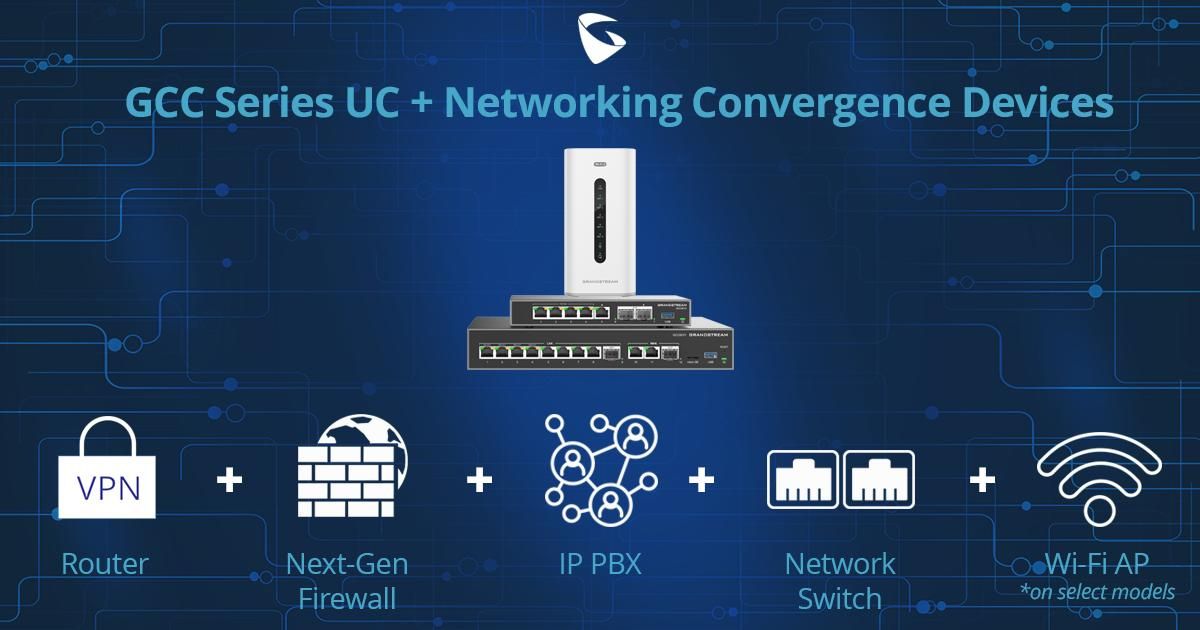
The Grandstream CloudUCM Startup is a cloud-hosted PBX service designed for small teams or branch offices that need a straightforward, low-maintenance phone system without the overhead of on-premise hardware. It’s ideal for businesses with up to 10 users who handle light to moderate call volumes—think a real estate agency, a law firm satellite office, or a retail shop with a few staff. The service pairs naturally with Grandstream’s Wave softphone app for mobile and desktop, and it can also integrate with any SIP-compatible desk phone. The built-in Secure Browser (SBC) simplifies remote connectivity, so off-site employees can register phones securely without complex VPN setups.
A key tradeoff is the 4-call concurrency limit: if your team regularly has more than four active calls at once, you’ll hit capacity. Similarly, the 1GB cloud storage is modest—adequate for basic voicemail and call recordings, but not for heavy archiving. For a single user or a tiny operation, the service may offer more features than needed; for a growing company expecting to exceed 10 extensions soon, it’s underpowered. In a Canadian context, this system works well with most SIP trunk providers available in the GTA, and the cloud management portal makes it easy for a local IT person or a Toronto-based VoIP support partner to administer remotely.
A key tradeoff is the 4-call concurrency limit: if your team regularly has more than four active calls at once, you’ll hit capacity. Similarly, the 1GB cloud storage is modest—adequate for basic voicemail and call recordings, but not for heavy archiving. For a single user or a tiny operation, the service may offer more features than needed; for a growing company expecting to exceed 10 extensions soon, it’s underpowered. In a Canadian context, this system works well with most SIP trunk providers available in the GTA, and the cloud management portal makes it easy for a local IT person or a Toronto-based VoIP support partner to administer remotely.
Services We Provide
- Professional Installation & Configuration
- Ongoing Maintenance & Support
- Troubleshooting & Repairs
- System Upgrades & Updates