Grandstream GBX20 Expansion Module

Frequently Asked Questions

First check that the connector cable is fully seated at both ends and that the phone itself is powered on and stable. The module draws power from the host phone, so if the phone is using PoE, ensure the switch port can supply enough power for the phone plus the expansion module. Try rebooting the phone while the module is attached; the phone should detect it during startup.
Confirm that the BLF or speed dial assignments are correctly configured in the host phone’s web interface under the expansion module keys. Also verify that the SIP account used for monitoring supports BLF subscriptions and that the phone is registered properly. A mismatch in the monitored extension number is a common cause; double-check the digit string matches exactly.
No, the GBX20 works only with the specific models listed in its documentation — GRP2615, GRP2624, GRP2650, GRP2670, GXV3350, and GXV3450. Plugging it into another phone will not cause harm, but the phone will not recognize the module, and no keys or display will function.
Start by disconnecting and reconnecting the module while the phone is powered on. Then, on the phone’s local LCD, navigate to Status > Accessory to see if the module appears. If not, check that the phone’s firmware is up to date; older firmware may lack support for the GBX20. A reboot of the phone with the module attached often resolves initial detection issues.
Adjust the backlight brightness from the phone’s settings under the expansion module options; it may have been set to off or a very low level. Also verify that the phone’s power supply is adequate – if the phone is struggling for power, it may disable the module’s display to conserve. A simple power cycle of the phone and module can restore normal screen operation.
Up to four GBX20 units can be daisy-chained to a compatible phone for a total of 160 contacts. All modules draw power through the phone, so you must be sure the phone’s power source (PoE switch or power adapter) can deliver enough. If you are using a PoE switch, check that the port provides sufficient power class; under-powered conditions can cause modules to drop offline or not light up.
Verify the cabling order: the first module connects to the phone’s expansion port, and the second connects to the pass-through port on the first. Re-seat both cables and power cycle the phone. If the issue persists, try swapping the modules to rule out a hardware fault. The phone’s accessory status screen will show how many modules are detected.
Yes, you can assign key labels and choose which lines or extensions appear via the host phone’s web configuration interface under the expansion module tab. The 4.3-inch colour screen shows these labels along with BLF status and call appearance indicators. Label changes usually take effect immediately after saving and refreshing the phone configuration.
It can work in a home office if the host phone is already present and the worker manages multiple lines or monitors many colleagues. The setup is straightforward over a VPN if the phone registers to a cloud PBX. However, for someone with only one or two lines, the module’s extra keys and screen footprint may be unnecessary; the phone’s built-in keys and on-screen BLF might suffice.
Accessories

Grandstream GBX20 Expansion Module
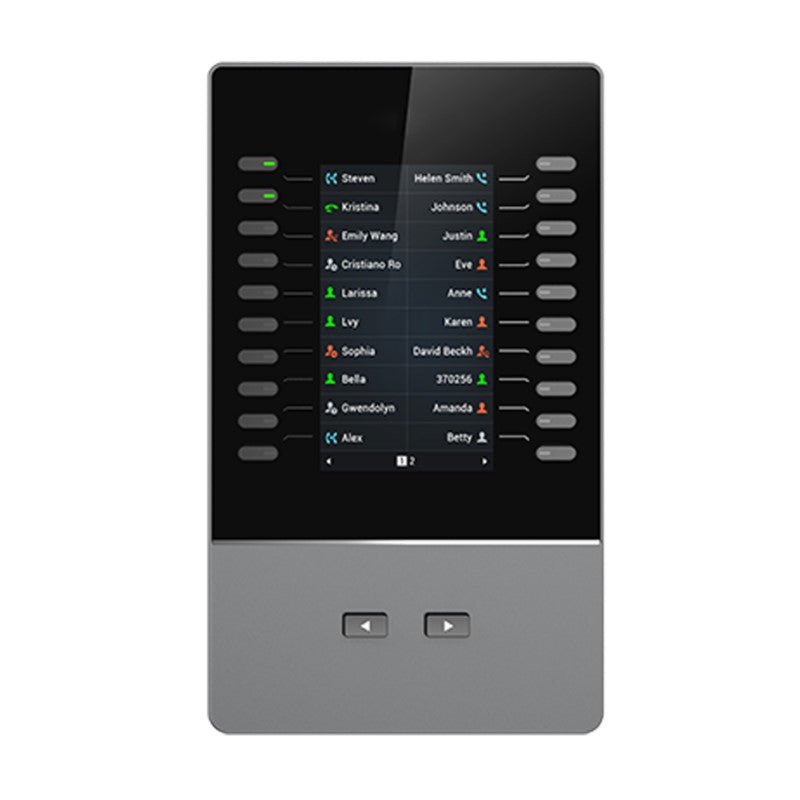
The GBX20 is a backlit LCD extension module designed for Grandstream GRP2615, GRP2624, GRP2650, and GRP2670 carrier-grade IP phones as well as GXV3350 and GXV3450 IP video phones. This module supports up to 40 contacts/ extensions with each GBX20. Key Features: • 20 dual-colored extension keys and 2 arrow keys for page switching • Compatible with up to 4 GBX20 modules, supporting a total of 160 contacts/extensions • 4.3 inch (272×480) TFT color LCD display • Supports multiple line/call appearances with local GUI Additional Information: • Weight: 1.2 lbs • Dimensions: 9 × 9 × 3 in • Accessory Type: Expansion Module Technical Specifications: • Lines per module: up to 40, up to 160 with 4 daisy-chained modules • Compatible IP Phones: GRP2615 and GXV3350 • Graphic Display: 4.3 inch (272×480) TFT color LCD • Feature Support Local GUI: Multiple line/call appearances

About This Product

The GBX20 expansion module extends the key count and visibility of select Grandstream desk phones, making it a natural fit for receptionists, executive assistants, and call-heavy roles where quick access to many lines or monitored extensions matters. It adds a colour screen and physical keys that light up with call status, so busy staff can see at a glance who is on a call or which line is ringing without navigating phone menus. In a Canadian small business or GTA professional office, this can streamline front-desk workflows and eliminate missed calls from overflow or colleagues’ lines.

It is not a standalone device; it needs a compatible Grandstream phone to supply both power and logic. The module draws its power through the connection to the host phone, so there is no separate power brick, but the phone’s own PoE budget or power supply must have enough headroom. Pairing one or two GBX20s with a GRP2615 or GXV3350 covers typical reception needs well, while the ability to chain up to four modules suits larger shared-attendant setups where a team manages many lines, though each added module consumes desk space and adds cable clutter.

Buyers should know the display is for status indicators and key labels, not a touchscreen or a secondary information panel — customization happens through the phone’s web interface or its local GUI. Also, the GBX20 works only with the models listed; plugging it into an unsupported Grandstream phone will not work. For organisations outside that compatibility list, or those using softphones and PC-based attendants, a physical expansion module would be overkill. Conversely, a receptionist juggling dozens of direct lines and intercoms might find even a fully loaded four-module chain a more immediate solution than a software-based console.
Services We Provide
  • Professional Installation & Configuration
  • Ongoing Maintenance & Support
  • Troubleshooting & Repairs
  • System Upgrades & Updates