Grandstream GUV3100 1080P HD USB Webcam

Frequently Asked Questions

Start by checking the USB connection. Try a different USB port—preferably directly on the computer rather than a hub—and ensure the cable is securely plugged into both the camera and the PC. If the camera still doesn’t appear, verify that your operating system’s camera permissions are not blocking it. If the issue persists, a Toronto-based VoIP support provider can often help diagnose the problem remotely.
First, make sure the application has permission to access the camera in your system’s privacy settings. Then, test with another app like Windows Camera or Photo Booth to see if the camera works elsewhere. If only one app shows a black screen, check that the GUV3100 is selected as the video source within that app’s settings.
The most common cause is poor lighting. Ensure you have a light source facing you, and avoid sitting with a bright window behind you. Also check that the protective film has been removed from the lens and that the lens is clean. In low-light situations, the camera will automatically increase gain, which can introduce grain, so adding a desk lamp often resolves it.
Make sure you are sitting within about one meter of the webcam and that there are no objects between you and the built-in microphones. In your conferencing application, confirm that the microphone input is set to the GUV3100 and not another source like a laptop’s internal mic. If the room is very reverberant, adding soft furnishings can improve clarity.
This often points to a power or bandwidth issue over USB. Try connecting the camera directly to a different USB port on the computer, avoiding external hubs. If you’re on a laptop running on battery, plug it into AC power. A powered USB hub can help if the port isn’t delivering consistent power. If the problem continues, a Toronto-based VoIP support provider can assist with further diagnostics.
USB bandwidth can be a limiting factor, especially if other high-bandwidth devices are connected. Disconnect any unnecessary USB peripherals and close applications that might be using the camera in the background. You can also try lowering the video resolution in your conferencing app; 720p often still looks sharp and reduces the data load.
The camera is plug-and-play, so Teams should automatically detect it once connected. Open Teams, go to Settings > Devices, and under Camera select the GUV3100. If it doesn’t appear, restart Teams and check that no other application is using the camera.
Yes. The GUV3100 is a UVC-compliant device, which means it follows the standard USB video class and will work with any modern OS that supports UVC cameras—including Chrome OS and most Linux distributions—without needing drivers.
You can access basic controls through many video conferencing apps in their device settings. Grandstream also provides a Camera Setup utility for Windows and Mac that lets you manually adjust brightness, contrast, saturation, and other parameters. Once set, those preferences are retained on the camera.
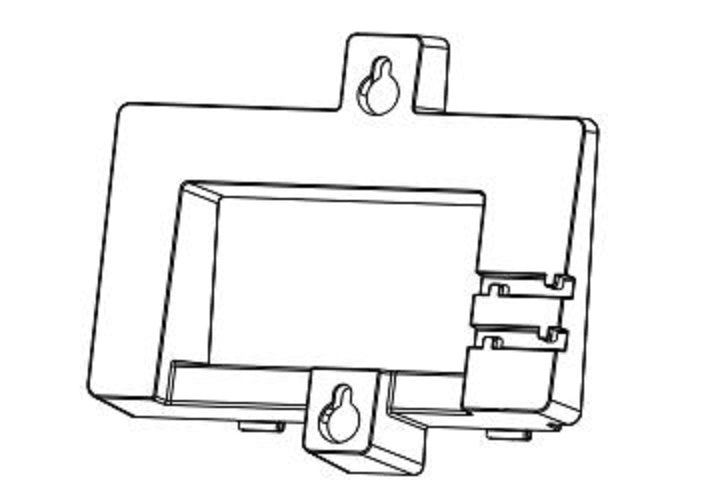
Yes, the base of the camera includes a standard ¼-inch tripod thread, so you can mount it on any consumer tripod or flexible mount. This is useful if you need to position the camera at a different height or angle than what the clip-on mount allows.
Accessories

Grandstream GUV3100 1080P HD USB Webcam
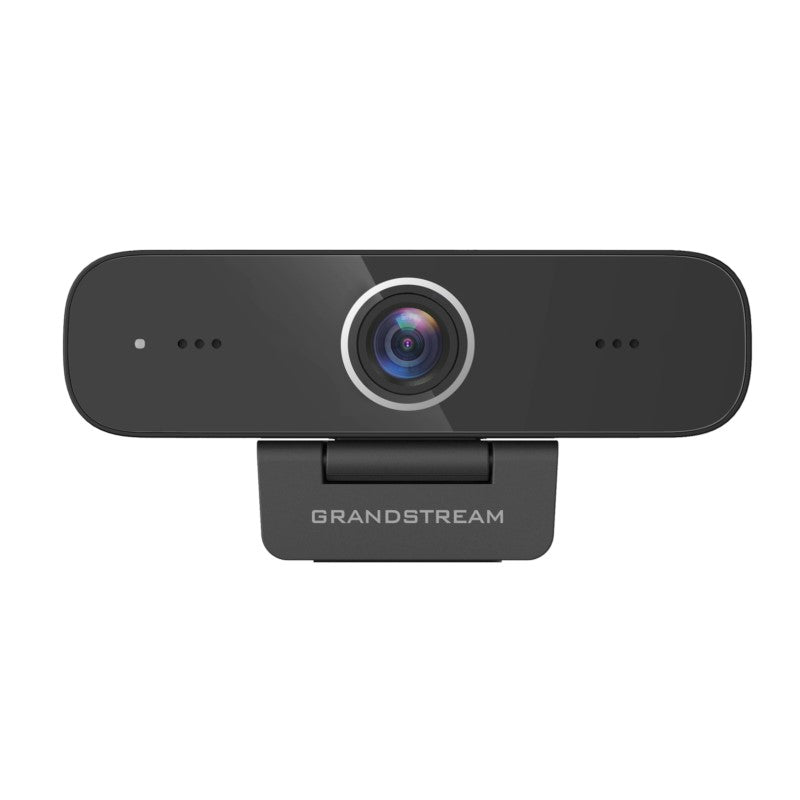
• The GUV3100 is a Full HD USB camera that enables high-quality audio and video collaboration through laptops, computers and more. It features: • 1080p Full HD real-time video through a 2 megapixel CMOS image sensor • 2 built-in omni-directional microphones with 1+ meter voice pickup range for clear communications • Plug-and-play setup via USB 2.0 port, no software download/installation needed • Compatible with all major third-party communication platforms, apps and softphones • Adjustable video settings include brightness, resolution, saturation, contrast, low-light and more • Weight: 0.65 lbs • Dimensions: 7 × 5 × 3 in • Brand: Grandstream • Technical Specifications: • Image Sensor: High-quality CMOS sensor • Effective Pixels: 2MP, 16:9 • Video Compression: MJPEG, YUV2, H.264, H.265 • Microphone: 2 integrated omni-directional microphones with over 1-meter voice pickup distance • USB: USB2.0 (for power and firmware upgrade) • Maximum Resolution: 1920×1080 • Maximum FPS: 30fps

About This Product

The Grandstream GUV3100 is a practical HD webcam for professionals who need reliable video in day-to-day conferencing, whether from a home office, a coworking desk, or a compact meeting room. It serves as a straightforward upgrade over the grainy cameras built into many laptops, delivering consistent 1080p video and voice pickup that works without fuss across most softphone and UC platforms. For Canadian businesses embracing hybrid work, it’s a cost-effective way to equip individual workstations without complex deployment.

It pairs naturally with a good USB or Bluetooth headset for a complete personal audio-video setup, allowing you to keep the built-in microphones as a fallback for voice-only calls. The plug-and-play USB 2.0 connection means no IT intervention is required—simply plug it into a laptop or desktop and it’s ready. This makes it ideal for hot-desking environments or for employees who switch between a docked home setup and a portable laptop.

The GUV3100 is a fixed, wide-enough camera for a single user at arm’s length, but it lacks pan, tilt, or optical zoom, so it’s not suited for framing multiple people or covering a large conference table. Its built-in omnidirectional mics capture clear audio from up to a meter away, but in a noisy open-plan office or around background chatter, a dedicated speakerphone or headset mic will yield better results. The camera’s low-light performance is decent, but you’ll still want some ambient light on your face rather than a bright window behind you.

For a dedicated small meeting room where participants sit close to a display, the GUV3100 can work if the table layout keeps everyone within a couple of meters of the camera. However, for a boardroom with distant attendees or a need for camera control during presentations, you’ll want a PTZ conferencing camera instead. In a typical Toronto SMB office, it’s a solid workstation companion that fills the gap between a laptop’s mediocre camera and a full-scale room system, without adding driver headaches.
Services We Provide
  • Professional Installation & Configuration
  • Ongoing Maintenance & Support
  • Troubleshooting & Repairs
  • System Upgrades & Updates