Grandstream GXP2200EXT Expansion Module

Frequently Asked Questions

First, check that the connection cable is firmly seated at both ends. Power-cycle the host phone by unplugging its Ethernet cable from the PoE switch for a few seconds, then reconnect. If the module still doesn’t appear, log into the phone’s web interface and make sure the expansion module is enabled under the appropriate peripherals setting—sometimes a firmware mismatch prevents detection, so confirm with your VoIP provider that the phone is running a compatible release.
A blank screen usually points to a power delivery problem. The module draws power from the host phone, so verify that the phone is receiving PoE from the switch and that the switch port has enough budget—especially if multiple modules are chained. Reseat the cable between the module and the phone, then reboot the host phone to see if the screen comes back.
Start by ensuring the BLF subscription is correctly configured on your SIP server or provisioning system. In the phone’s web UI, look at the programmable key assigned to that extension and verify the account number and target extension are correct. If you’re using multiple SIP accounts, confirm that the BLF key is tied to the right account where the subscription is active.
Yes, modules must be connected in order: module 1 to the phone, module 2 to module 1. Check that the link cable between the two modules is fully inserted and that the second module’s connector isn’t damaged. Sometimes you need to reboot the phone after adding extra modules for the chain to be recognized correctly.
This often means the phone hasn’t applied your configuration yet. After making changes in the web interface, save and reboot the phone. If you’re using zero-touch provisioning, power-cycle the phone while it’s on the network so it can re-download the config. The labels should update once the phone registers with the updated settings.
Intermittent freezing can result from a firmware bug or borderline PoE power. First, check that your Ethernet switch is delivering at least 802.3af—ideally 802.3at if you have multiple modules—and try swapping switch ports. If the problem persists, talk to your provider about updating to the latest stable phone firmware. A Toronto-based VoIP support provider can usually review the power draw and logs remotely.
Log into the host phone’s web interface, find the Programmable Keys or Keys configuration section, and locate the button number that corresponds to the module position. Set it to Speed Dial mode, then enter the full phone number or extension. Save the changes, and the new label will appear after the phone reboots or receives the updated configuration.
No, the module is only compatible with the GXP2140, GXP2170, and GXV3240. It will not physically fit or be recognized by any other Grandstream phone, and it won’t work with non-Grandstream devices.
The module needs power, which it draws through the phone’s Ethernet port. Even if the phone uses Wi-Fi for network access, it must still be plugged into a PoE-capable switch via its LAN port for the module to power on. A Wi-Fi–only connection with a power adapter won’t deliver power to the sidecar.
No, the module doesn’t have its own network interface or updatable firmware. It inherits all behavior from the host phone. Any firmware improvements for expansion module functionality come bundled with the phone’s firmware, so you only need to manage updates on the host device.
Accessories

Grandstream GXP2200EXT Expansion Module

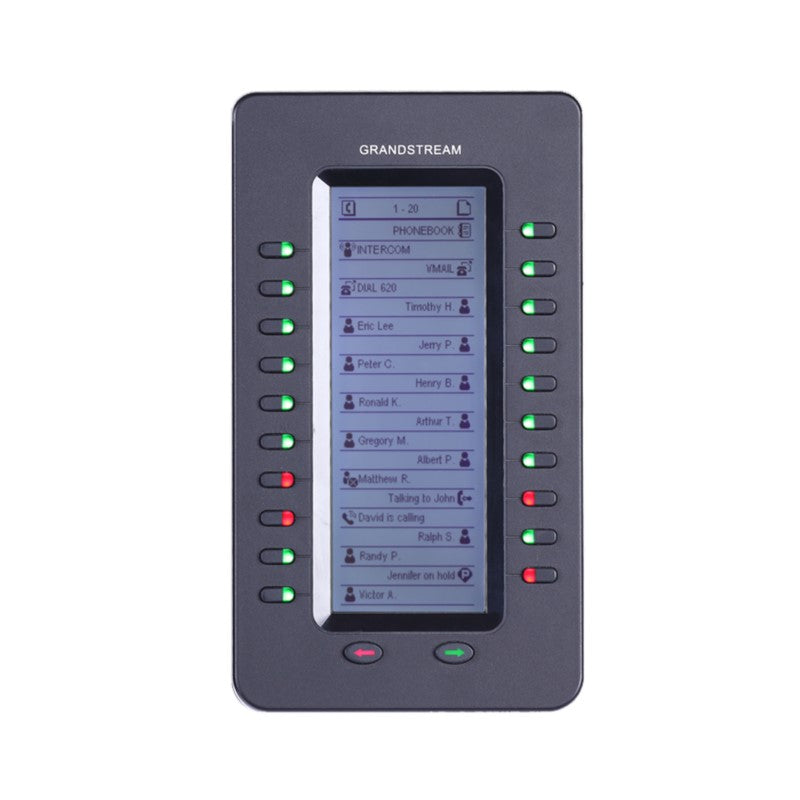
• The Grandstream GXP2200EXT module delivers additional functionality to the GXP2140, GXP2170 Enterprise IP Phones and GXV3240 Video IP Phone for Android. • Key features include: • A large 128 x 384 graphic LCD display • 20 programmable dual-color buttons per module with up to 160 total buttons when daisy-chained with 4 modules • Support for BLF, speed dial, and other traditional call features on each programmable button • Ideal solution for businesses managing high call volumes or receptionists monitoring multiple incoming calls. • Benefits include: • Up to 40 extensions per module using the 2-page switch keys • Daisy-chain up to 4 modules for up to 160 contacts/extensions • Support for BLA, SCA, and other advanced features • Technical specifications include: • Lines: 20 per page (up to 40 lines per module) or up to 160 with 4 daisy-chained modules • Compatible Grandstream IP phones: GXP2140, GXP2170, and GXV3240 • Feature support includes local GUI with animation driven from the host phone

About This Product

The GXP2200EXT is a sidecar expansion module designed to add physical line keys and BLF presence indicators to select Grandstream desk phones. It’s intended for receptionists, call attendants, and any user who needs to monitor and manage multiple extensions at a glance, such as in a busy front-desk environment or a sales bullpen. By sitting directly beside the host phone, it extends the phone’s interface without requiring an extra network drop, keeping the setup compact and directly under the user’s view. The module makes the most sense in organizations that already rely on the GXP2140, GXP2170, or GXV3240 and have call volumes that justify dedicated hardware buttons rather than screen-tap menus. In a typical Toronto office with a receptionist handling dozens of incoming lines, a single module can display up to 40 extensions across two pages, and daisy-chaining up to four modules scales that to 160—ample for a mid-sized firm. Because the module draws power through the phone and depends on the phone’s firmware, it introduces a few practical tradeoffs: desk footprint increases, cable management becomes more important, and any network or power issue affecting the host phone will also affect the module. It’s overkill for a home office or a small team that only needs a handful of speed dials, and it’s locked to the Grandstream ecosystem—it won’t work as a universal sidecar for other brands. For Canadian businesses evaluating their VoIP endpoints, the GXP2200EXT shines when the phone deployment is standardized on the compatible Grandstream models and the workflow genuinely requires real-time visual call presence and one-touch transfers. If you’re simply adding a few shortcuts to a personal phone, the cost and desk real estate may not be justified.

Services We Provide
  • Professional Installation & Configuration
  • Ongoing Maintenance & Support
  • Troubleshooting & Repairs
  • System Upgrades & Updates