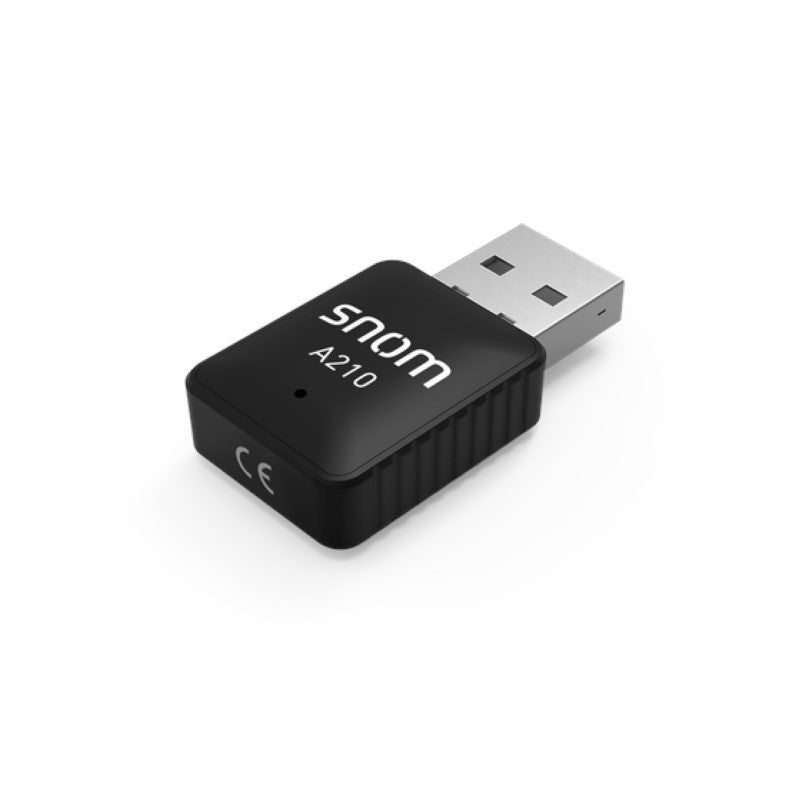
Snom A210 Wi-Fi USB Dongle
Frequently Asked Questions
Make sure the dongle is fully inserted into the phone’s USB port and that the phone is powered on. Verify your Snom model is a compatible D3xx or D7xx series phone, as the A210 is not universal. Try power‑cycling the phone with the dongle connected; a simple reboot often triggers the necessary driver initialization. If the LED on the dongle remains off, test the phone’s USB port with another device if possible.
First, check that the wireless access point is broadcasting its SSID and is within range. The A210 supports 2.4 GHz and 5 GHz bands, but if the phone’s menu only scans one band, ensure both are enabled on the access point. Also, confirm that the wireless network is not using a hidden SSID; if it is, you may need to manually enter the network name in the phone’s settings. Restarting the phone after plugging in the dongle can also refresh the scan.
Move the phone or access point to reduce distance and obstacles like walls or metal cabinets. Check the wireless channel for interference from neighboring networks; changing the channel on the access point can make a big difference. Ensure the phone’s firmware is up‑to‑date, as Snom periodically improves wireless stability. If you are using a 5 GHz network, try switching to 2.4 GHz temporarily to see if range is the issue.
Choppy audio is often a sign of packet loss or jitter on the wireless link. Start by checking Wi‑Fi signal strength: on the phone’s status screen, you’ll usually see an RSSI value; anything below -70 dBm may not be reliable for voice. Ensure no heavy downloads or streaming are happening on the same Wi‑Fi network. If you have Quality of Service (QoS) settings on your router, prioritize VoIP traffic or give the phone’s MAC address higher priority.
Confirm that the phone receives an IP address from the wireless network; check the phone’s network status for a valid IP, subnet mask, and default gateway. Some corporate Wi‑Fi networks use captive portals or require a separate VLAN for voice traffic—make sure the correct SSID is being used. If your SIP server requires a specific outbound proxy or STUN server, verify those settings are still intact, as they may have been configured for the wired interface.
The A210 supports WPA‑PSK, WPA2‑PSK, WPA/WPA2 Enterprise, and WEP. WPA3 is not listed in its specifications, so if your network is set to WPA3‑only, you may need to configure a WPA2 transitional mode or a separate SSID for the phone. Most modern access points allow mixed WPA2/WPA3; if you must use WPA3 exclusively, this dongle may not be the right fit.
You can enter the passphrase directly on the phone’s keypad using the alphanumeric input method; many Snom models also allow you to connect a USB keyboard for easier typing. Alternatively, if your phone supports web interface access, you can log in from a computer, navigate to the network settings, and paste the password there while the dongle is active. Look for the WLAN settings page that becomes available after the dongle is recognized.
This usually points to a DHCP negotiation problem or an authentication mismatch. Double-check that the Wi‑Fi password and encryption type (WPA2, etc.) match exactly what is set on the access point. Also, verify that the DHCP server on your network has free addresses and is not blocking unknown MAC addresses. If you can, assign a static IP from the phone’s menu for a quick test to bypass DHCP. If the issue persists, a Toronto‑based VoIP support provider can usually resolve this remotely.
Accessories
Snom A210 Wi-Fi USB Dongle
• The Snom A210 WLAN Adapter transforms your current Snom D3xx and D7xx phone with a USB port into a WLAN device. Features: • Easy to use • • Transmission Rate: • 11b: 1/2/5.5/11Mbps • 11g: 6/9/12/18/24/36/48/54Mbps • 11n: 150Mbps • 11ac:433Mbps • Weight: 0.5 lbs • Dimensions: 8 × 8 × 4 in • Accessory Type: WiFi Dongle • • Wireless Frequency: 2.4~2.484GHz, 5.180~5.825GHz • Wireless Standard: IEEE802.11a, IEEE802.11b, IEEE802.11g, IEEE802.11n, IEEE802.11ac • • Transmission Rate: • 11b: 1/2/5.5/11Mbps • 11g: 6/9/12/18/24/36/48/54Mbps • 11n: 150Mbps • 11ac:433Mbps • Encryption: WPA-PSK/WPA2-PSK, WPA/WPA2, WEP • Marking: CE, Safety IEC 60950
About This Product
The Snom A210 Wi-Fi USB Dongle gives your compatible Snom desktop phone the flexibility of a wireless network connection. It is designed for environments where running Ethernet cabling to every desk is impractical or too expensive, such as smaller offices, retail spaces, or temporary setups. The dongle plugs into the USB port on Snom D3xx and D7xx series phones, instantly turning them into Wi‑Fi clients without any internal hardware modifications.
This accessory suits businesses that value mobility and a clean desk layout. It can pair well with a modern dual‑band access point, leveraging both 2.4 GHz and 5 GHz to avoid congestion. However, it is not a substitute for a wired connection when reliable, low‑latency voice is critical. Wi‑Fi introduces variables like signal interference, distance, and network load that can affect call quality, so in a busy GTA office with many active calls, a wired LAN remains the safer choice.
The main trade‑off is stability. The A210 performs best within reasonable range of a well‑designed wireless network, but users in high‑density call center environments or rooms with thick walls may experience occasional audio issues or registration drops. It also relies on the phone’s existing provisioning and security settings, so the Wi‑Fi network must be configured to pass VoIP traffic reliably.
For a single phone in a home office or a satellite location, this dongle is a cost‑effective solution. In a large deployment where every phone needs Wi‑Fi, a purpose‑built wireless IP phone with integrated radios may be a cleaner alternative, avoiding the USB clutter and potential incompatibilities. Before buying, confirm your Snom phone is on the supported list; older firmware may also need an update to use the dongle properly.
This accessory suits businesses that value mobility and a clean desk layout. It can pair well with a modern dual‑band access point, leveraging both 2.4 GHz and 5 GHz to avoid congestion. However, it is not a substitute for a wired connection when reliable, low‑latency voice is critical. Wi‑Fi introduces variables like signal interference, distance, and network load that can affect call quality, so in a busy GTA office with many active calls, a wired LAN remains the safer choice.
The main trade‑off is stability. The A210 performs best within reasonable range of a well‑designed wireless network, but users in high‑density call center environments or rooms with thick walls may experience occasional audio issues or registration drops. It also relies on the phone’s existing provisioning and security settings, so the Wi‑Fi network must be configured to pass VoIP traffic reliably.
For a single phone in a home office or a satellite location, this dongle is a cost‑effective solution. In a large deployment where every phone needs Wi‑Fi, a purpose‑built wireless IP phone with integrated radios may be a cleaner alternative, avoiding the USB clutter and potential incompatibilities. Before buying, confirm your Snom phone is on the supported list; older firmware may also need an update to use the dongle properly.
Services We Provide
- Professional Installation & Configuration
- Ongoing Maintenance & Support
- Troubleshooting & Repairs
- System Upgrades & Updates