Snom D7 Expansion Module
Frequently Asked Questions
First, ensure the module is firmly connected to your phone via the USB cable. If the phone itself is powered on and the cable is secure but the LEDs remain off, try disconnecting and reconnecting the module while the phone is running. If this doesn't work, verify that the module is properly recognized in the phone's web interface under the expansion module settings. A simple power cycle of both the phone and module (unplug the phone, wait 10 seconds, reconnect) can also resolve this.
You can configure each key from your Snom phone's web interface. Log in, navigate to the expansion module section (often under 'Function Keys' or 'Expansion Module'), and assign keys as BLF, speed dial, or other functions. Alternatively, press and hold a key on the module itself to enter edit mode directly on the phone. The module will display the current assignment and let you change it.
A blank display often means the module isn’t receiving power or isn’t connected properly. Start by checking the USB connection at both ends. If the phone is on and the cable is secure, try pressing a few keys to see if any LED responds. If the phone detects the module but the screen stays off, you may need to check the brightness setting on the phone’s interface or update the phone’s firmware. If none of these steps help, contact your VoIP support provider for further diagnosis.
Yes, you can daisy-chain up to three Snom D7 modules. The first module draws power from the phone’s USB port. For a second and third module, you must connect an external power supply (5V DC, not included) to the designated power jack on the module. Without this extra power, additional modules will not function. Plan your setup accordingly before purchasing multiple units.
Non-responsive keys are often due to a loose connection or a configuration issue. First, reseat the module cable. If the keys are assigned, check that the destination extension or speed dial number is still valid. Also, try pressing and holding a key for a second — some phones require a short press to activate the assigned function. If a single key is stuck, examine it for physical obstruction. For a set of non-responsive keys, a full power cycle of the phone and module is a safe next step.
The expansion module does not have its own firmware; it is controlled by your Snom phone’s firmware. To ensure compatibility and features, keep your phone’s firmware updated. Check your phone’s web interface under 'Administration' or 'Firmware Update' to see if a newer version is available. Updating the phone will automatically apply any necessary updates to the attached expansion module.
This message indicates the module is not communicating with the phone. Verify the USB cable is undamaged and fully inserted into both the module and the phone’s USB port (ensure it’s plugged into the correct port — the D7 series phone typically has a dedicated port marked for expansion modules). If using a third-party USB cable, it may not carry data; try the cable that came with the module. A power cycle of the phone often resolves this handshake issue.
No, the Snom D7 Expansion Module is designed specifically for Snom D7-series phones and communicates using a proprietary protocol over USB. It will not function with other brands or models. If you need expansion buttons for a different phone, consider universal sidecar solutions or the expansion module offered by your phone’s manufacturer.
BLF (Busy Lamp Field) depends on your phone being properly registered to your SIP server and subscribing to presence updates. If your network changed (new IP, VLAN, or SIP settings), the phone may have lost its registration. Check the phone’s registration status under 'Status' or 'Account' in the web interface. Re-enter your SIP credentials if needed, or ensure the phone is on the correct VLAN and can reach the PBX. Once the phone re-registers, BLF lights should begin working again within a minute.
Yes, you can back up the entire phone configuration (which includes expansion module settings) via the phone’s web interface. Look for an option like 'Configuration' or 'Download Config' to save a file. To restore, upload that same file. This is especially useful when deploying multiple phones with identical module setups in a Toronto office — your VoIP provider can assist with automated provisioning if needed.
Accessories
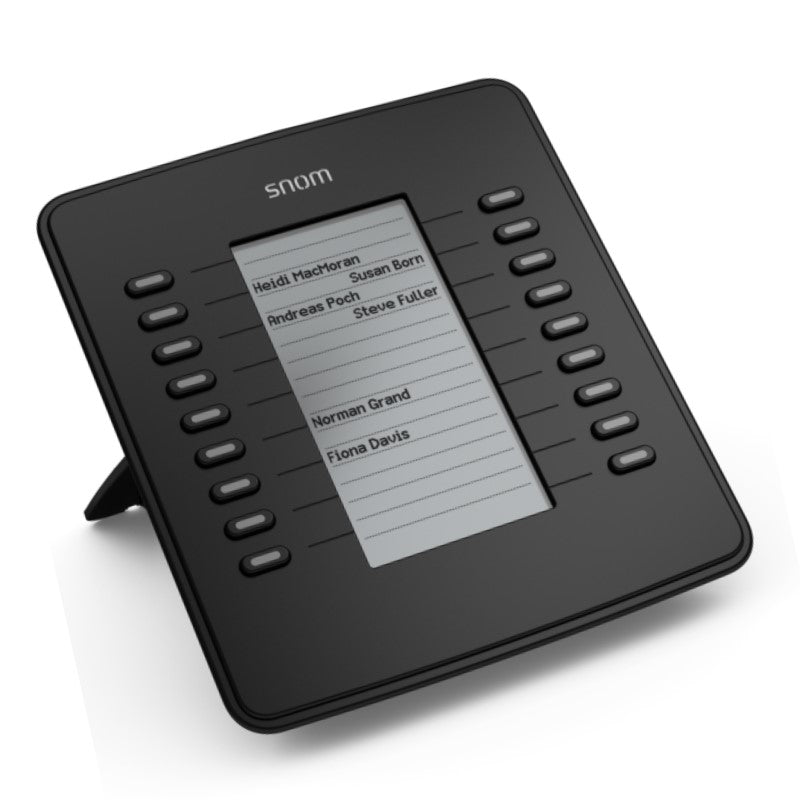
Snom D7 Expansion Module
• 18 multicolor LED keys for customizable line, speed dial, busy lamp field, presence indication, and more • High-resolution black & white display with backlight for a perfect visual interface • Daisy chain up to 3 modules for flexible configuration • Plug and play installation with easy setup via phone's web interface or directly on the device • Power supplied by phone via USB port; additional power supply required for second module if more than two expansion modules are used • Highly configurable self-labeling LED keys for personalized customization • Includes base unit, foot stand, quick start guide, and part numbers for easy reference
About This Product
The Snom D7 Expansion Module is designed for users who need more than the standard line keys on their desk phone. It’s ideal for receptionists, managers, or anyone in a busy office environment who monitors multiple extensions, uses busy lamp fields, or needs quick access to speed dials and presence indicators. The module pairs naturally with Snom’s D7-series phones, extending their capabilities without adding separate hardware. If you’re running a small to medium-sized GTA office and handling a high volume of calls or need to keep an eye on team availability, this module can be a practical addition.
Installation is straightforward: plug the module into the phone’s USB port, and it’s recognized automatically. The built-in keys are self-labeling, so you can define them via the phone’s web interface or on-device menus. However, note the power trade-off. One module is powered by the phone’s USB port, but if you connect two or more modules, the second (and third) will require an external power supply (not included). This is a simple limitation to plan for before you expand beyond a single module.
For most office deployments, a single D7 module with 18 assignable keys is plenty. Adding a second or third module can bring up to 54 keys, which may be overkill unless you’re managing a very large number of lines or BLF destinations. Conversely, if you need only a few extra buttons, the module might be more than you need, and a smaller or virtual solution could suffice. Overall, it’s a solid accessory for power users who want physical, customizable buttons — but be mindful of your power budget and key-count requirements before expanding.
Installation is straightforward: plug the module into the phone’s USB port, and it’s recognized automatically. The built-in keys are self-labeling, so you can define them via the phone’s web interface or on-device menus. However, note the power trade-off. One module is powered by the phone’s USB port, but if you connect two or more modules, the second (and third) will require an external power supply (not included). This is a simple limitation to plan for before you expand beyond a single module.
For most office deployments, a single D7 module with 18 assignable keys is plenty. Adding a second or third module can bring up to 54 keys, which may be overkill unless you’re managing a very large number of lines or BLF destinations. Conversely, if you need only a few extra buttons, the module might be more than you need, and a smaller or virtual solution could suffice. Overall, it’s a solid accessory for power users who want physical, customizable buttons — but be mindful of your power budget and key-count requirements before expanding.
Services We Provide
- Professional Installation & Configuration
- Ongoing Maintenance & Support
- Troubleshooting & Repairs
- System Upgrades & Updates