
Yealink BH70 Dual Teams Bluetooth Headset USB-C/A 1208703

Frequently Asked Questions

First, ensure the headset is charged and powered on. If you are using the included BT51C dongle, try plugging it into a different USB port, preferably directly on the computer rather than through a hub. If connecting without the dongle, go to your computer's Bluetooth settings, remove the BH70 from the paired devices list, and pair it again by putting the headset into pairing mode (press and hold the power button until the LED flashes red and blue).
Check that you are within the headset's wireless range (up to 50 meters) and that there are no large metal obstacles or other wireless devices between the headset and the computer or dongle. If the audio is still choppy, try moving closer to the computer or reconnecting the BT51C dongle. If you are connected via Bluetooth without the dongle, switching to the dongle connection often provides a more stable audio link.
First, make sure your headset firmware is up to date using the Yealink Device Manager or Yealink USB Connect software. Also, check your Teams audio settings to confirm the BH70 is selected as both the speaker and microphone. If the issue persists, try disconnecting and reconnecting the headset, and if that doesn't help, restart your computer to clear any driver conflicts.
The busy light feature may need to be enabled in your softphone or UC platform settings. In Microsoft Teams, go to Devices and ensure the headset is set to automatically control the busy light. You can also check the Yealink USB Connect software to confirm the feature is turned on at the headset level. If it still doesn't work, a quick power cycle of the headset (turn off and on) can sometimes resolve the issue.
The BH70 uses microphone noise cancellation to reduce background noise for the listener, but it is not perfect in very loud environments. Make sure the microphone boom is positioned correctly, ideally close to your mouth. Also, check that the headset firmware is up to date, as noise cancellation algorithms are sometimes improved in updates. If the noise is still excessive, you may need to move to a quieter location or adjust your microphone sensitivity in your softphone settings.
Put the headset into pairing mode (press and hold the power button until the LED flashes red and blue). On your smartphone, go to Bluetooth settings and select 'Yealink BH70' from the list of available devices. The headset can remember up to 8 paired devices and connect to two simultaneously, so you can take calls from either your computer or phone without re-pairing.
First, ensure you are using the provided USB charging cable and a powered USB port or charger. Try a different USB port or wall adapter. If the headset still does not charge, inspect the charging port on the headset for any debris or damage. A power cycle (turning the headset off and on again) after connecting the charger can also help if the battery indicator is stuck.
Yes, the BH70 can connect directly to any Bluetooth-enabled device, such as a laptop, tablet, or smartphone. However, for the best audio quality and most reliable connection with your computer, especially during Teams calls, using the included BT51C dongle is recommended. The dongle also provides a wider wireless range and reduces interference from other Bluetooth devices.
Check that the microphone boom is not muted (the mute button is on the headset). Also, verify in your softphone or computer's sound settings that the BH70 is selected as the input device. If you are using the headset with a USB connection, try unplugging and reconnecting the dongle or cable. Restarting your softphone application can also resolve temporary audio device conflicts.
First, check the volume level on both the headset and your computer or softphone application. In Microsoft Teams, there is a separate device volume slider that may be set lower than the system volume. Also, ensure the headset speaker is not blocked by hair or clothing. If the issue persists, try connecting the headset to a different device to rule out a hardware problem with the headset itself.
Headsets

Yealink BH70 Dual Teams Bluetooth Headset USB-C/A 1208703
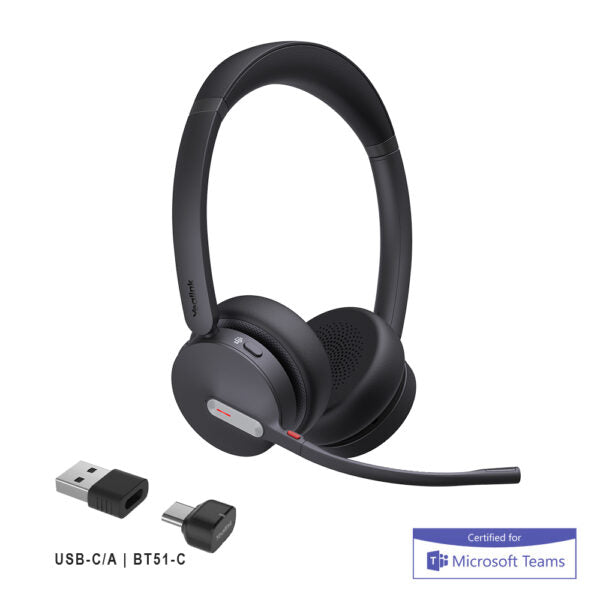
* Enhance production efficiency and maintain absolute competitiveness with the Yealink BH70 Bluetooth wireless headset, designed for office, home, or on-the-go use. • Equipped with Yealink’s advanced 2nd generation microphone noise cancellation technology • Three AI-powered microphones intelligently reduce background noise to ensure a seamless call experience • Designed ergonomically based on extensive user studies for exceptional comfort during extended wear • Impressive stereo playback sound quality • Long-lasting battery life up to 35 hours wireless usage and effortless usability Features: • Advanced 2nd generation microphone noise cancellation technology • All-day-wearing comfort • Brilliant audio quality from a 35mm custom speaker • Up to 35 hours of wireless battery life • Engineered for minimizing wind noise • Lightweight design • Enhanced Busy Light functionality • Compatible with mainstream UC platforms and Teams Certified Additional Information: • Weight: 1 lb • Dimensions: 6.97 × 8.15 × 2.09 in • Headset Type: Bluetooth, Stereo, Teams Certified, USB Technical Specifications: • Package Content: BH70 Dual Teams USB-C/A Headset, Drawstring Bag, USB Charging Cable, Quick Start Guide, BT51C Dongle • Connectivity: Bluetooth 5.3, Wireless range up to 50m/164ft, Connect via USB C/A adapter with BT51C dongle, USB cable, or Bluetooth • Simultaneous Bluetooth connections: Up to 2 devices • Multiple device pairing: Up to 8 devices • Microphone number: 3 • Acoustic Shield: Yes • Active Noise Cancellation: No • Speaker size: Ø 35mm • Music time: Up to 43 hours • Talk time: Up to 35 hours (with busy light off) • Charging time: Up to 90 min • Standby time: Up to 22 days • Product net weight: BH70 Headset - 147g/5.19oz • Giftbox size: BH70 Headset - 177 x 207 x 53mm • Gross Weight/CTN (KG): BH70 Headset - 0.335

About This Product

The Yealink BH70 is a dual-mode Bluetooth headset designed for professionals who spend a significant portion of their day on calls, whether in a busy office, a home workspace, or moving between the two. It pairs especially well with Microsoft Teams, as it is Teams Certified, and works seamlessly with most major unified communications platforms, making it a strong choice for organizations that have standardized on Teams or other softphone solutions. The BH70 replaces a wired desktop headset or a basic Bluetooth earpiece, offering the freedom to walk up to 50 meters from the computer while staying connected, which is ideal for open-plan offices or hybrid workers who need to grab a coffee without dropping a call. A practical tradeoff to note is that it does not include active noise cancellation (ANC), relying instead on its microphone noise cancellation to reduce background noise for the person on the other end; this means the wearer will still hear ambient office sounds, which can be a benefit for situational awareness but a drawback in very loud environments. For a GTA office deployment, this headset is a solid fit for knowledge workers and managers who take frequent calls, but it may be overkill for someone who only takes a few calls per week, and it might be underpowered for a noisy call center floor where ANC for the wearer is critical.
Services We Provide
  • Professional Installation & Configuration
  • Ongoing Maintenance & Support
  • Troubleshooting & Repairs
  • System Upgrades & Updates



