
Yealink BH70 Dual Teams USB-C Bluetooth Headset

Frequently Asked Questions

First, make sure the dongle is fully inserted into a working USB-C port. Try a different port directly on the computer—not through a hub—and restart the laptop. If the dongle still does not appear, check that the computer's Bluetooth driver isn't conflicting; you may need to disable the built-in Bluetooth temporarily. If the issue persists after trying these steps, a Toronto-based VoIP support provider can often diagnose USB device recognition issues quickly.
Start by moving the BT51 dongle away from USB 3.0 ports and metal surfaces that can cause interference. If possible, use the included USB cable or an extender to place the dongle in clear line of sight and within 5–10 metres of the headset. If drops continue, you can try re-pairing the headset with the dongle—hold the power button on the headset and the button on the dongle until they connect again.
Position the microphone boom about two finger-widths from the corner of your mouth and make sure it's not rotated away. In the Teams app, go to device settings and confirm that the BH70 is selected as the microphone and that the input level is not set too low. Test the mic in a voice recording app on your computer to hear how you sound and adjust accordingly.
Aggressive use of the active noise cancellation and high speaker volume will drain the battery faster. Run a full charge cycle—let the headset reach 0% and then charge it uninterrupted to 100%—to calibrate the gauge. If the battery still drains quickly, use Yealink USB Connect to check for a firmware update, as newer firmware may improve power management. If that doesn't help, a local support provider in Toronto can test the battery and advise if a replacement is needed.
This usually happens when the headset is connected through standard Bluetooth instead of the BT51 dongle. Plug the dongle into the computer and make sure the headset pairs with it; the Teams integration requires that connection. Unplug the dongle for a few seconds, reconnect it, and verify that the BH70 appears as both the speaker and microphone in Teams device settings.
First, lower the speaker volume slightly, as sound from the earpieces can leak back into the microphone. If you're using the Yealink USB Connect software, reduce the sidetone level or turn it off to prevent your voice from being played back. Also keep the mic boom positioned away from the earcup to avoid physical feedback.
With the headset powered on, press and hold the power button until the LED flashes red and blue alternately. On your phone, go to Bluetooth settings, search for new devices, and select 'Yealink BH70 Dual'. Once connected, calls from the phone will come through the headset, and you can switch to the laptop dongle automatically when a Teams call arrives.
Yes, the BH70 works as a standard Bluetooth audio device with any meeting software. However, the dedicated Teams button and in-call control features only light up inside the Teams app. For the best experience, plug in the BT51 dongle and select the headset as the speaker and microphone in your meeting app's audio settings.
Download and install Yealink USB Connect from the official support site onto your computer. Connect the BT51 dongle and power on the headset—the software will detect the hardware and prompt you if a firmware update is available. Keep the headset and dongle within range during the update and do not disconnect them until it completes.
Yes, the 'Dual' model supports simultaneous connections to the BT51 dongle (for a laptop or PC) and one mobile phone via standard Bluetooth. You can be on a Teams call through the dongle and still receive and answer an incoming mobile call from the headset, which makes it practical for balancing work and personal calls.
Headsets

Yealink BH70 Dual Teams USB-C Bluetooth Headset
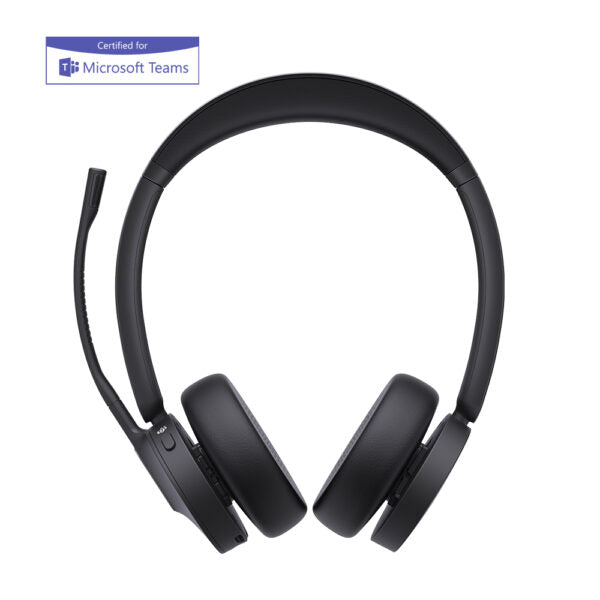
• Enhance production efficiency and stay competitive with the Yealink BH70 Bluetooth wireless headset, designed for office, home, or on-the-go use. • Advanced 2nd generation microphone noise cancellation technology intelligently reduces background noise for a seamless call experience. • Ergonomically designed for extended wear comfort and exceptional stereo playback sound quality. Key Features: • 3-Mic Noise Cancellation • All-day-wearing comfort • Brilliant audio quality with 35mm custom speakers • Up to 35 hours wireless battery life • Engineered for minimizing wind noise • Lightweight design • Enhanced Busy Light • Teams Certified • Connectivity: Bluetooth Dongle BT51-C Additional Information: Weight: 0.74lb Dimensions: 7 × 8.15 × 2.1 in Headset Type: Bluetooth, Stereo, Teams Certified, USB Technical Specifications: MODEL: BH70 Dual Teams USB-C PART NUMBER: 1208667 BOX CONTENTS: • BH70 Dual Headset • Drawstring Bag • TypeC to A 2.0 Cable • Quick Start Guide • BT51 Dongle COLOR: Black MICROPHONE: 3 Mics MEMS MICROPHONE SENSITIVITY: -14 dBFS/Pa SPEAKER: Ø 35mm

About This Product

The Yealink BH70 Dual is a wireless headset designed for professionals who rely on Microsoft Teams for daily communication and need to switch easily between a laptop and a mobile phone. Its dual connectivity—through the included BT51 USB-C dongle for the PC and standard Bluetooth for a smartphone—makes it a practical choice for hybrid workers moving between a desk and on-the-go calls. The three-microphone noise cancellation isolates the speaker's voice from background chatter, which is especially helpful in open-plan offices or busy home environments.

This headset fits naturally into a Toronto-area business that has adopted Teams as its primary collaboration platform. It pairs well with a softphone-focused setup where the desk phone is rarely used, and it replaces the need for a wired headset that tethers you to the laptop. The 35mm speakers deliver clear stereo audio that works for music between calls, though the main strength is voice clarity rather than deep bass.

Before buying, there are a few trade-offs to consider. Full call control, mute synchronization, and reliable audio paths depend on the BT51 dongle; using standard Bluetooth alone may limit functionality. The headset does not connect to a physical desk phone, so it won’t be a one-to-one substitute if your team still relies on traditional handsets. For someone taking only occasional quick calls, the investment may be overkill compared to a simple wired headset. But for a professional who spends hours in back-to-back Teams meetings and needs to stay reachable on a mobile phone as well, the BH70 Dual strikes a good balance of comfort, battery life, and call quality.
Services We Provide
  • Professional Installation & Configuration
  • Ongoing Maintenance & Support
  • Troubleshooting & Repairs
  • System Upgrades & Updates



