
Yealink BH70 Dual UC Bluetooth Headset USB-C/A 1208704

Frequently Asked Questions

Make sure the USB dongle is plugged in and the headset is in pairing mode (power off, then hold the power button until the indicator flashes red and blue). If your laptop has a physical radio switch, confirm Bluetooth is enabled. Then open Windows Bluetooth settings and select the BH70 from the list; if it still fails, restart the laptop and try again with the headset within a few meters.
This is often a balance setting. In your softphone or operating system sound settings, check that the audio balance is centered between left and right channels. If you are using the USB cable for charging while listening wirelessly, disconnect it—some modes force mono audio. Try a different audio source to isolate whether the issue follows the headset.
First, verify that the microphone boom is rotated down and close to your mouth—noise cancellation relies on the mics being positioned correctly. Make sure the headset firmware is current through Yealink USB Connect. Also, strong fan or wind currents directly on the mic array can overwhelm its ability to filter; repositioning away from the source often helps. If the problem persists across multiple platforms, a Toronto-based VoIP support provider can usually test the mic array remotely.
Real-world battery life depends on talk versus standby time and how close you keep the headset to the paired device. If you listen to music at high volume or take continuous HD calls, you will get less than 35 hours. Try lowering the speaker volume and turning off the headset when not needed. If the headset is under a year old and barely lasts a full workday, check for a firmware update that may improve power management.
The busy light typically requires integration through a supported UC application like Teams or Zoom. First confirm that Yealink USB Connect is installed and the headset is selected as the audio device in that application. Then check the app's device settings—some platforms need you to enable 'Sync device status' or a similar option. If it still doesn't light, a simple power cycle of the headset often restores the sync.
The BH70 is primarily a wireless headset; the USB-C port is for charging, not a wired audio connection. To use it with a Mac, pair via Bluetooth directly. Go to System Preferences > Bluetooth and look for 'Yealink BH70' in discoverable mode. If you need a wired connection, this model does not support audio over USB, so you would need a different headset.
Bluetooth dropouts are usually caused by wireless interference or distance. Move closer to the paired device and away from other active Bluetooth or Wi-Fi sources, especially 2.4 GHz routers. If you use the included USB dongle, try a different USB port—a port on the front of a desktop tower often provides a better signal than one on a hub. In a dense office, switching to the dongle instead of native PC Bluetooth can improve stability.
Yes, the BH70 supports multipoint pairing. Put the headset into pairing mode and connect it to your laptop first, then repeat the process to add your phone. It will stay connected to both and automatically switch based on where a call comes in. If it doesn't switch as expected, check that neither device is playing audio that might hold the connection.
This is usually a recognition issue rather than hardware failure. In the Teams app, go to Settings > Devices and verify 'Yealink BH70' is listed as both speaker and microphone. If it is, disconnect and reconnect the headset. A quick re-pairing often refreshes the button integration. If the issue continues, contacting your IT support for a firmware update may be necessary.
Headsets

Yealink BH70 Dual UC Bluetooth Headset USB-C/A 1208704
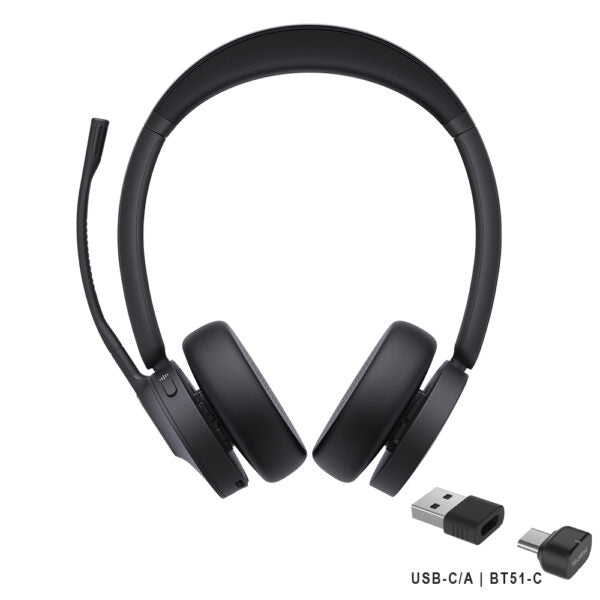
* Enhance production efficiency and maintain absolute competitiveness with the Yealink BH70 Bluetooth wireless headset. Suitable for various scenarios, including office, home, or on-the-go use. * Equipped with advanced 2nd generation microphone noise cancellation technology, three AI-powered microphones intelligently reduce background noise to ensure a seamless call experience. * Designed ergonomically based on extensive user studies, providing exceptional comfort for extended wear throughout the day. * Boasting long-lasting battery life and effortless usability. Key Features: • 3-Mic Noise Cancelation • All-day-wearing comfort • Brilliant audio quality with 35mm custom speaker • Up to 35 hours wireless battery life • Engineered for minimizing wind noise • Lightweight design • Enhanced Busy Light • Compatible with mainstream UC platforms • UC Certified Additional Information: * Weight: 1 lb (147g) * Dimensions: 6.97 × 8.15 × 2.09 in * Headset Type: Bluetooth, Stereo, UC Certified, USB

About This Product

The Yealink BH70 is a dual-sided Bluetooth headset built for professionals who move between a computer, softphone, and occasional mobile calls throughout the day. It fits naturally in a GTA office where hot-desking and open-plan layouts are common, pairing cleanly with laptops and USB-C or USB-A ports. Because it is UC-certified, you can expect reliable plug-and-play with Teams, Zoom, and other workplace platforms without hunting for drivers.

Where this headset makes sense is for focused desk work and home-office use where background chatter is moderate. The three-mic array and noise cancellation handle typical keyboard clicks and distant conversations, but someone in a truly noisy environment—like a downtown Toronto open office near a busy street—may still find passive isolation limited. The 35-hour battery will cover a full work week of moderate calling, though the on-ear design can feel warm after several continuous hours, so it is best suited to a mix of calls, music, and quiet time.

One trade-off to weigh is that it is a pure Bluetooth headset. It cannot connect to a desk phone without an intermediary and has no multi-point DECT range you would get from an office wireless system. That makes it a strong candidate for softphone-only users or those replacing a worn entry-level headset, but it is not a drop-in replacement for a call-center-grade DECT headset that must roam across a warehouse.

For a sole proprietor or remote worker in Canada who takes calls on a laptop and occasionally steps away to grab coffee, the BH70 is well aimed. Pair it with a Yealink USB phone or a laptop Bluetooth adapter if your machine lacks native connectivity, and you have a portable, comfortable tool that keeps you clear-voiced through a day of meetings.
Services We Provide
  • Professional Installation & Configuration
  • Ongoing Maintenance & Support
  • Troubleshooting & Repairs
  • System Upgrades & Updates



