
Yealink BH70 Mono Teams Bluetooth USB-A Headset

Frequently Asked Questions

First, confirm your computer or desk phone has selected the BH70 as its audio device. In Windows, click the speaker icon in the system tray and ensure 'Yealink BH70' is chosen for both speaker and microphone. On a Yealink desk phone, check the audio path setting is directed to the paired headset, not the handset or speakerphone.
Ensure the microphone boom is rotated down so the tip sits roughly two finger-widths from the corner of your mouth. Check that the AI noise cancellation is active in the Yealink USB Connect software; if toggled off, the headset defaults to a more basic mode that can sound less crisp. Also, verify no clothing or hair is rubbing against the mic housing during calls.
Insert the dongle directly into a USB-A port on the computer, not through a hub, and wait for it to be recognized. Place the headset into pairing mode by sliding and holding the power switch toward the Bluetooth icon for several seconds until the LED flashes red and blue alternately. The dongle and headset should link automatically; if they do not, unpair the headset from any other nearby device that may be grabbing the connection first.
This often points to 2.4 GHz interference, which is common in dense Toronto office environments. Try relocating the BT51 dongle to a USB port on the front of the computer or use the included USB extension cable to move it away from the machine’s metal chassis and any USB 3.0 ports. Turning off Wi-Fi on a nearby laptop temporarily can also help identify whether wireless congestion is the cause.
The headset supports Bluetooth multipoint, meaning it can pair to both the BT51 dongle (for your computer) and your smartphone at the same time. It will handle audio from one device at a time. If you are on a Teams call and a mobile call comes in, the headset will notify you, but you will need to manage which device is active manually.
Verify that the firmware is current using the Yealink USB Connect application on a Windows or Mac machine, as older firmware versions sometimes reported battery levels inaccurately. Also, note that 35 hours refers to talk time; using the headset for music streaming or leaving it connected but idle will draw power differently. If the issue persists after a full overnight charge and a firmware update, a Toronto-based VoIP support provider can usually resolve this remotely.
Make sure the BT51 dongle is plugged in and the headset is connected to it, not to the computer’s native Bluetooth—the Teams integration relies on the dongle link. In the Yealink USB Connect software, confirm the 'Teams' mode is selected. Additionally, check that your Teams application is running the latest version, as older builds may not respond to the headset’s presence sensor correctly.
Yealink USB Connect is the primary tool for firmware updates, and it requires administrator rights to install. If your IT policy blocks this, ask your IT team to run the update for you on a managed machine or to push the firmware through their standard software deployment process. The headset will function on its shipped firmware, but updates often improve Bluetooth stability and Teams integration features.
Headsets

Yealink BH70 Mono Teams Bluetooth USB-A Headset
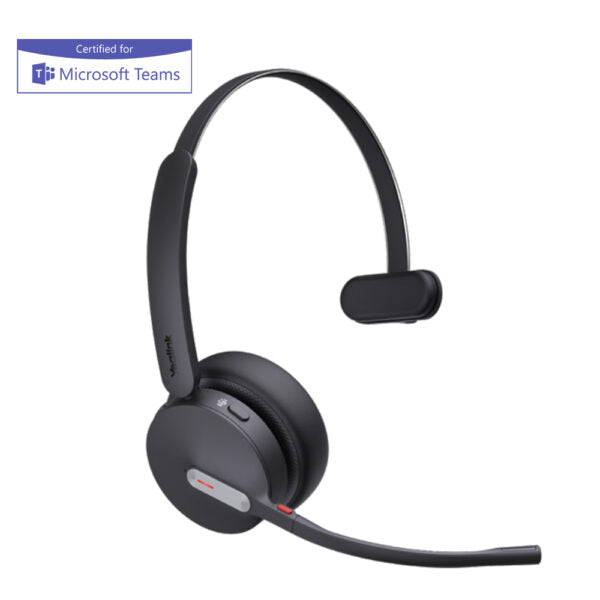
• Enhance your production efficiency and maintain a competitive edge with the Yealink BH70 Bluetooth wireless headset, designed for office, home, or on-the-go use. This versatile headset offers advanced features to meet all your needs. Key Features: • 3rd generation microphone noise cancellation technology • AI-powered microphones that intelligently reduce background noise • Ergonomically designed for extended wear comfort • Impeccable stereo playback sound quality with 35mm custom speakers • Long-lasting battery life of up to 35 hours wireless usage Additional Information: • Weight: 0.62lb • Dimensions: 7 × 8.15 × 2.1 in • Headset Type: Bluetooth, Mono, Teams Certified, USB • Connectivity: BT51 dongle with USB-A or USB-C variant

About This Product

The BH70 Mono carves out a specific niche in the Yealink headset lineup by blending wireless freedom with Microsoft Teams certification, all in a single-ear design. It is aimed squarely at professionals who split their day between desk calls and moving around an office or home workspace, and who need to stay aware of their surroundings—a colleague tapping them on the shoulder, a warehouse announcement, or a doorbell. The mono form factor is a deliberate choice for situational awareness, not a compromise, and it makes the BH70 a better fit for open-plan offices and shared workspaces than a fully-enclosed stereo headset.

This headset pairs logically with a modern softphone deployment, particularly a Teams-centric one, and is a natural companion to a Yealink desk phone that supports Bluetooth or a laptop running the Teams client. It replaces the tangle of cords that can plague a traditional wired headset without stepping up to the complexity of a full DECT system. The supplied BT51 dongle simplifies pairing on machines where native Bluetooth is unreliable or already consumed by other peripherals, a detail that matters in densely-populated GTA office towers where the 2.4 GHz band is congested.

Buyers should be aware of a few practical tradeoffs. The mono design means no stereo audio for music, and the wireless range is typical of class-leading Bluetooth devices, not an on-site roaming solution. Battery life is strong but will degrade over years of daily charge cycles, and the leatherette ear cushion may show wear faster in humid environments. For a Canadian business user, the Teams certification guarantees a level of call-control integration that generic Bluetooth headsets simply cannot offer, which alone can justify the price for a firm standardized on Teams.

For a solo user in a quiet home office who only occasionally takes calls, the BH70 Mono is likely overkill; a simpler corded USB headset would serve. Conversely, in a call-center floor where every second of talk time is measured, this would be underpowered compared to a dedicated DECT wireless headset with a charging base and longer continuous talk time. The BH70 fits best in between: a flexible, comfortable tool for the mobile knowledge worker who values certified Teams integration and all-day battery life in a lightweight package.
Services We Provide
  • Professional Installation & Configuration
  • Ongoing Maintenance & Support
  • Troubleshooting & Repairs
  • System Upgrades & Updates



