
Yealink BH70 Mono Teams USB-C/A – 1208705

Frequently Asked Questions

First, ensure the headset is charged and powered on. On your computer, open Bluetooth settings and remove any previous pairing for the BH70, then put the headset into pairing mode by holding the power button until the LED flashes red and blue. If it still doesn't appear, try using the included BT51C USB dongle for a more reliable connection, especially on Windows systems.
Make sure the microphone boom is positioned close to your mouth, ideally within an inch or two. Also check that the mute button on the headset is not active. If the issue persists, test the headset with a different device to rule out a problem with your computer's audio settings.
This is often caused by interference or distance from the paired device. Ensure you are within the 50-metre wireless range and that there are no large metal objects or other wireless devices between the headset and the source. If the problem continues, try unpairing and re-pairing the headset, or use the USB dongle for a more stable connection.
Yes, if your desk phone supports Bluetooth or has a USB port for the included dongle. Many Yealink desk phones and other major brands allow Bluetooth headset pairing. Check your phone's manual for Bluetooth headset compatibility, or connect via the USB dongle if your phone supports USB audio.
The busy light is controlled by the headset's call status detection. First, confirm that the headset is properly connected and that your softphone or desk phone is sending the correct call state signals. If using a softphone, check that the Teams or UC app has permission to control the headset. A quick power cycle of the headset can also reset the light behavior.
The BH70 supports simultaneous Bluetooth connections to two devices. To pair a second device, first ensure the headset is already connected to one device. Then put the headset into pairing mode again by holding the power button until the LED flashes, and select it from the second device's Bluetooth list. The headset will switch audio between the two devices as needed.
Audio dropouts are usually a Bluetooth range or interference issue. Move closer to the paired device and ensure there are no obstacles like walls or metal cabinets between them. If you are using the USB dongle, try plugging it into a different USB port, preferably on the front of your computer, to avoid interference from other electronics.
Inspect the USB charging cable and the port on the headset for any debris or damage. Try a different USB power source, such as a wall charger or a different computer port. If the headset still does not charge, the battery may need service, and you should contact your VoIP support provider for further assistance.
Yes, the BH70 is compatible with mainstream UC platforms beyond Teams. It will work as a standard Bluetooth headset with any softphone that supports Bluetooth audio. For the best experience, use the included USB dongle, which provides a dedicated audio connection and avoids potential Bluetooth codec issues.
First, check the volume level on both the headset and the connected device—sometimes the device's volume is set lower than the headset's. Also, ensure that the headset's speaker is not blocked by hair or clothing. If using a softphone, look for an audio enhancement or equalizer setting that might be reducing output.
Headsets

Yealink BH70 Mono Teams USB-C/A – 1208705
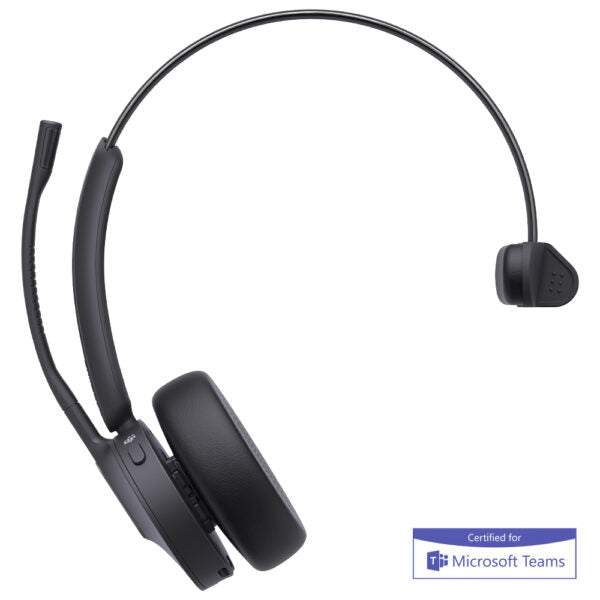
• The Yealink BH70 Bluetooth wireless headset is designed to enhance production efficiency and maintain competitiveness in various scenarios, including office, home, or on-the-go use. • Equipped with advanced 2nd generation microphone noise cancellation technology, three AI-powered microphones intelligently reduce background noise for a seamless call experience. • Designed ergonomically based on extensive user studies, the BH70 provides exceptional comfort for extended wear throughout the day. • Key features include: • 3-Mic Noise Cancelation • All-day-wearing comfort • Brilliant audio quality with 35mm custom speaker • Up to 35 hours wireless battery life • Engineered for minimizing wind noise • Lightweight design • Enhanced Busy Light • Compatible with mainstream UC platforms and Teams Certified • Additional information includes: • Weight: 1 lb • Dimensions: 6.97 × 8.15 × 2.09 in • Headset Type: Bluetooth, Mono, Teams Certified Bluetooth version: Bluetooth 5.3 Wireless range: 50m/164ft Connect to: USB C/A adapter with BT51C dongle, USB cable, Bluetooth Simultaneous Bluetooth connections: 2 Multiple device pairing: Up to 8 devices Microphone number: 3 Acoustic Shield: Yes Active Noise Cancellation: No Speaker: Ø 35mm Music time: Up to 43 hours Talk time: Up to 35 hours (with busy light off) Charging time: Up to 90 min Standby time: Up to 22 days Product net weight: • BH70 Headset: 91g/3.2oz Giftbox size: • BH70 Headset: 177 x 207 x 53mm G.W/CTN (KG): • BH70 Headset: 0.277 kg

About This Product

The Yealink BH70 Mono is a Bluetooth headset built for professionals who need reliable call quality across the office, home, or while moving between locations. Its mono design suits users who prefer to keep one ear free for ambient awareness, making it a natural fit for receptionists, customer support agents, or anyone in an open-plan environment who needs to stay connected without being fully isolated. The headset pairs well with desk phones, softphones, and mobile devices, and its Teams certification ensures seamless integration with Microsoft Teams for calendar sync and call controls. A practical tradeoff is the lack of active noise cancellation; while the three-microphone array and acoustic shield do an excellent job filtering background noise on the caller's end, the wearer will still hear ambient sounds, which is by design for mono headsets. This device is overkill for someone who only takes occasional calls and underpowered for a user who needs full stereo immersion or noise isolation in a very loud environment. For a GTA office deployment, the BH70's long battery life and multi-device pairing make it a solid choice for hot-desking setups or hybrid workers who switch between a desk phone and a laptop.
Services We Provide
  • Professional Installation & Configuration
  • Ongoing Maintenance & Support
  • Troubleshooting & Repairs
  • System Upgrades & Updates



