
Yealink BH71 Workstation

Frequently Asked Questions

First, ensure the headset is charged and the base station is plugged in and powered. If the headset's LED is not flashing blue and red when you try to pair, hold the multifunction button until it enters pairing mode. If it still won't pair, power cycle both devices by unplugging the base for 10 seconds and turning the headset off then on.
Make sure Bluetooth is enabled on your phone and that the headset is not already connected to another device. The BH71 can store up to eight paired devices but can only maintain two active connections at once. If the list is full, clear an old pairing from the headset by holding the pair button until you hear 'pairing list cleared' (refer to the manual for exact sequence).
Try a simple power reset: unplug the base station’s power cable, wait 30 seconds, then plug it back in. If the touch screen remains unresponsive after that, the cause may be a firmware glitch. Contact your VoIP support team before attempting any reset or firmware reload, as we can confirm the issue remotely and guide safe steps.
Check for wireless interference from routers, microwaves, or other Bluetooth devices. Move the headset within 30 feet of the base station, and ensure nothing metal is blocking the line of sight. If the problem persists, try disconnecting and reconnecting the Bluetooth link from the base station menu.
Verify that the headset is seated correctly with the charging contacts aligned. The wireless charging coil is active only when the headset is centered over the cradle’s charging area. If it still won't charge, clean the contacts on both the headset and the cradle with a dry cloth, and try charging via the included USB cable for comparison.
Yes, if your desk phone supports Bluetooth HFP (Hands-Free Profile) you can pair it directly. Alternatively, you can connect the base station via USB to a PC and use it as a softphone handset. Note that the Teams-specific call controls will only work fully with Microsoft Teams.
Download the latest firmware from Yealink’s support site. Connect the base station to your PC with the included USB-C cable and use Yealink Device Manager (or the web interface if available) to perform the update. Do not interrupt the power during the process. If the update fails, reach out to a VoIP specialist rather than trying a forced downgrade.
It means the headset integrates with Microsoft Teams for one-touch meeting join, mute/unmute, and status LED sync. You may need to install the Teams software and configure it to recognize the BH71 as the default communication device. For non-Teams softphones, basic call control still works but without the dedicated buttons.
No, 130 feet is the maximum rated range under ideal conditions (open, no obstructions). In typical Canadian offices with walls and cubicles, expect about 50–80 feet. Moving the base station to a higher, central location can help, but you cannot increase the range beyond the hardware’s capability.
Open your PC’s sound settings and confirm the BH71 is selected as both the output and input device. If using the base station via USB, also check that the speakerphone’s volume is turned up. Sometimes Windows defaults to a different audio device after a restart—set the BH71 as the default communications device.
Headsets

Yealink BH71 Workstation
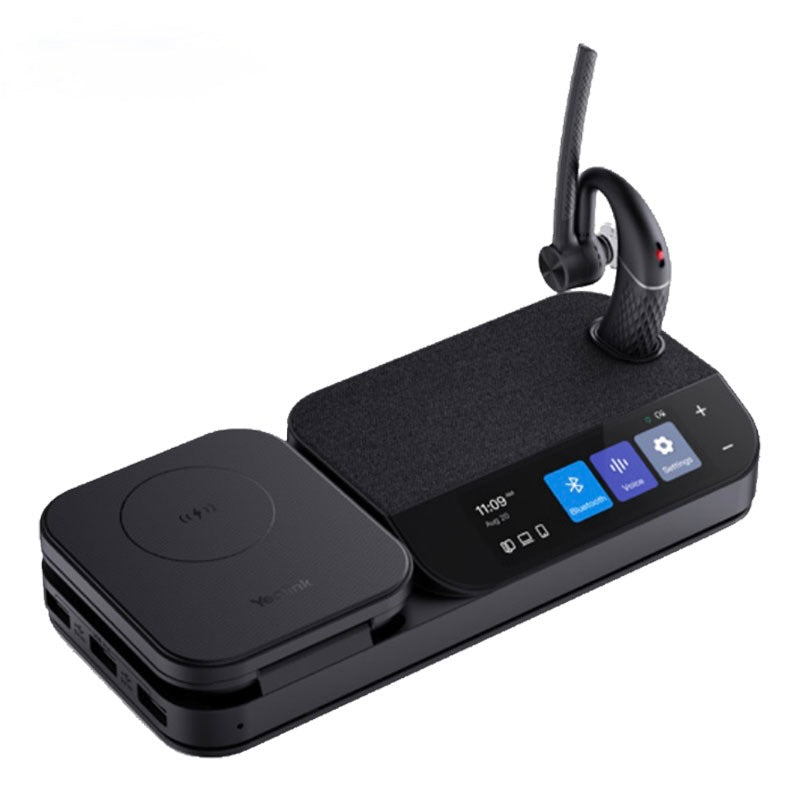
The BH71 Mono Bluetooth Wireless Business Headset System provides high-definition audio quality for all-day use, whether on-the-go or in the office. Key features include: • 4-mic beamforming noise cancellation technology • Adjustable ear hook for comfortable wearing • Excellent audio experience and all-day wearing comfort • 10-hour talk time • Multiple connections to desk phone, PC, and smartphone simultaneously • Touch screen speakerphone with 3-inch display • USB hub with Qi wireless charging and portable charging case • Up to 40m in wireless range Weight: 1.29 lbs Dimensions: 11.34 × 4.33 × 2.32 in Headset Type: Bluetooth, Mono, Teams Certified Supported Platforms: Microsoft Teams Technical Specifications: Model: BH71 Workstation Part number: 1208653 Box Contents: • BHM711 Headset • BHB710 Station • Ear tips • Power adapter • Micro USB 2.0 Cable • Type-C 3.0 Cable • Quick Start Guide Bluetooth (Headset): • Bluetooth Version: Bluetooth 5.2 • Bluetooth Profile: HFP 1.7, A2DP 1.3, AVRCP 1.6 • Bluetooth Pairing List: 8 • Simultaneous Bluetooth Connections: 2 • Wireless range: 130ft (in ideal conditions) Supported PC/Smartphone Operating Systems: • Microsoft Windows • Apple Mac OS • Android, iOS Supported Devices: • PC • Yealink SIP Phone • Smartphone Battery (Headset): • Battery Type: Rechargeable Lithium-ion • Battery Capacity: 160mAh • Talking Time: 10-hour • Music Time: 10-hour • Charging Time: Up to 90min • Standby Time: 11 days Wireless Charger: • The Number of Wireless Charging Coils: 1 • Wireless Charging Power: Max. 15 W (iPhone doesn’t support 15W wireless charging) • Wireless Charging Effective Distance: Coil alignment center distance within 8 mm diameter range

About This Product

The Yealink BH71 Workstation is a purpose-built headset system for professionals who navigate between desk phone, PC, and smartphone throughout the day. The included base station with its touch screen speakerphone and Qi wireless charging pad turns a simple headset into a consolidated workspace hub, making it a strong fit for busy office environments or home desks where desk space is at a premium. It is particularly well suited to a GTA-based small business or a remote worker who already uses Microsoft Teams and wants a certified solution that handles call control with minimal fuss.

The BH71’s 4-mic beamforming and mono earpiece deliver clear voice for calls, but users looking for stereo music listening or immersive noise isolation in a noisy open-plan office may find the single-ear design limits their experience. The system’s wireless range (130 feet in ideal conditions) is generous, though real-world obstructions like concrete walls can reduce it—something to consider in larger or multi-room Canadian offices. Because it supports simultaneous connections to up to two Bluetooth devices plus the base station, you can move from a laptop call to a smartphone without re-pairing, which significantly reduces daily friction.

For a deployment where every desk needs a reliable, unified communications accessory, the BH71 Workstation is not overkill—it replaces the clutter of separate headsets, chargers, and speakerphones. However, for a single user who only takes occasional calls and already owns a good headset, the premium price and desk footprint may be hard to justify. Likewise, if your office relies exclusively on DECT-based desk phones, you’ll need to verify whether those phones support Bluetooth HFP pairing, as the BH71 is primarily a Bluetooth and USB system.
Services We Provide
  • Professional Installation & Configuration
  • Ongoing Maintenance & Support
  • Troubleshooting & Repairs
  • System Upgrades & Updates



