
Yealink BH74 UC USB-C/A – 1208680

Frequently Asked Questions

Make sure the dongle is firmly seated in a USB-A or USB-C port (use the included adapter if needed). Then, on the headset, press the Call button for about two seconds until you hear “dongle mode.” The headset should pair automatically. If that doesn't work, try plugging the dongle into a different USB port and restart your computer.
The busy light is controlled by your UC softphone (like Teams or Zoom). Ensure the headset is selected as the communication device in that app's settings. Also verify that the busy light function is enabled in the Yealink USB Connect software (if installed) or in your device manager—it may default to off. If it still doesn't work, a quick power cycle of the headset can reset the connection.
First, adjust the volume on the headset and your softphone—echo often comes from audio feedback. Check that no other audio device (like a speakerphone) is active on the same system. If the issue persists, move closer to your computer's USB dongle, and ensure there are no large metal objects or other wireless devices between the headset and dongle. A simple power cycle of the headset can also clear audio artifacts.
Bluetooth drops are often caused by distance or interference. Keep your paired device within 10–15 metres and avoid obstacles like walls. If using a USB dongle, move it to a front-facing port and away from other USB 3.0 devices. Also, unpair the headset from your phone or computer, then re-pair it from scratch—this clears any stale settings.
First, make sure the microphone is not muted—press the mute button on the headset to toggle. Then verify in your softphone's audio settings that the headset's microphone is selected as the input device. If using a USB dongle, try unplugging it and plugging it back in so the headset reconnects. The six built-in mics are sensitive but rely on a proper seal around the ear, so ensure the ear cushions fit well.
Check that the headset volume is turned up using the buttons on the earcup. Then go to your computer's sound settings and confirm the Yealink BH74 is set as the default playback device. If using Bluetooth without the dongle, ensure the headset is connected for both audio and calls (headset profile), not just for media. Restarting your softphone often resolves audio routing conflicts.
To pair with an additional device, first put the headset into pairing mode by holding the power button for about 5 seconds until the LED flashes blue and red. Then on your phone (or second device), go to Bluetooth settings and select “Yealink BH74.” It can remember up to 8 devices and connect to two at the same time, making it easy to take calls from your desk phone and mobile without re-pairing.
Use the included USB charging cable and plug it into a power source (like a USB wall charger or laptop port). If the LED does not light up, try a different cable or port. Also check that the charging contacts on the headset are clean and free of debris. A full charge takes about 90 minutes; if it still won't charge after an hour with a known-good cable, the battery may need service.
The BH74 is designed for Bluetooth and USB connectivity to computers and mobile devices, not for direct wired connection to a desk phone. To use it with a Yealink IP desk phone, you'd need the phone to support Bluetooth headset pairing (many newer models do). Connect via Bluetooth: put the headset in pairing mode, then on the phone's Bluetooth menu select the BH74. For best UC performance, the BT51C dongle is recommended for your PC.
Make sure Active Noise Cancellation (ANC) is turned on—you can toggle it by pressing the ANC button on the earcup. If it's already on, check that the earcups fit snugly over your ears; ANC relies on a good seal. In very loud environments, the headset's acoustic shield will also help, but for best results, ensure you're not in an area with direct wind blowing over the microphones. If you still hear too much noise, your VoIP provider can help verify the headset's firmware is up to date.
Headsets

Yealink BH74 UC USB-C/A – 1208680
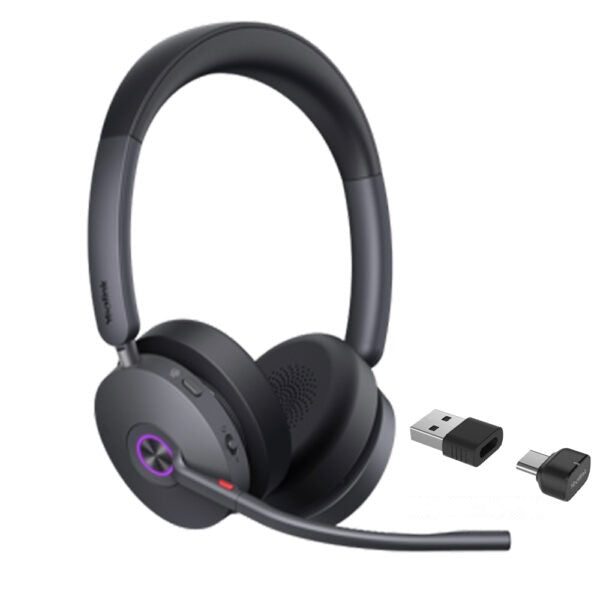
• Enhance production efficiency and maintain absolute competitiveness with the Yealink BH74 Bluetooth wireless headset, designed for various scenarios including office, home, or on-the-go use. • Equipped with advanced second-generation microphone noise-canceling technology and ANC active noise cancellation, ensuring clear and immersive phone conferences and music enjoyment. • Ergonomically designed for exceptional comfort during extended wear throughout the day. • Features: • Acoustic shield technology 3.0 • All-day-wearing comfort • Dual-sided Busy light • Hybrid ANC noise reduction • Ultra-long battery life • Compatible with mainstream UC platforms • UC Certified Additional Information: Weight: 1.09 lbs Dimensions: 7.13 × 7.99 × 2.20 in Headset Type: Bluetooth, Stereo, Teams Certified, USB Technical Specifications: GENERAL INFO: • Model: BH74 UC USB-C/A • Part number: 1208680 Package Contents: • BH74 UC USB-C/A Headset • Carrying Case • USB Charging Cable • Quick Start Guide • BT51C Dongle • USB C/A adapter Connectivity: • Bluetooth version: Bluetooth 5.3 • Wireless range: 50 m/160 ft • Connect to: USB C/A adapter with BT51C dongle, USB cable, Bluetooth Simultaneous Bluetooth connections: 2 Multiple device pairing: Up to 8 devices Audio: • Mic number: 6 • Acoustic Shield: Yes • Active Noise Cancellation: Yes • Speaker: Ø 30mm • Hearing Protection: • Peak Block Protection (EN50332) • Australian G616 Protection (AU G616) • Daily Noise Exposure Protection Battery: • Music time: Up to 65 hrs (ANC off) • Talk time: Up to 32 hrs (ANC & Busy light off) • Charging time: Up to 90min • Standby time: Up to 20 days

About This Product

The Yealink BH74 is a Bluetooth wireless headset aimed at professionals who split their time between the office, home, and travel. It fits naturally into a hot-desking or open-plan environment where noise isolation and reliable connectivity are critical, and it pairs cleanly with UC platforms like Microsoft Teams, Zoom, or Cisco Webex—especially useful for the GTA's dense tech and finance sectors. The BH74 is UC certified, so it integrates smoothly with softphones common in Canadian business settings. A practical tradeoff is that, while the ANC and six-microphone array deliver impressive call clarity in noisy spaces, the headset's full feature set (like the busy light and BroadSoft/3PCC support) is most valuable in a managed corporate environment; a sole proprietor working from a quiet home office might find it overkill and could get strong performance from a simpler model. In a busy call center or executive suite where every decibel of background noise matters, however, the BH74's acoustic shield and long battery life make it a solid fit, though it would be underpowered for a warehouse or field-service setting where a ruggedized, PTT-oriented headset would be more appropriate. For deployments in the Toronto area, the included BT51C USB dongle ensures compatibility with both USB-A and USB-C ports found on common business laptops and docking stations, and Bluetooth 5.3 with multipoint pairing means seamless switching between a desk phone and mobile device.

The BH74 is best suited for desk-based professionals who prioritize all-day comfort and clear audio during calls and music, rather than as a primary headset for heavy manufacturing or construction environments. It replaces a traditional wired headset or a lower-end Bluetooth model, but buyers should be aware that the USB dongle is required for full UC integration and that the headset's advanced features (like the busy light) depend on being paired with a compatible softphone. If you're evaluating this for a small office where most calls are short and quiet, the price may be higher than needed, but for a knowledge worker in an open concept space or a home professional taking client calls, the noise cancellation and battery life are tangible daily benefits.

From a Canadian connectivity standpoint, the BH74 works well with major carriers' softphones (Bell, Rogers, Telus) since it connects via USB or Bluetooth to a computer or mobile device, and the USB-C/A adapter plus included dongle make it universally compatible with laptops common in GTA workplaces. Just note that the headset does not include a desk phone cable—it's designed for softphone and mobile use—so if you need a wired connection to a Yealink desk phone for legacy call handling, you'd want a separate model or an adapter.
Services We Provide
  • Professional Installation & Configuration
  • Ongoing Maintenance & Support
  • Troubleshooting & Repairs
  • System Upgrades & Updates



