
Yealink BH76 UC Black USB-C – 1208622

Frequently Asked Questions

First, confirm the USB-C adapter is fully seated in a port that you know works, and check that the adapter’s LED is lit or blinking. If not recognized, try a different USB-C port directly on the computer (not through a hub or dock) and restart your softphone. On Windows, check Sound settings to see if 'Yealink BH76' appears as an output device; if it’s missing, re-pair by plugging the adapter into your computer, putting the headset into pairing mode, and holding them close together until they reconnect.
Make sure the retractable microphone arm is fully extended and positioned close to the corner of your mouth, not tucked under your chin. In your softphone (Teams, Zoom, etc.), confirm that the BH76’s microphone is selected as the input device and that the input level is set around 80-90%. If you’re using noise suppression features in the app, try toggling them off to see if they’re over-processing the audio—often the headset’s own Acoustic Shield Technology handles noise well enough on its own.
The BH76 has four levels of ANC; you may be on the lowest setting. Use the headset’s physical controls (usually a button) or the Yealink Connect app to cycle through the ANC levels until you reach one that suits your environment. Keep in mind that ANC works best on steady, low-frequency noise like hum and rumble—it will not silence sudden nearby conversations completely. If you’re still unhappy, verify that the earpads are sealing properly around your ears, as any gap reduces the effect.
Bluetooth interference is a common culprit. Try moving your phone or laptop away from other active Bluetooth devices, Wi-Fi routers, and USB 3.0 ports (which can emit radio interference). If you’re using the USB-C adapter, plug it into a front panel or a short USB extension cable to distance it from the PC chassis. Also, check that the headset is connecting to only two devices at once; if it’s juggling more, try unpairing unnecessary ones from the pairing list (up to 8 stored devices can cause the headset to attempt background connections).
Plug the USB-C Bluetooth adapter into your computer and pair the headset—Windows should automatically recognize it. In the Teams desktop app, go to Settings > Devices and choose 'Yealink BH76' for both the speaker and microphone. There’s no separate Teams-certified mode to enable; the certification is built in, meaning call control buttons on the headset (answer/end) will work in Teams without extra steps. If that doesn’t happen, sign out of Teams, restart, and check for any pending Windows updates or optional driver updates.
High ANC levels and continuous music streaming at maximum volume can reduce battery life noticeably. Turn down the ANC to level 1 or off for calls in quiet rooms and keep volume at a moderate level to see if runtime returns to expected ranges. Also, make sure you’re charging with the included Qi stand or a quality USB-C cable; slow or dirty charging ports can prevent the battery from reaching full capacity. If the problem persists after a few full charge cycles, the battery may need assessment—avoid attempting a user-level battery replacement, as it’s sealed.
Yes, the BH76 can maintain simultaneous connections to two Bluetooth devices. Pair it first with your laptop via the USB-C adapter (or internal Bluetooth) and then with your iPhone through the phone’s Bluetooth settings. When a call comes in on either device, the headset will switch to that source. If you’re on a laptop call and a mobile call arrives, the headset follows the last active call; you can manually swap back using the headset’s button. Just make sure you haven’t paired more than two active connections at once, as that can cause confusion.
This is often caused by using the headset’s Hands-Free Profile (HFP) instead of the high-quality A2DP profile for audio. On your computer, check the audio output device selection and ensure you’re picking the stereo output option for the BH76, not the mono ‘headset’ or ‘hands-free’ variant that’s meant for calls only. On a smartphone, try disconnecting and reconnecting the Bluetooth connection—the device should pick the best profile automatically. If the issue happens only during video calls, close other bandwidth-heavy applications and move closer to the adapter to reduce signal compression.
Headsets

Yealink BH76 UC Black USB-C – 1208622
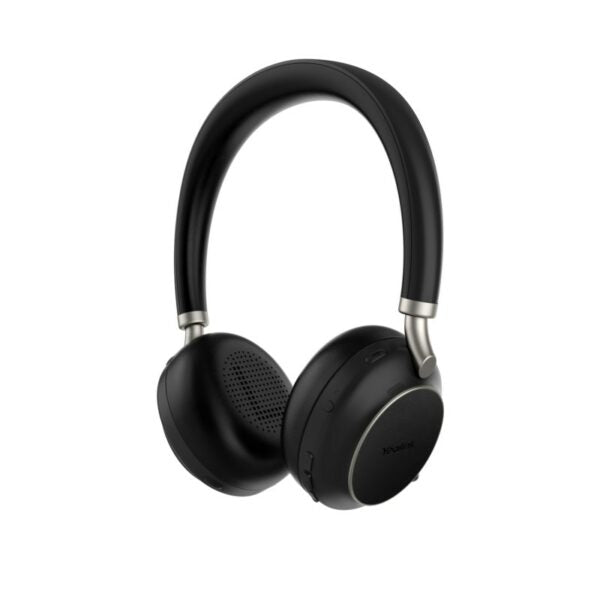
The Yealink BH76 Bluetooth Wireless Business Headset provides a stylish appearance with ultimate audio quality playback experience. It features: • Retractable hidden microphone arm for convenience • Multiple microphones supported by Acoustic Shield Technology • 4 levels of active noise cancellation (ANC) for improved sound quality • Qualcomm aptX digital audio algorithm for high-definition professional audio and optimized music playback • Up to 40 hours wireless battery life • Qi wireless charging stand for convenient charging • Dual-side busylight for full visible angles • Excellent audio experience and all day wearing comfort • UC Certified for seamless video conferencing integration Additional Information: Weight: 0.92 lbs Dimensions: 7.64 × 8.15 × 2.09 in Headset Type: Bluetooth, DECT, Teams Certified, USB Technical Specifications: Battery: • Talking time: up to 35 hours • Music time: up to 40 hours • Standby time: 112 hours • Charging Time (cable): within 2 hours • Charging Time (wireless charging): within 3 hours Audio: • Active Noise Cancellation: YES • Speaker size: 35 mm Ø • Speaker sensitivity: 117 dB @1 mW-1k Hz • Speaker max input power: 50 mW • Speaker frequency range: 20 Hz-20k Hz • Audio codecs: Aptx-HD Connectivity: • Connection (computer and mobile devices): USB-C Bluetooth adapter, Bluetooth • Bluetooth device: Yes • Bluetooth version: Bluetooth 5.2 • Bluetooth profiles: HSP v1.2 , HFP v1.7, A2DP v1.3, AVRCP v1.6, PBAP v1.1, SPP v1.2 • Operating range: Up to 30m/Up to 100ft • Bluetooth pairing list: Up to 8 devices • Simultaneous Bluetooth connections: 2

About This Product

The Yealink BH76 UC is built for professionals who split their day between voice calls, video meetings, and focused listening in open or flexible workspaces. It suits hybrid workers, hot-desking teams, and anyone who needs a single headset that transitions smoothly from a PC-based softphone like Teams or Zoom to a mobile phone. The retractable microphone, four-level ANC, and aptX HD codec push it beyond basic call clarity into a realm where music and speech both sound genuinely good, which makes it a practical choice for all-day wear in roles that blend customer contact with independent tasks.

In a Canadian business environment—whether a downtown Toronto office tower or a home setup in the GTA—the BH76’s UC certification means it integrates without driver drama on common platforms, while the included USB-C Bluetooth adapter sidesteps the flaky built-in Bluetooth of many laptops. The Qi charging stand is a small but meaningful convenience that keeps the headset topped up between calls without hunting for cables. However, this is an over-ear, around-the-neck style headset; users who strongly prefer discreet earbuds or in-ear monitors may find it cumbersome, and the non-replaceable battery means longevity depends entirely on proper charge habits.

For standard office noise—keyboard chatter, HVAC hum, distant conversations—the ANC works well, but it is not designed for extreme environments like manufacturing floors or windy outdoor spaces. The wireless range is sufficient for typical open-plan offices and home layouts, but dense concrete walls common in some older Canadian buildings can cut that down. The headset pairs reliably with up to two devices simultaneously, so toggling between a desktop softphone and a mobile call is fluid, but users who need to juggle three or more devices at once will need to manage the pairing list manually.

If your deployment revolves around a contact center or heavy phone use where the headset will be worn for full shifts, the BH76’s 35-hour talk time and padded comfort are strong assets. For a small office where calls are infrequent or a user who only occasionally needs a headset, this model may be more investment than necessary—something simpler would suffice. It is a natural pair with Yealink desk phones for a consistent audio experience, though it works equally well as a standalone audio device for any Bluetooth-capable computer or smartphone.
Services We Provide
  • Professional Installation & Configuration
  • Ongoing Maintenance & Support
  • Troubleshooting & Repairs
  • System Upgrades & Updates



