Yealink BT51-A Bluetooth Dongle for BH72/BH76 series headsets

Frequently Asked Questions

First, make sure the dongle is inserted firmly into a USB-A port on your PC. Then put your BH72 or BH76 headset into pairing mode—usually by holding the power button until the LED flashes red and blue. If it still doesn't pair, remove the dongle, restart your PC, and try again. If the issue persists, a Toronto-based VoIP support provider can usually resolve this remotely.
The BT51 has a range of up to 30 metres (100 feet), but walls, metal furniture, and other wireless devices can reduce that. Try moving closer to your PC and check that there are no large obstacles between the dongle and headset. Also, ensure the headset is fully charged—low battery can cause audio dropouts.
No, the BT51 is designed exclusively for Yealink BH72 and BH76 headsets. It uses a proprietary pairing method and will not recognize other Bluetooth headsets. If you need a universal Bluetooth dongle for other headsets, look for a standard Bluetooth 5.0 adapter.
Download and install the Yealink USB Connect application from Yealink's website. Insert the dongle, open the app, and it will check for available firmware updates. Follow the on-screen instructions—do not remove the dongle during the update. This is a safe process that only updates the dongle, not your headset.
Try a different USB port, preferably on the back of the PC or directly on a laptop (avoid USB hubs). If that doesn't work, check Device Manager (Windows) or System Information (Mac) to see if the dongle appears as an unknown device. Reboot your PC and try again. If it still isn't recognized, the dongle may need a firmware update via the Yealink USB Connect app.
The BT51 dongle only connects your headset to a PC via USB. For desk phone use, you need a different base (like the Yealink WHB series) that connects to the phone's RJ9 or USB port. The dongle cannot be used with a desk phone directly.
The BT51 has a USB-A connector. If your laptop only has USB-C ports, you will need a USB-A to USB-C adapter or a USB-C hub with a USB-A port. Most adapters work fine, but avoid cheap ones that may not supply enough power.
Make sure your headset is set as the default communication device in your PC's sound settings. Also, check that the headset is not in music (A2DP) mode during a call—some softphones switch profiles automatically. If the issue persists, try re-pairing the headset to the dongle, or update the firmware on both the headset and dongle using the Yealink USB Connect app.
The BT51 dongle only supports a single connection to your PC. The BH72/BH76 headsets themselves can pair with a Bluetooth phone simultaneously, but you would need to pair the headset directly to your phone via Bluetooth (not through the dongle). The dongle handles the PC connection; the headset can maintain a separate phone connection for taking mobile calls.
A slight warmth is normal for a USB dongle during active Bluetooth transmission. If it becomes uncomfortably hot to touch, unplug it and let it cool. Check that the USB port is providing proper power and that the dongle is not covered or in a tight space. If overheating persists, contact your Yealink supplier for a replacement.
Accessories

Yealink BT51-A Bluetooth Dongle for BH72/BH76 series headsets
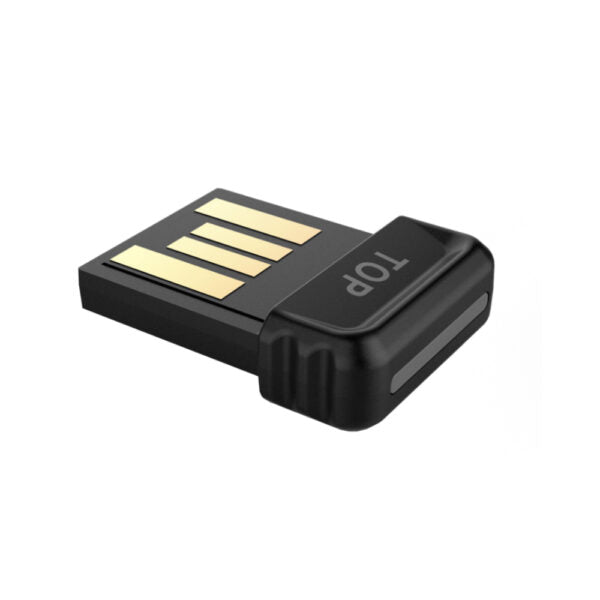
Yealink BT51 is a plug-and-play USB Bluetooth dongle designed to connect your Yealink BH72/BH76 to your PC, ensuring a fast and reliable Bluetooth connection. The device boasts an impressive range of up to 100ft/30m, allowing you to move freely during calls without compromising the signal. Key features include: • Compatible with BH72/BH76 • Reliable connection • Up to 100ft/30m wireless range • Easy to use • Plug and play The BT51 incorporates advanced sound quality features, delivering natural audio even when away from your desk. Music is streamed in amazing HiFi quality via A2DP. Key specifications: • Bluetooth version: BT 5.0 • PC connection: USB 2.0 (USB-A) • Bluetooth profiles: HFP 1.7, A2DP 1.3, AVRCP 1.6 • Bluetooth audio bandwidth: Narroband, Wideband, A2DP • Firmware update via Yealink USB Connect app

About This Product

The Yealink BT51-A is a USB Bluetooth dongle purpose-built for connecting Yealink BH72 or BH76 wireless headsets to a Windows or Mac PC. It is ideal for desk workers in open-plan offices or home offices who need to take calls away from their desk—the 30-metre (100-foot) range means you can walk to a printer, grab a coffee, or join a huddle room conversation without losing audio. This dongle replaces the need for a wired headset connection and pairs instantly with the headset out of the box, making it a simple upgrade for anyone already using those Yealink models.

Because the BT51 uses Bluetooth 5.0 and supports wideband audio and A2DP for high-quality music streaming, it delivers clear, natural voice calls and decent music playback. It connects via a standard USB-A port, so it works with most business PCs and laptops. For Canadian offices, it integrates smoothly with popular softphones like Microsoft Teams, Zoom, or RingCentral—just pair the headset to the dongle and select it as your audio device. The only practical tradeoff is that this dongle is specific to the BH72/BH76 series; it will not work with other Bluetooth headsets or with desk phones directly. If you need to switch between a desk phone and a PC, you would need a separate desk phone base or a different adapter.

For a small accessory like this, the biggest limitation is that firmware updates require the Yealink USB Connect desktop app, which is free but must be installed. In a typical GTA office deployment, an IT admin can pre-pair dongles to headsets and push firmware via the app, making it a low-maintenance solution. Overkill? Not really—it is a focused tool. Underpowered? Only if you need to connect to multiple devices or use a non-Yealink headset; otherwise, it does exactly what it promises.
Services We Provide
  • Professional Installation & Configuration
  • Ongoing Maintenance & Support
  • Troubleshooting & Repairs
  • System Upgrades & Updates