Yealink BT51-C Bluetooth Dongle for BH72/BH76 series headsets

Frequently Asked Questions

First, ensure the dongle is firmly plugged into a working USB-C port on your PC. Then, put your headset into pairing mode (usually by holding the power button for several seconds until the LED flashes). The dongle's blue LED should blink during pairing. If it doesn't, try unplugging the dongle and plugging it back in, then restart the pairing process. If the issue persists, a Toronto-based VoIP support provider can usually resolve this remotely.
Audio dropouts are often caused by interference or distance. Make sure you are within the 30-meter range and that there are no large metal objects or other wireless devices (like Wi-Fi routers or microwaves) between the dongle and your headset. Try moving closer to the dongle and see if the audio improves. Also, check that the dongle is plugged directly into your PC, not through a USB hub, as hubs can sometimes cause signal issues.
First, try plugging the dongle into a different USB-C port on your computer. If it still isn't recognized, check your computer's Device Manager to see if the dongle appears under 'Bluetooth' or 'Universal Serial Bus controllers' with a yellow exclamation mark. If it does, you may need to update your USB drivers. The dongle is plug-and-play and should work with Windows 7 through 11 and macOS 10.6 or later, so driver issues are rare but possible.
The BT51-C is specifically designed and optimized for Yealink BH72 and BH76 series headsets. While it may technically pair with other Bluetooth headsets, Yealink does not guarantee compatibility or performance. For best results, use it only with the intended Yealink headsets.
Firmware updates for the BT51-C are done through the Yealink USB Connect app, which you can download from Yealink's website. Install the app on your PC, plug in the dongle, and the app should detect it and prompt you if an update is available. Follow the on-screen instructions to complete the update. This is a safe process and can resolve some connectivity issues.
A red LED on the BT51-C typically indicates that the dongle is in pairing mode or that there is a connection issue. If it stays red and doesn't turn blue, try unplugging the dongle and plugging it back in. If the problem continues, check that your headset is in pairing mode and within range. A solid blue LED usually means a successful connection.
The BT51-C has a range of up to 30 meters (100 feet) in open air, but walls, furniture, and other obstacles can reduce this range significantly. If you are experiencing disconnections, try to minimize obstacles between the dongle and your headset. Also, ensure the dongle is not plugged into a USB port on the back of a metal computer case, as that can block the signal.
Yes, the BT51-C is compatible with macOS 10.6 or later. Simply plug the dongle into a USB-C port on your Mac, put your headset into pairing mode, and it should connect. If you have trouble, check your Mac's Bluetooth settings to ensure the dongle is recognized and that the headset is listed as a device.
The BT51-C has a USB-C connector, so it is designed for USB-C ports. If your PC only has USB-A ports, you will need a USB-C to USB-A adapter. However, using an adapter may affect performance or reliability, so it is best to use a native USB-C port if available.
After pairing, you may need to select the headset as your audio device in your softphone's settings. Go to the audio or device settings in your softphone (e.g., Microsoft Teams, Skype for Business) and choose 'Yealink BH72' or 'Yealink BH76' as both the microphone and speaker. If it doesn't appear, try restarting the softphone app or your computer.
Accessories

Yealink BT51-C Bluetooth Dongle for BH72/BH76 series headsets
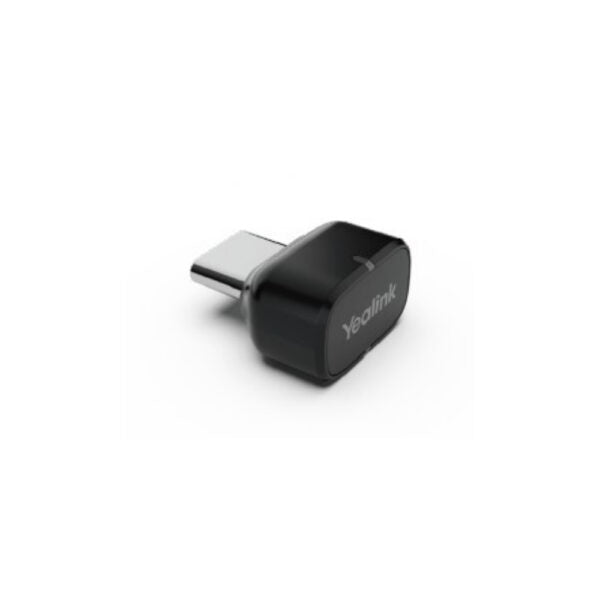
Yealink BT51 is a plug-and-play USB Bluetooth dongle, available in two versions: BT51-A and BT51-C. It connects your Yealink BH72/BH76 to your PC for a fast and reliable Bluetooth connection. With a range of up to 100ft/30m, you can move away freely from your laptop during calls without losing connectivity. Key features: • Compatible with BH72/BH76 • Reliable connection • Up to 100ft/30m wireless range • Easy to use • Plug and play Weight: 1 lb Dimensions: 8 × 8 × 4 in Accessory Type: Bluetooth Dongle PC connection: USB 2.0 (USB-A/USB-C) Bluetooth range: Up to 100ft/30m Bluetooth profiles: HFP 1.7, A2DP 1.3, A VRCP 1.6 Bluetooth audio bandwidth: Narrowband, Wideband, A2DP Firmware update via Yealink USB Connect app Visual indicator: 1 blue LED + 1 red LED indicates pairing and connection compatibility with Windows XP/SP3, Windows Vista 32-bit, Windows Vista 64-bit, Windows 7 32-bit, Windows 7 64-bit, Windows 8.1 32-bit, Windows 8.1 64-bit, Windows 10 32-bit, Windows 10 64-bit, and Windows 11 64-bit MAC OS 10.6 or later Compatible with BH72 Lite/BH76 Softphone support: Fully compatible with Microsoft Teams/Skype for Business, compatible with most PC softclients

About This Product

The Yealink BT51-C is a USB Bluetooth dongle designed specifically for use with Yealink's BH72 and BH76 series headsets. It is a practical accessory for anyone who uses a Yealink headset with a PC and wants a reliable, cable-free connection. This dongle is ideal for office environments where you need to move around your desk or a small meeting space while on a call, as it offers a wireless range of up to 30 meters. It is a simple plug-and-play solution, meaning you can connect it to your computer's USB-C port and pair it with your headset without needing to install complex software. For Canadian businesses, particularly those in the GTA with open-plan offices or hot-desking setups, this dongle provides a straightforward way to add Bluetooth connectivity to a desktop PC that may not have built-in Bluetooth, or to improve the reliability of an existing Bluetooth connection. It is a focused accessory, so it is not a general-purpose Bluetooth adapter; it is optimized for Yealink headsets and may not work as well with other brands. If you already have a Bluetooth-enabled PC and your headset pairs directly without issues, this dongle is unnecessary. Conversely, if you need to connect a Yealink headset to a PC that lacks Bluetooth or has a weak Bluetooth radio, this dongle is a targeted and effective solution.
Services We Provide
  • Professional Installation & Configuration
  • Ongoing Maintenance & Support
  • Troubleshooting & Repairs
  • System Upgrades & Updates