Yealink EHS61 Wireless Headset Adapter for Headsets/IP Phones

Frequently Asked Questions

Confirm you’re using the correct cable for your phone—Cable A for Mitel/Unify, Cable B or C for Yealink, as labelled. Unplug and reseat all connections, then power-cycle both the desk phone and the headset base. If the desk phone has an EHS setting, ensure it is enabled.
Verify that the headset’s volume control is active during a live call; some models require you to be in the call screen. On certain desk phones, EHS volume control may need to be turned on in the phone’s menu. If the volume changes on the phone but not the headset, a headset firmware update can sometimes resolve the mismatched behaviour—check Yealink’s support site.
Try a different EHS port on the phone if available, and make sure the adapter’s cable is fully seated. Some phones need a brief restart after connecting the adapter. If you have a second compatible phone, test the EHS61 there to isolate whether the issue is the adapter or the first phone’s port.
Check that the headset itself is set to EHS mode (not just standard DECT). For Yealink WH62/WH63, there is often a mode switch on the base or a setting in the headset menu. Also, verify that the cable you’re using matches the phone model; using the wrong cable can cause one-way control.
Disconnect the EHS61 and test the headset directly with the desk phone handset cord (if the phone has a dedicated headset port) to see if the audio problem persists. If audio is fine without the EHS, the adapter or its cable could be the culprit. Swap cables if you have a spare, and reseat the RJ9/RJ45 connections.
Ensure the EHS61 cable is not pinched or routed near power bricks, which can cause interference. A simple reboot of the desk phone often re-establishes a solid EHS link. If the problem happens only on particular calls, test with a different network switch port for the phone—PoE or network instability can indirectly affect EHS operation.
No, the EHS61 is designed exclusively for Yealink DECT headsets (WH62 and WH63). It does not work with Bluetooth or third-party DECT headsets. If you need a universal adapter, you’ll need a different product that matches your headset’s interface.
The EHS61 only handles the desk phone link. Call control for computer softphones depends entirely on the headset’s PC connection (typically USB). The Yealink WH62/WH63 simultaneous PC and phone feature is managed by the headset base, not the EHS adapter, so you can still use the headset for both but control may be divided.
The official compatibility list covers T2X and T4XG series. The T5 series is not listed as supported, and this adapter likely will not function correctly with those phones. Always check the latest Yealink compatibility matrix before purchasing for newer phone models.
On some Mitel sets, EHS operation depends on the handset being on-hook properly. Verify the handset is resting correctly and the hookswitch detects it. If the phone has a headset button, try pressing it once before using the headset’s answer key. If the problem continues, a Toronto-based VoIP support provider can usually test the phone’s EHS signalling with a known-good adapter to pinpoint the issue.
Accessories

Yealink EHS61 Wireless Headset Adapter for Headsets/IP Phones
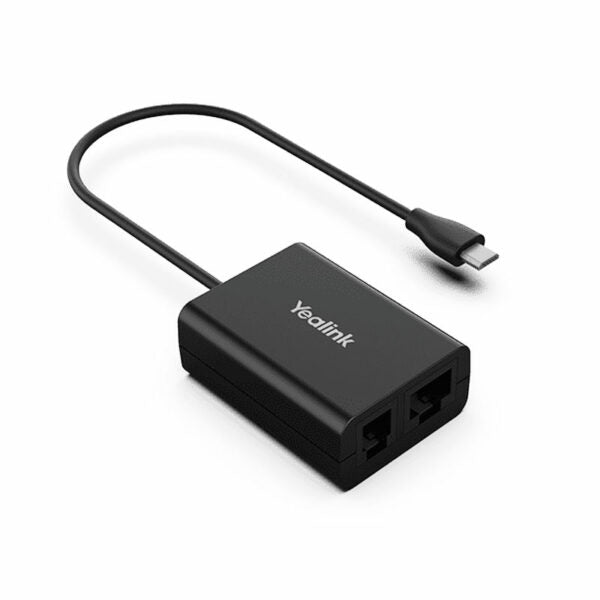
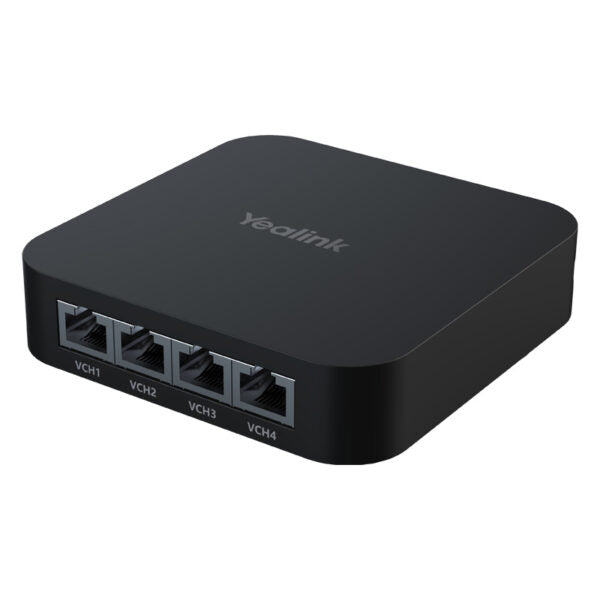
• The Yealink Headset Adapter EHS61 is a technical interface between your Yealink DECT Headset and a compatible desk phone, providing plug-and-play functionality for remote control of phone calls. • Key features include: • Support for Yealink wireless headsets only • Compatible with Mitel/Unify/Yealink T2X/T4XG desk phones • Control phone through wireless headset with options to answer, hang up, and adjust volume • Plug-and-play setup for easy installation • Easy to use and intuitive interface • Additional information: • Weight: 0.21 lbs • Dimensions: 5.55 × 4.02 × 1.81 in • Accessory Type: EHS Kit • Box Contents: EHS61, Cable A (for connecting Mitel & Unify Phones), Cable B (for connecting Yealink desk phones), Cable C (for connecting Yealink desk phones), and User Guide • Technical specifications: • Compatible with Yealink wireless headsets (WH62/WH63) • Perfectly compatible with Mitel/Unify/Yealink T2X/T4XG IP Phone • Plug-and-play functionality for remote control of phone calls • Control calls through remote wireless headset options include answering, hanging up, and adjusting volume

About This Product

The Yealink EHS61 is a compact adapter that bridges a Yealink DECT wireless headset and a compatible desk phone, giving you call control directly from the headset buttons. It’s aimed at professionals who spend a lot of time on calls and want to move away from the handset without losing the ability to answer, end, or adjust volume remotely. In typical office settings—whether a downtown Toronto financial firm or a distributed team in the GTA—this little box often sits neatly behind the phone, out of sight, doing its job.

Installation is genuinely plug-and-play: no drivers or complex configuration. However, the EHS61 is not a universal adapter. It works only with Yealink’s WH62 and WH63 DECT headsets, and with Mitel, Unify, and select Yealink T2X/T4XG phones. If you’re mixing brands, you’ll need a different solution. For a standard deployment where your phones and headsets all live within that ecosystem, it’s a clean, no-fuss choice.

The main compromise is compatibility. It doesn’t support Bluetooth headsets or third-party DECT headsets, so it locks you into the Yealink wireless lineup. Also, because it relies on EHS signalling, it doesn’t add any computer telephony integration—just headset–desk phone link. That’s perfect for pure desk phone users, but if you need to control softphone calls from the same headset, you’ll want to check how the headset itself handles PC connectivity.

For a small office or call center that has standardized on Yealink phones and Yealink DECT headsets, the EHS61 is a sensible accessory. It’s overkill for a home office where a single corded headset suffices, and underpowered for environments mixing multiple phone brands or needing unified headset management across PC and desk phone. But when the fit is right, it quietly eliminates the physical tether to the desk phone.
Services We Provide
  • Professional Installation & Configuration
  • Ongoing Maintenance & Support
  • Troubleshooting & Repairs
  • System Upgrades & Updates