
Yealink MP54 E2 Teams Phone | Android 13, 4" Touch Screen, Wi-Fi & Bluetooth - 1301215

Frequently Asked Questions

This usually means the device is having trouble connecting to the Microsoft Teams servers or the network. First, confirm that the Ethernet cable is securely plugged into the correct port on the back of the phone, not the PC port, and that the activity lights are blinking. If you are using Wi-Fi, check that the network is broadcasting and the correct password was entered. A simple power cycle, by unplugging the phone for 30 seconds, can also clear a temporary boot glitch.
Choppy audio is typically a network issue, not a hardware fault. If you're using Wi-Fi, a weak signal or interference from many devices in a busy office can cause this. Try moving the phone closer to your access point, or better, connect it directly to your network switch with the included Ethernet cable. For a quick check, you can also try using a Bluetooth headset to see if the issue is with the handset or the network.
The Yealink MP54 E2 is built as a native Microsoft Teams device and is designed to provide the best experience within that ecosystem. The description notes it has seamless integration with other platforms like Zoom and Skype, which typically means you can join those meetings through interoperability features, but it is not a generic SIP phone you can re-register to another service. For a dedicated Zoom Phone, a different device in the Yealink lineup would be a better fit.
A non-responsive screen can be a sign of an unresponsive app. First, ensure the screen is clean and dry, as moisture or debris can interfere with touch sensitivity. If it's still unresponsive, the phone's processor might be overloaded. Disconnect the power for a full minute, then plug it back in. If the issue happens frequently, a Toronto-based VoIP support provider can usually resolve this remotely by checking the device logs and firmware.
This device requires more power than a standard USB port provides. Ensure you are using a compatible Power over Ethernet (PoE) switch or a supported power adapter, which is sold separately. If using PoE, test the network cable and try a different port on your switch to rule out a faulty port.
Once the phone is booted and you're signed in, you can navigate to the Android Settings menu from the device's admin or settings area, find the Wi-Fi section, and select your corporate network. You'll need your Wi-Fi password. Keep in mind that for a reliable video call experience, a wired Ethernet connection is strongly recommended over Wi-Fi.
Bluetooth audio dropouts can occur if there's interference from other wireless devices or if you move too far from the phone. First, try unpairing and re-pairing your headset. Ensure the headset is within a clear line of sight of the phone and that no large metal objects are between them. Also, check that your headset is fully charged, as a low battery can cause intermittent disconnections.
Yes, the MP54 E2 can be wall-mounted, but the wall mount bracket is a separate accessory sold by Yealink. The phone unit itself does not have keyhole slots for direct mounting. You will need to purchase the specific MP54 Wall Mount kit to attach it securely and safely to a vertical surface.
Start by checking the physical volume controls during a call. Press the volume up key on the phone to ensure it isn't muted or turned all the way down. Also, look at the in-call screen to confirm the speaker, handset, or headset icon is correctly selected to match how you are trying to listen. For example, if the headset icon is highlighted, the handset will be silent.
A sign-in failure is almost always a credential or authentication issue. First, double-check that the email address and password you are entering are correct by signing into the Teams web portal on a computer. If the credentials are correct, the phone might be failing to reach the Microsoft sign-in servers. Verify the phone has a valid IP address and can reach the internet by checking its network status in the settings. If the issue persists, a Toronto-based VoIP support provider can usually resolve this remotely by verifying the device's firmware and network configuration.
IP Phones

Yealink MP54 E2 Teams Phone | Android 13, 4" Touch Screen, Wi-Fi & Bluetooth - 1301215
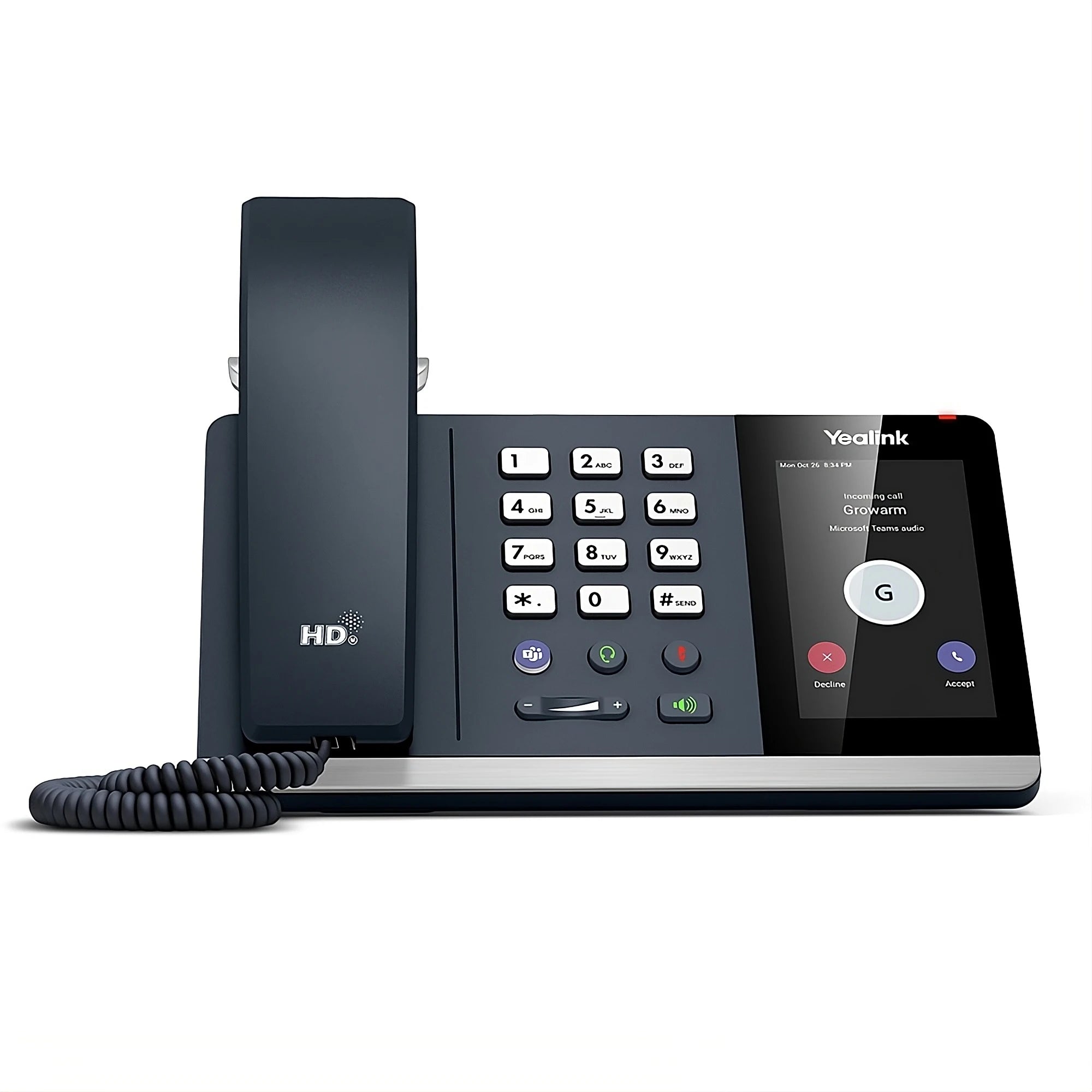
The Yealink MP54 E2 Teams IP Phone is a high-end video conferencing phone that offers advanced features such as 1080p video, wideband audio, and seamless integration with Microsoft Teams. Here are some of its key specifications: **Phone Unit** * Android 13 operating system * IP65 rating for dust and water resistance * 4G LTE connectivity * Wi-Fi 802.11ac * Bluetooth 5.2 **Handset** * Handset cord included * Desk stand included * Ethernet cable (2m) included * Quick start guide (QSG) included **External Power Adapter** * Yealink 5V 2A external power adapter is sold separately (not included by default) **Wall Mount** * MP54 Wall Mount is sold separately **Other Features** * Microsoft Teams integration with long-term support and enhanced security features * Advanced video conferencing capabilities, including 1080p resolution and wideband audio * Seamless integration with popular video conferencing platforms, including Zoom and Skype * Compatible with a range of smartphones and tablets for remote control and monitoring Overall, the Yealink MP54 E2 Teams IP Phone is designed to provide advanced features and seamless integration with Microsoft Teams, making it an ideal choice for businesses looking to upgrade their video conferencing capabilities.

About This Product

The Yealink MP54 E2 is designed for professionals who need a dedicated, always-on Microsoft Teams endpoint without relying on a PC. Its compact footprint fits naturally on a desk in a private office, a huddle room, or a hot-desking area in a Toronto co-working space. The Android 13 base provides a familiar, app-like experience, which reduces training overhead when rolling out to teams who are already comfortable with the Teams mobile client. The integrated Wi-Fi and Bluetooth mean you can place it where the network cable isn't, though for mission-critical video calls a wired Ethernet connection remains the more reliable choice.

This device pairs well as a companion to a user's laptop, offloading Teams calls to a dedicated appliance and freeing up the computer's screen and processor. It's a sensible replacement for an aging desk phone that was only handling audio, bringing video into the same workflow. The 4-inch touch screen is adequate for basic presence, directory access, and call control, but it's not a replacement for a full desktop Teams client for heavy content collaboration. Think of it as a purpose-built tool for clear voice and video calls first, with the broader Teams chat and channel experience remaining on the computer.

The built-in Bluetooth 5.2 and Wi-Fi 802.11ac offer flexibility, but there's a trade-off. Using Bluetooth for a headset is convenient, but relying on Wi-Fi for a video device in a congested wireless environment, like a multi-tenant office building in downtown Toronto, can lead to inconsistent call quality. For a stable deployment, a wired Ethernet connection is strongly recommended, especially if you plan to use its 1080p video capabilities. The IP65 rating for dust and water resistance is an uncommon and genuinely practical feature for a desk phone, suggesting it can handle a splash or a dusty warehouse office without immediate failure, though it's not designed for full outdoor exposure.

This phone is overkill for a simple lobby phone or a common-area courtesy phone where only basic dial tone is needed. It's underpowered if your primary need is a large-screen video conferencing room system for a boardroom for ten people. Its sweet spot is the individual knowledge worker who lives in Microsoft Teams, needs a high-quality, secure, and managed voice and video endpoint, and wants a device that IT can provision and control centrally. For a business evaluating a fleet of Teams phones, the MP54 E2 hits a solid middle ground between a basic handset and a full-room system.
Services We Provide
  • Professional Installation & Configuration
  • Ongoing Maintenance & Support
  • Troubleshooting & Repairs
  • System Upgrades & Updates



