
Yealink MP58-WH E2 Teams Phone | Android 13 Wireless Handset IP Business Phone-1301015
Frequently Asked Questions
Yealink MP58-WH E2 Teams Phone | Android 13 Wireless Handset IP Business Phone-1301015
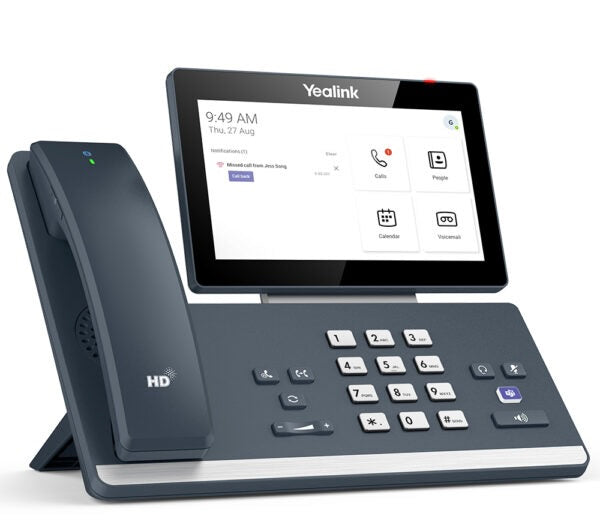
• Yealink MP58-WH E2 IP phone is based on Android 13.0 OS, providing a superior Microsoft Teams experience. • It features a magnet handset, 7-inch adjustable touch screen, and dedicated Teams button for high-quality collaboration. • The phone supports Bluetooth wireless handset (BTH58) allowing users to take calls from anywhere, enhancing flexibility and voice communications. Key Features: • Android 13.0 • 7-inch (1024 x 600) Capacitive Adjustable Touch Screen • Optimal HD audio, Yealink Noise Proof Technology • Dedicated Microsoft Teams Button • Built-in Bluetooth 5.2 and Dual Band 2.4G/5G Wi-Fi • Supports up to 3 Expansion Module EXP50 • 2 x USB Type-A ports • Dual-port Gigabit Ethernet, supports PoE • Supports device management platforms for Microsoft and Yealink Technical Specifications: • Model: MP58-WH E2 Teams • Part number: 1301015 • Package Contents: + Yealink MP58-WH E2 IP phone + Handset: BTH58 Bluetooth wireless handset + Ethernet Cable (2m) + Type-C Cable + Stand + Quick Start Guide • GENERAL INFO: + Model: MP58-WH E2 Teams + Part number: 1301015 + Qty/CTN: 5 PCS + N.W./CTN: 8.5 kg + G.W./CTN: 9.1 kg • DISPLAY AND INDICATOR: + LCD screen: 7” 1024×600 capacitive touch screen, vertical tilt angle adjustable 48°, 5 points multi-touch surface, dark theme, multi-language user interface, full keyboard + Dedicated Teams button + Presence integration • INTERFACE: + Dual-port Gigabit Ethernet + Power over Ethernet (IEEE 802.3af), class 3 + Built-in dual band 2.4G/5G Wi-Fi + Bluetooth handset BTH58 + 2 x USB Type-A ports + 1 x USB Type-C port + 1 x Security lock port + 1 x RJ9 (4P4C) handset port + 1 x RJ9 (4P4C) headset port • MANAGEMENT: + Configuration: Browser/Phone/Auto Provisioning and Device Management Platform + Provisioning priority management + Auto Provisioning via Activation Code + Yealink Redirection and Provisioning Service (RPS) + QoE (Monitoring Reports) + Reset to factory, reboot + Package tracing export, system log + Screenshot via URL • NETWORK AND SECURITY: + IPv4/IPv6 + IP Assignment: Static/DHCP + HTTP/HTTPS web server + Time and date synchronization using SNTP + Transport Layer Security (TLS) + HTTPS certificate manager + IEEE802.1X • OTHER PHYSICAL FEATURES: + Color: Classic Grey + External Yealink AC adapter (optional): AC 100-240V input and DC 12 V/1 A output + Power consumption (PSU): 2.5-7 W + Power consumption (PoE): 3.3-7.6 W + Dimension (W × D × H × T): 259 × 196 × 164 × 45 mm + Operating humidity: 10-95% + Operating temperature: -10-50°C (+14-122°F)
About This Product
Because it runs Android 13 with a native Teams interface, the MP58-WH E2 is best deployed where your calling infrastructure is already centred on Teams Phone with Calling Plans, Operator Connect, or Direct Routing. It isnât a generic SIP endpoint; itâs purpose-built for the Teams ecosystem. That means setup and management lean heavily on Microsoftâs device administration and Yealinkâs management platforms, which can simplify rollout for IT teams already managing Teams-certified devices.
A practical trade-off to keep in mind is power. The phone uses PoE (802.3af) by default, drawing up to 7.6 W, so it works on most standard office switches. If youâre adding multiple EXP50 expansion modules, however, youâll need to budget for the optional AC adapter, as PoE alone may not reliably power a fully expanded setup. Also, the wireless handset requires its own charging via the included Type-C cable, so desk placement needs to accommodate that.
For a front-desk receptionist who just needs to answer and transfer calls, this model is probably overkill; a simpler Teams-certified phone would suffice. But where the combination of a large adjustable touch screen, wireless freedom, and deep Teams integration matters, the MP58-WH E2 fits wellâespecially in Canadian businesses that have standardized on Teams and want a premium, cable-free handset experience without leaving the Microsoft environment.
Services We Provide
- Professional Installation & Configuration
- Ongoing Maintenance & Support
- Troubleshooting & Repairs
- System Upgrades & Updates



