
Yealink SIP-T44U IP Phone | 12-Line, Dual USB Ports, Color LCD, Gigabit-1301214

Frequently Asked Questions

First, confirm the handset or headset is firmly connected and that the phone isn't muted. Check that SIP ALG is disabled on your router or firewall, as it can interfere with RTP audio streams. If using a headset, try the handset to isolate the issue.
The T44U draws power using PoE, so verify your network switch or injector supports 802.3af/at PoE and the port is enabled. If your setup lacks PoE, you'll need the optional Yealink power adapter sold separately. Try a different Ethernet cable and port to rule out a cabling fault.
Log into the phone's web interface and go to Account settings. Ensure the SIP server address, username, and password exactly match the credentials from your provider. Disable the "Outbound Proxy" unless your provider specifically requires one, and confirm the transport protocol (UDP/TCP) is set per their instructions.
Make sure the attached device is compatible and within the phone's supported accessories list. Try the second USB port to see if the issue follows the device or the port. Power-cycle the phone, as USB initialization can occasionally fail after a firmware update.
Dropped calls often point to SIP session timer or firewall settings. In the phone's web interface under Account > Advanced, verify that Session Timer and Keep Alive settings match your provider's recommendations. Also confirm your network's firewall isn't blocking SIP signalling or changing ports mid-call.
The T44U uses Yealink's unified firmware and supports auto-provisioning via a configuration server (HTTP/HTTPS/TFTP). Set the provisioning URL in the phone's web interface under Settings > Auto Provision, or use DHCP option 66/43. Once the template is correct, all phones will pull the same settings on boot.
After connecting the module, navigate to the phone's web interface > DSS Key settings. You may need to assign functions to the newly detected keys manually. Ensure the module is firmly seated and the phone is configured for up to three modules; if it still isn't recognized, check for firmware updates on both the phone and module.
The phone likely lost its IP configuration. Press the Menu key, go to Settings > Advanced > Network > IPv4, and re-enter your Wi-Fi password if using a USB Wi-Fi adapter, or confirm the Ethernet connection and reboot the phone so it can renew its DHCP lease. If this keeps happening, reserve an IP for the phone in your router.
IP Phones

Yealink SIP-T44U IP Phone | 12-Line, Dual USB Ports, Color LCD, Gigabit-1301214
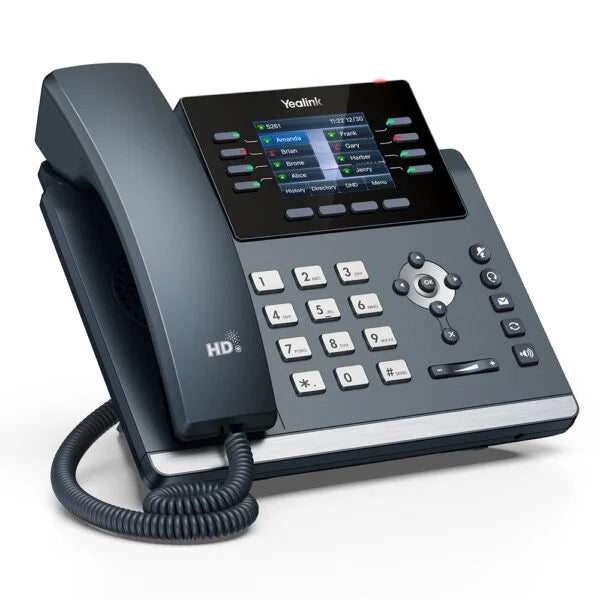
The Yealink SIP-T44U is a feature-rich business IP phone designed for high-performance communication and unparalleled expansion capability. Key features include: • 2.8-inch color LCD with backlight • Support for up to 12 SIP accounts • Advanced Optima HD Audio & Acoustic Shield technology for superb audio quality • Smart Noise Filtering and Acoustic Shield technology for background noise suppression • Hearing Aid Compatibility (HAC) • Dual USB ports for unlocked flexibility • Two integrated USB 2.0 ports, allowing users to combine accessories freely according to their needs The phone offers: • Unified Firmware with auto-provisioning template across the T4U series for simplified mass deployment and maintenance • High expandability with up to 8 line keys (programmable up to 12 paperless DSS keys) and three color-screen EXP43 Expansion Modules for up to 180 additional buttons • Enhanced DSS Key for a better user experience • Secure & Reliable features, including dual firmware images, Transport Layer Security (TLS 1.3), and the Security Center feature The package includes: • Yealink SIP-T44U IP Phone Unit • Handset with Handset Cord • Desk Stand (Adjustable, two-angle) • Quick Start Guide (QSG) • Ethernet Cable Note: The external power adapter is sold separately (not included by default), and the Yealink T44U Wall Mount Bracket is also sold separately.

About This Product

The Yealink SIP-T44U is aimed at office professionals who handle a moderate to high call volume and need multiple line appearances or shared call presence. With support for up to 12 SIP accounts and the option to add colour-screen expansion modules, it fits well in front-desk, executive assistant, or small workgroup environments where call visibility and quick access to contacts matter. Its dual USB ports allow connecting a Bluetooth dongle or Wi-Fi adapter for wireless headset use, which suits modern hybrid desking setups common in the GTA business market.

Because the phone does not include a power adapter and relies on PoE for clutter-free installation, buyers should confirm their network switch provides adequate PoE—this is typical for Canadian offices but can be a stumbling block in home-office or older building deployments. The T44U is more than a basic desk phone but stops short of the advanced unified-communications clients found on flagship models, meaning it's an excellent fit as a reliable workhorse for voice-centric users who don't need built-in video or app ecosystems.
Services We Provide
  • Professional Installation & Configuration
  • Ongoing Maintenance & Support
  • Troubleshooting & Repairs
  • System Upgrades & Updates



