
Yealink SIP-T48U: Executive IP Phone with 7-Inch Touchscreen-1301204

Frequently Asked Questions

Start by confirming the Ethernet cable is securely connected and the phone is receiving power (the screen should be on). Next, log into the phone's web interface and verify the SIP server address, account credentials, and registration port are correct. If those settings look right, try rebooting the phone and your network switch or router. If the issue persists, a Toronto-based VoIP support provider can usually resolve this remotely.
First, check that the handset cord is fully plugged in and the volume is turned up using the volume keys during a call. Make sure the mute button is not engaged and that no USB headset is taking over the audio path. If you are using a Bluetooth headset, confirm it is paired and selected as the audio device. A simple reboot often clears temporary audio glitches.
A soft restart usually resolves a frozen touchscreen without affecting your configuration. Unplug the Ethernet cable (or power adapter if not using PoE), wait about 10 seconds, then reconnect it. If the screen remains unresponsive after rebooting, gently clean it with a dry microfiber cloth to rule out dirt or moisture causing false touches.
Verify the Ethernet cable is undamaged and try a different port on the switch; some ports may have PoE disabled or may be exhausted on power budget. Check that your switch supports 802.3af PoE, as the SIP-T48U requires it. If the phone still won't start, test with a compatible PoE injector or the optional power adapter to isolate whether the switch or the phone is at fault.
Lower the handset or speaker volume slightly, as high volume can cause acoustic feedback between the earpiece and microphone. In the phone's audio settings, ensure Acoustic Shield is enabled, and try switching between the handset and a headset to see if the echo follows the device. If the problem occurs only on external calls, network latency or the far-end device may be the cause.
One-way audio often points to a firewall or NAT issue blocking inbound voice traffic. Check that SIP ALG is disabled on your router and that the correct RTP port range is open. If your PBX is hosted, confirm the phone's local IP is properly mapped. A Toronto-based VoIP support provider can usually resolve this remotely if the network configuration is complex.
Insert a compatible Yealink Wi-Fi dongle into one of the USB ports, then navigate to Menu > Basic > Wi-Fi on the touchscreen. Enable Wi-Fi, select your network from the scanned list, and enter the password. Once connected, the phone can be configured to use Wi-Fi for SIP traffic, but a wired connection is still recommended for reliability.
Plug a Yealink Bluetooth adapter into a USB port, then go to Menu > Basic > Bluetooth and turn Bluetooth on. Put your headset into pairing mode, then select it from the list of discovered devices on the phone. After pairing, you may need to set the headset as the default audio path in the phone's audio settings.
Yes, the SIP-T48U supports up to 16 SIP accounts. To add another line, access the web interface, go to the Account tab, select an unused account slot, and fill in the registration details provided by your VoIP provider. You can then assign a line key to that account so it appears on the touchscreen for quick access.
Connect the EXP43 to the phone's expansion port and power cycle both devices. In the phone's web interface, navigate to the DSS Key section where the expansion module keys will appear. Assign each key a function—such as a speed dial, BLF, or line appearance—and save the configuration. The labels will sync to the module's display automatically.
IP Phones

Yealink SIP-T48U: Executive IP Phone with 7-Inch Touchscreen-1301204
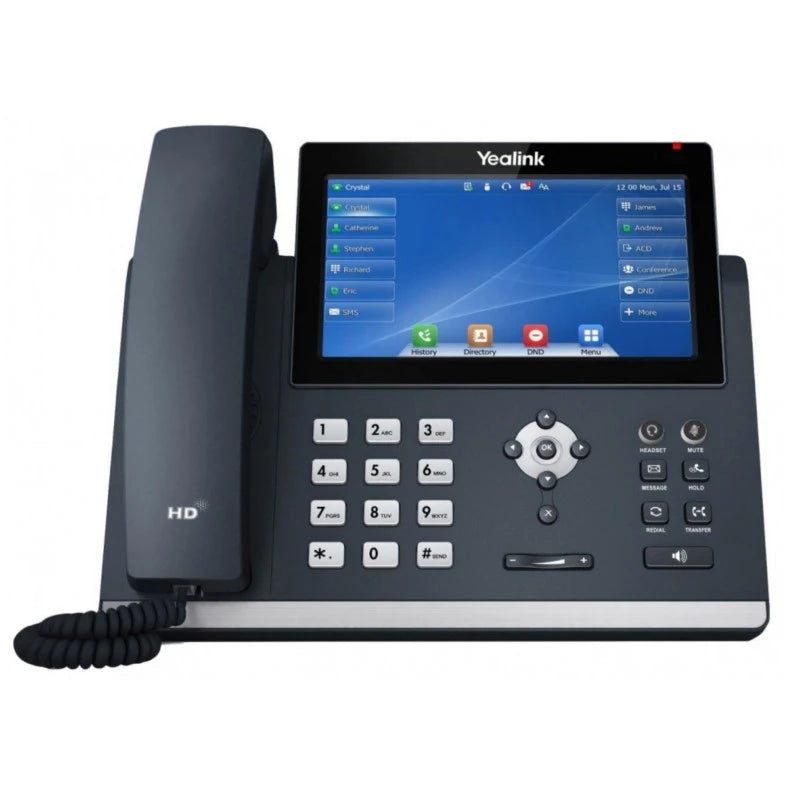
The Yealink SIP-T48U is a dynamic, high-performance IP phone designed for executives and busy professionals. Key features include: • 7-inch color touchscreen for efficient page switching and application management • United Yealink Optima HD Voice technology and Opus codec for superb audio quality and crystal-clear voice communications • Acoustic Shield and Smart Noise Filtering to eliminate background distractions • Gigabit connectivity with PoE support for high-speed data and simplified installation • Dual USB versatility to support simultaneous connections (Bluetooth, Wi-Fi, USB headset, or recording) • Scalability up to 16 SIP accounts and compatibility with Yealink EXP43 Expansion Module • Handset with handset cord, desk stand (adjustable, two-angle), Ethernet cable (2m CAT5E UTP Cable), and quick start guide This phone is designed for open-office environments, providing excellent call quality and minimizing distractions. It supports Wi-Fi and Bluetooth via optional external adapters and is fully compatible with popular PBX systems.

About This Product

The Yealink SIP-T48U is built for executives and busy professionals who need more than a basic desk phone. Its large touchscreen simplifies navigating multiple lines, contacts, and applications, making it a natural fit for private offices, boardrooms, or open-plan environments where the built-in noise filtering helps keep calls clear even with background chatter. It is a strong choice for anyone who regularly juggles several SIP accounts or wants quick visual access to call controls without digging through menus.

This phone pairs well with the Yealink EXP43 expansion module for receptionists or attendants who need dozens of programmable keys, and the dual USB ports let you add a Wi-Fi dongle, Bluetooth adapter, or a USB headset—though keep in mind those accessories are optional and must be purchased separately. Gigabit Ethernet with PoE support simplifies installation in offices that already have PoE switches, which is a common setup in Canadian business parks and downtown Toronto buildings.

For a user who only needs a single line and basic calling, the SIP-T48U is more phone than necessary, and a simpler model would likely suffice. On the other hand, it is not a dedicated call-center terminal; environments that demand heavy ACD features or agent-specific workflows may find it underpowered. For executive and knowledge-worker roles, it hits a practical sweet spot: high-quality audio, flexible connectivity, and a touchscreen that reduces the learning curve without overcomplicating daily use.
Services We Provide
  • Professional Installation & Configuration
  • Ongoing Maintenance & Support
  • Troubleshooting & Repairs
  • System Upgrades & Updates



