
Yealink SIP-T88V PRO Smart Business Video Phone | include BTH88 Wireless Handset-1301230

Frequently Asked Questions

First, verify the network connection: check that the Ethernet cable is securely connected and the phone has a valid IP address (look in Settings > Network). Then confirm the SIP account credentials (username, password, server address) entered in the phone's web interface are correct. A common mistake is a mismatched domain or port. If the issue persists, a Toronto-based VoIP support provider can usually resolve this remotely.
Ensure Bluetooth is enabled on the phone (Settings > Bluetooth). Place the BTH88 handset in pairing mode – typically by pressing and holding the power button until the LED flashes. Select 'BTH88' from the list of available devices on the phone's screen. If pairing fails, try restarting both devices and moving them closer together.
Check the handset and speaker volume levels (press the volume keys during a call). Also confirm that the correct audio output device is selected – for example, if using the Bluetooth handset, ensure it's actively connected. If the problem persists, try a call with the speakerphone to isolate if it's a handset issue.
First, physically check the privacy shutter on top of the camera – it must be slid to the open position. Then, in the phone's call interface, ensure the camera icon is not toggled off. If the issue continues, restart the phone and test with a local video call before troubleshooting the SIP video codec settings.
Yes, the Yealink SIP-T88V PRO supports Power over Ethernet (802.3af). The phone will power up over a properly provisioned PoE port, so a separate power supply is not required if your network switch provides PoE. If the phone does not turn on, try a different PoE port or use the optional 12V power adapter.
Check the Wi-Fi signal strength in the area – walls or distance from the access point can cause instability. Consider using the included Ethernet cable for a wired connection, which is generally more reliable for VoIP. If you must use Wi-Fi, ensure the phone is set to connect only to a 5 GHz network if available, and verify that the router's Wi-Fi 6 settings are compatible.
Access the phone's web interface by entering its IP address into a browser. Navigate to Account > Register and enter the SIP account details provided by your carrier (server, username, password). Most Canadian providers offer auto-provisioning via a URL – paste that URL in the phone's provisioning settings under Settings > Auto Provision. Reboot the phone and it should register.
Clean the screen with a soft, dry cloth to remove any grease or debris. If a screen protector is installed, try removing it temporarily. Restart the phone by unplugging power for 30 seconds. If the problem recurs, check for any pending firmware updates in Settings > About Phone > System Update.
Check that the microphone is not muted on the phone's interface (look for a mute icon on the screen). Also ensure that the correct audio device is selected – if you're using the Bluetooth handset, make sure it's paired and selected. For a quick test, switch to the built-in speakerphone to see if the issue is with the external microphone.
First, confirm the Ethernet cable is connected to a live network port – check that the link light on the port is active. If using PoE, ensure the switch provides power (try a known-working PoE port). Then verify the phone obtained an IP address: press the Home key, go to Settings > Network > Ethernet. If no IP is assigned, try a different cable or port.
IP Phones

Yealink SIP-T88V PRO Smart Business Video Phone | include BTH88 Wireless Handset-1301230
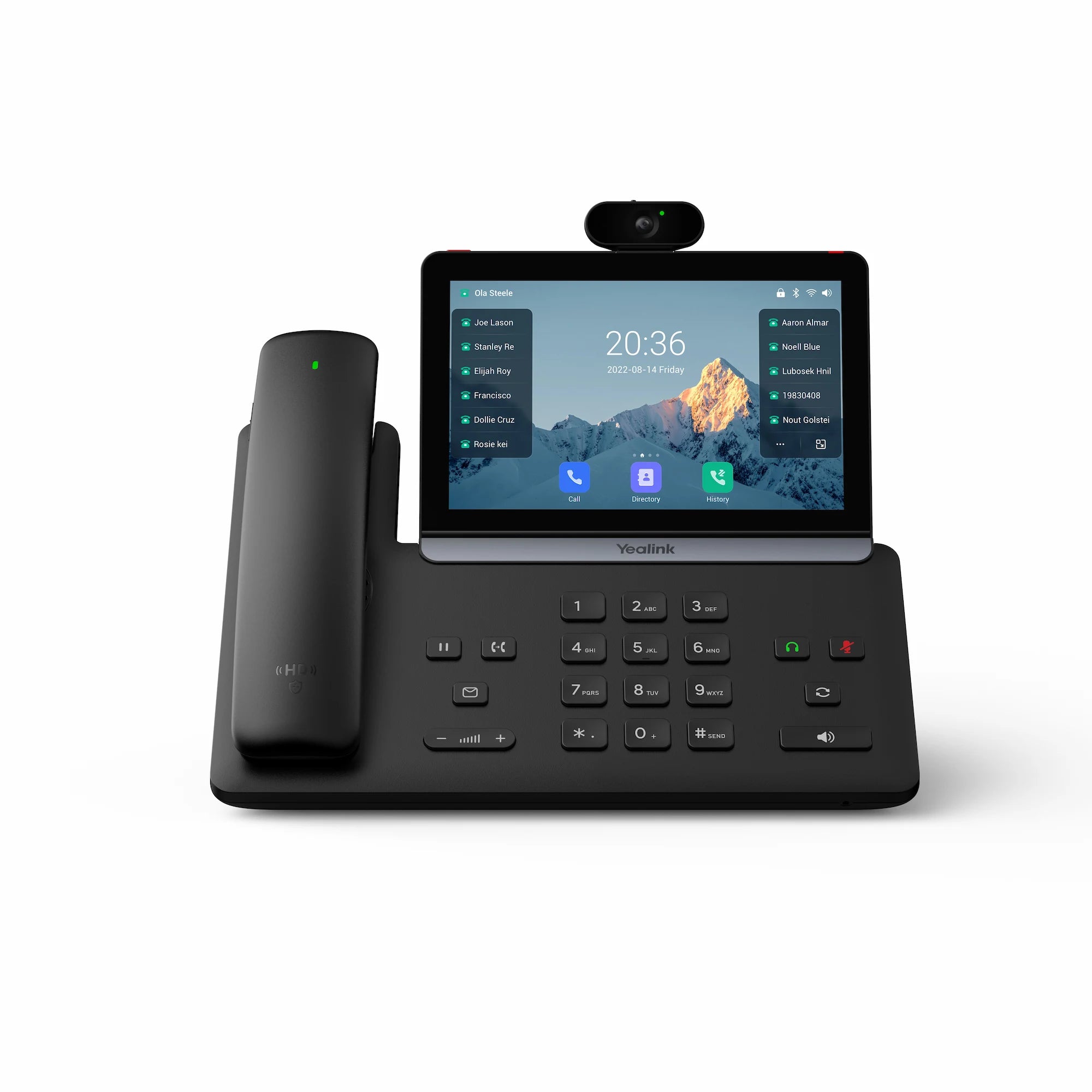
The Yealink SIP-T88V PRO is the elite, all-in-one video collaboration flagship of the T88 series. Purpose-built for C-level executives and modern professionals, it combines a high-performance Android 13 workstation with the total mobility of the BTH88 Bluetooth Wireless Handset. Key Features: • 5MP HD Plug-and-Play Camera: Experience vibrant 720p HD video calls at 30fps. • Adjustable Tilt Touchscreen: The large 7-inch (1024 x 600) capacitive display is mounted on an invisible hinge, allowing for a comfortable viewing and interaction angle of 30°. • Physical Privacy Shutter: Total peace of mind is built-in with a physical slider that allows you to mechanically block the camera lens when not in use. • Wi-Fi 6 & Bluetooth 5.0: Integrated 802.11ax (Wi-Fi 6) ensures ultra-stable wireless networking, while Bluetooth 5.0 allows for simultaneous connection of the BTH88 handset and your mobile device. Android 13 Platform: • Built on the latest Android 13 OS for a more concise, business-oriented interface. • Ensures smoother performance, better app compatibility, and a future-proofed communication hub. What's Included in the Package: • Yealink SIP-T88V PRO IP Phone Unit • BTH88 Bluetooth Handset • Adjustable Desk Stand • Ethernet Cable (2m CAT5E UTP Cable) • Quick Start Guide (QSG) Note: The external Yealink 12V 1.25A AC Power Supply for T88 Series is sold separately (not included by default).

About This Product

The Yealink SIP-T88V PRO is a premium, all-in-one video collaboration terminal designed for senior executives and professionals who need a dedicated desktop communication hub. With its large 7-inch touchscreen, integrated 5MP camera, and Android 13 operating system, it brings a modern, app-enabled experience to the desk, perfect for executive offices or boardrooms where high-quality video calls are a daily requirement. The included BTH88 Bluetooth wireless handset adds mobility, allowing you to walk and talk without being tethered to the base unit. This phone pairs well with any standard SIP trunking service, making it compatible with most Canadian business VoIP providers, including those serving the GTA. One practical tradeoff is the power supply, which is sold separately – the phone supports Power over Ethernet (PoE), so ensure your network switch supplies PoE or budget for the external adapter. While feature-rich, it may be overkill for general staff areas where video isn't needed; simpler models would suffice. Conversely, its Android platform and Wi-Fi 6 make it a strong candidate for a remote executive home office, provided the network is robust enough for 720p video.
Services We Provide
  • Professional Installation & Configuration
  • Ongoing Maintenance & Support
  • Troubleshooting & Repairs
  • System Upgrades & Updates



