
Yealink UH38 Dual Teams-BAT – 1308081-New-in-open-Box

Frequently Asked Questions

First, make sure the headset is in pairing mode: when powered off, press and hold the power button until the LED flashes red and blue. Confirm that no other device is already connected via Bluetooth, because the UH38 will not enter pairing mode while an active link exists. If it still won't appear, toggle your computer’s Bluetooth off and back on, then scan again.
Start by verifying the phone model and firmware version. The headset natively supports T4xU, T5xW, and select T4S phones (firmware 82 or higher). Use a different USB port on the phone if available, and ensure the headset is set to USB mode—check the Yealink USB Connect application if it isn’t switching automatically. If the issue persists, a Toronto-based VoIP support provider can usually resolve this remotely.
Position the microphone boom so it sits about two finger widths from the corner of your mouth; if it’s rotated too far up or down, the noise-canceling algorithm can’t isolate your voice effectively. Also confirm you aren’t muted on the headset or in the softphone, and in a Teams call, test the audio device selection to make sure the UH38 is set as the microphone.
Start by reducing the sidetone volume and turning off the busylight when you don’t need it, as both draw extra power. Keep the headset’s firmware up to date via Yealink USB Connect, because updates sometimes improve power management. If talk time still falls short, a short midday charge during a break will top it up enough to finish the day.
Install or open the Yealink USB Connect software on your PC and check the device settings to ensure the busylight is enabled for your UC platform. In Teams, the feature relies on the desktop client’s presence integration, so verify the headset is set as the primary audio device there. If it still won’t light, a Toronto-based VoIP support provider can help troubleshoot the integration remotely.
Bluetooth range is line-of-sight sensitive; walls, metal furniture, and competing 2.4 GHz signals from Wi-Fi access points can cause interference. Try staying within about 10 metres of the paired device and re-pair the headset after removing any old pairing entries. If the problem persists, a USB connection will bypass wireless interference entirely and deliver constant audio.
Yes, the dual connection feature allows simultaneous USB to a computer and Bluetooth to a mobile phone. When a call comes in on either device, the headset will switch audio to that source, but you can’t merge both calls into the headset at once—you’ll need to manage each call separately. For music, only one source will play at a time.
Open the Teams app, go to Settings > Devices, and manually select the Yealink UH38 as both the speaker and microphone. Sometimes the headset shows up as a generic “USB Audio Device”—you can identify the correct entry by the Yealink brand name in the selection list. Also check that your computer’s sound output isn’t muted and that volume is turned up on the headset itself.
Headsets

Yealink UH38 Dual Teams-BAT – 1308081-New-in-open-Box
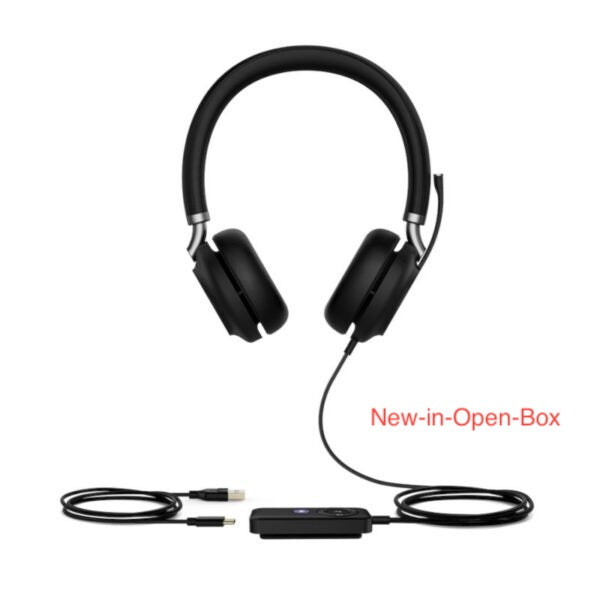
• Yealink UH38 is a premium stereo USB headset featuring phenomenal call and music audio, with dual-microphone noise cancellation and Acoustic Shield Technology for superior call quality. • Dual Connections of USB and Bluetooth allow you to manage two call devices simultaneously, improving call processing efficiency. • Premium materials and a sturdy metal frame provide a textured and durable design. • The soft and skin-friendly headband and ear cushions ensure all-day comfort. • The headset is designed for productivity, with seamless integration with major UC platforms and natively with Yealink IP phones. Key Features: • Phenomenal Audio for Call and Music • Dual Noise-Canceling Microphones • Dual Connections of USB and Bluetooth • Team Certified • 360° Busylight Technical Specifications: Plug-and-play: USB connectivity to Yealink IP phones, including T41S/T42S/T46S/T48S/T42U/T43U/T46U/T48U/T53/T53W/T54W/T57W/T58A/VP59 (T41S/T42S/T46S/T48S should be upgraded to version 82 or higher) Battery: • Talk time: up to 8 hours • Music time: 12 hours • Battery capacity: 200 mAh For a full list of specifications, please refer to the product datasheet.

About This Product

The Yealink UH38 Dual Teams-BAT targets professionals who spend a significant portion of their day on voice and video calls and expect clear audio without being tethered to a single device. It fits naturally in hybrid work setups where users split time between a desktop softphone (Microsoft Teams or other UC platforms) and a desk phone—particularly Yealink T4xU, T5xW, and VP59 models that support native USB headset connectivity. For a Toronto-based employee who moves between a home office and a downtown desk, the dual USB and Bluetooth connection means they can take a call on their PC, then seamlessly switch to a mobile phone without re-pairing.

This is a stereo headset with dual-microphone noise cancellation, so transmitted voice is crisp, but users working in a noisy open-plan environment may notice that passive isolation from the ear cushions is only moderate. The battery delivers around eight hours of talk time, which covers a standard workday for many but may require a midday top-up if calls run back-to-back. The 360° busylight is a practical touch for signaling focus time in a busy office, though its usefulness depends on coworkers recognizing the visual cue. Buyers treating this as a music headset should set expectations realistically—audio is tuned primarily for speech, and while it handles music playback acceptably, it isn't a replacement for dedicated high-fidelity headphones.

Small to mid-sized Canadian businesses deploying Yealink IP phones along with Teams will find the UH38 a tidy, integrated choice that reduces desk clutter. It is overkill for occasional callers who only need a basic wired headset, and underpowered for a contact center that requires all-day wireless shifts with hot-swappable batteries. Compatibility is broad across major UC platforms, but anyone relying on older Yealink T4S phones must first confirm the handset firmware is at version 82 or above, as the plug-and-play USB connection depends on that revision. For GTA offices where employees frequently switch between the corporate softphone and a personal mobile, the headset’s dual connectivity removes friction and keeps conversations fluid.
Services We Provide
  • Professional Installation & Configuration
  • Ongoing Maintenance & Support
  • Troubleshooting & Repairs
  • System Upgrades & Updates



