
Yealink UH42 Dual Teams USB-C/A – 1308195
Frequently Asked Questions
Disconnect the headset and plug it into a different USB port on the computer, avoiding USB hubs if possible. If the headset uses the USB-C connector, try the USB-A adapter to rule out a port issue. Also test it on another computer; if Windows or macOS detects it on a second machine, the original system may need a reboot or updated chipset drivers.
In Microsoft Teams, check that the headset’s microphone is selected as the default input device under Device Settings. Make sure the in-line mute button isn’t active and that the microphone boom is positioned near the corner of your mouth. If the issue persists, test recording in a simple app like Voice Recorder to confirm the mic is picking up audio.
Lower the system volume to about 80% and adjust from the headset’s in-line controller to rule out amplifier clipping. Connect the headset to a different device, like a mobile phone with an adapter, and play audio. If the sound is clean there, the problem lies with the original computer’s audio drivers or USB power management settings, which can sometimes starve a USB audio device of stable bandwidth.
Make sure Microsoft Teams is the active application window when you press the buttons. The headset relies on Teams’ USB HID integration; if multiple softphones are running, Teams might not be the one receiving the button commands. Close other communication apps, test again, and confirm that the headset firmware is up to date using the Yealink USB Connect desktop tool.
First verify that the call is active and that you are using a Teams-certified mode. The LED syncs with your Teams status and may not light if you are in a standard audio call without full Teams integration. Plug the headset into another computer with Teams installed and make a test call. If the LED works there, the original system may have a USB power policy disabling the light; try a different USB port directly on the motherboard.
This usually points to a loose USB connection or power savings interfering with the USB bus. Reseat the cable at the headset and at the computer. In Windows Device Manager, disable 'Allow the computer to turn off this device to save power' for all USB root hubs. If the problem only happens through a docking station, connect the headset directly to the laptop to see if the dock’s USB controller is the culprit.
Yes. The headset is a standard USB audio device and will work with any application that lets you select a speaker and microphone. However, the in-line call control buttons and LED status integration are optimized for Teams. On Zoom or other platforms, the buttons may answer or end calls if the application supports USB HID, but the LED may not sync with your presence.
Extend the headband fully and gently bend it outward (holding the metal band, not the plastic) to reduce clamping force. Replace the ear cushions with aftermarket gel pads if they feel hard; these can often be found for a modest cost. Taking short breaks to remove the headset every couple of hours also helps prevent pressure buildup.
Headsets
Yealink UH42 Dual Teams USB-C/A – 1308195
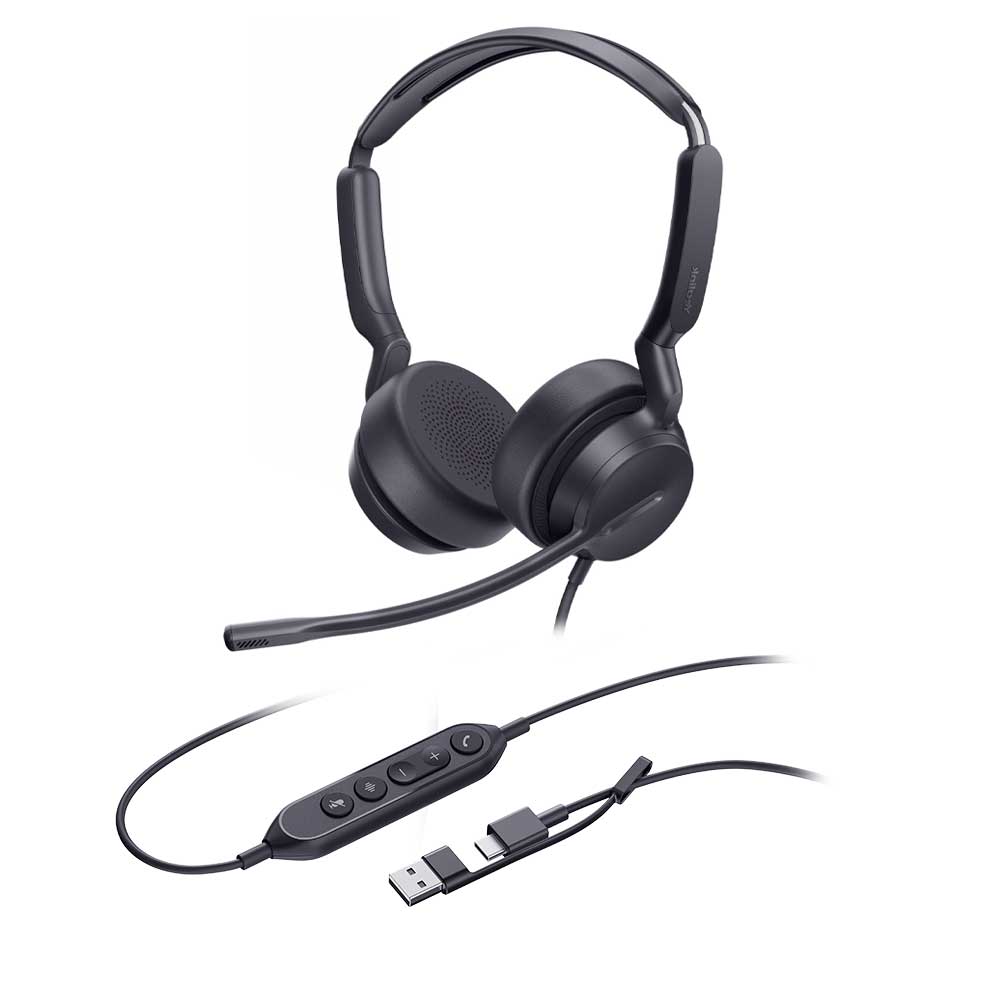
The Yealink UH42 Dual Teams USB-C/A is a professional USB wired headset with crystal clear audio, designed for extended wearability and comfort. • 1-Mic & AI Noise Cancellation • All-Day-Wearing Comfort • High-Quality Audio Experience • Flexible and Fast Plug-and-Play • In-line Call Controller with LED Indicators • Teams Certified Audio Specifications: • Microphone quantity: 1 • Microphone frequency response range: 100Hz-14kHz • Speaker size: Ø 35mm • Speaker sensitivity: 113.8±3dB 0.980V • Speaker frequency response range: 20Hz-20kHz • Hearing Protection: • Peak Block Protection (EN50332) • Australian G616 Protection (AU G616) • Daily Noise Exposure Protection
About This Product
The Yealink UH42 Dual is a wired USB headset purpose-built for Microsoft Teams users who need clear, reliable audio throughout a full workday. Its dual USB-C/USB-A connector bridges modern laptops and legacy ports, making it a sensible pick for mixed-device offices, remote workers, or small contact centres where desk-based agents stay plugged in and on calls continuously. The headset's Teams certification means firmware and button controls are validated for the platform, removing the guesswork around softphone compatibility that can slow down adoption of a new tool.
For businesses standardizing on Teams, this headset fills the spot between disposable consumer earbuds and higher-priced wireless models. The in-line call controller with LED status indicators gives at-a-glance call awareness, and the AI-driven noise cancellation on the microphone helps suppress background conversation in a moderately busy room. At its price point, it delivers solid voice quality and hearing-protection features that matter during long shifts. In many Toronto-area offices where Teams has become the voice and video backbone, a certified wired headset like this provides validated performance without straining IT budgets.
The main trade-off is the physical tether. If you pace while on calls, or move between meeting rooms frequently, a wireless headset will serve you better. The single-microphone noise cancellation handles steady hums effectively but may not isolate your voice as cleanly in open-plan environments with unpredictable noise spikes. For those settings, a headset with a multi-mic array or more advanced ambient filtering would be a stronger fit. Conversely, for users whose calls are brief or occasional, a simpler headset or even a phone handset may be all you need.
For businesses standardizing on Teams, this headset fills the spot between disposable consumer earbuds and higher-priced wireless models. The in-line call controller with LED status indicators gives at-a-glance call awareness, and the AI-driven noise cancellation on the microphone helps suppress background conversation in a moderately busy room. At its price point, it delivers solid voice quality and hearing-protection features that matter during long shifts. In many Toronto-area offices where Teams has become the voice and video backbone, a certified wired headset like this provides validated performance without straining IT budgets.
The main trade-off is the physical tether. If you pace while on calls, or move between meeting rooms frequently, a wireless headset will serve you better. The single-microphone noise cancellation handles steady hums effectively but may not isolate your voice as cleanly in open-plan environments with unpredictable noise spikes. For those settings, a headset with a multi-mic array or more advanced ambient filtering would be a stronger fit. Conversely, for users whose calls are brief or occasional, a simpler headset or even a phone handset may be all you need.
Services We Provide
- Professional Installation & Configuration
- Ongoing Maintenance & Support
- Troubleshooting & Repairs
- System Upgrades & Updates



