
Yealink UH42 Dual UC USB-C/A – 1308215

Frequently Asked Questions

First, check that the USB connector is fully inserted into the port. Try a different USB port—if you're using USB-C, a USB-A adapter may be needed for older ports. On Windows, open Sound settings and confirm the Yealink UH42 appears as both a playback and recording device. On a Mac, check System Preferences > Sound. If it still isn't recognized, test the headset on another computer to rule out a hardware issue; if the problem persists, contact your VoIP support provider.
Make sure the microphone boom is positioned close to your mouth and not blocked by clothing. Check that the headset is selected as the default recording device in your softphone's audio settings and that the microphone is not muted via the in-line controller (the LED on the mute button will be red when muted). If the issue continues, try re-plugging the USB connector and restarting your softphone application.
The in-line controller uses standard USB HID commands, so it should work automatically with most UC platforms. Ensure your softphone is set to use the Yealink UH42 as its communication device. If the answer/end buttons don't respond, check that the softphone is the active window—some applications require focus to accept commands. Also verify the headset firmware is up to date via Yealink's Device Manager tool.
First, check the volume level in both your operating system and your softphone—sometimes one is turned down independently. Ensure the headset's speaker is clean and unobstructed. If you're using a USB hub, try connecting directly to the computer's USB port, as hubs can limit power delivery. For persistent low volume, test the headset on another device to see if the issue follows the headset or the computer.
The AI noise cancellation works best when the microphone is close to your mouth—adjust the boom so it's about one finger-width from your lips. Reduce ambient noise sources (fans, open windows) near your workspace. In your softphone, check that echo cancellation is enabled. If the echo persists, try lowering your speaker volume slightly, as loud output can bleed into the microphone.
Intermittent cutouts are often due to a loose USB connection. Try a different USB port and ensure the cable isn't strained or bent sharply. If you're using a USB extension cable, remove it and plug directly into the computer. On Windows, go to Device Manager and disable USB selective suspend settings to prevent the port from powering down. If the problem continues, a Toronto-based VoIP support provider can usually diagnose this remotely.
Yes, the Yealink UH42 comes with a dual connector: a USB-C plug and a detachable USB-A adapter. Simply use the adapter when connecting to a USB-A port. Both connections provide the same audio quality and functionality. No additional drivers are needed—it's plug-and-play on Windows, Mac, and Linux.
The AI noise cancellation is always active and doesn't have a manual toggle. It works best in steady, low-level background noise (like a fan or office hum). For sudden loud noises, the Peak Block Protection will kick in. If you feel the cancellation is insufficient, check that the microphone is properly positioned and that the headset's firmware is current. In very noisy environments, consider a headset with a dedicated noise-cancelling microphone boom.
First, confirm that your softphone is running and set as the default communication app. Some softphones require a plugin or specific settings to accept media keys. On Windows, check that the headset is selected as the default device in Sound settings. If you're using a virtual audio cable or custom routing, that can interfere with button commands. Try restarting both the softphone and the computer.
You can switch the default playback device in your operating system's sound settings. Many softphones also let you choose the audio device within their settings menu—select Yealink UH42 for headset use, and your computer speakers for desk use. The in-line controller does not have a speaker-switch button, so the change must be made in software.
Headsets

Yealink UH42 Dual UC USB-C/A – 1308215
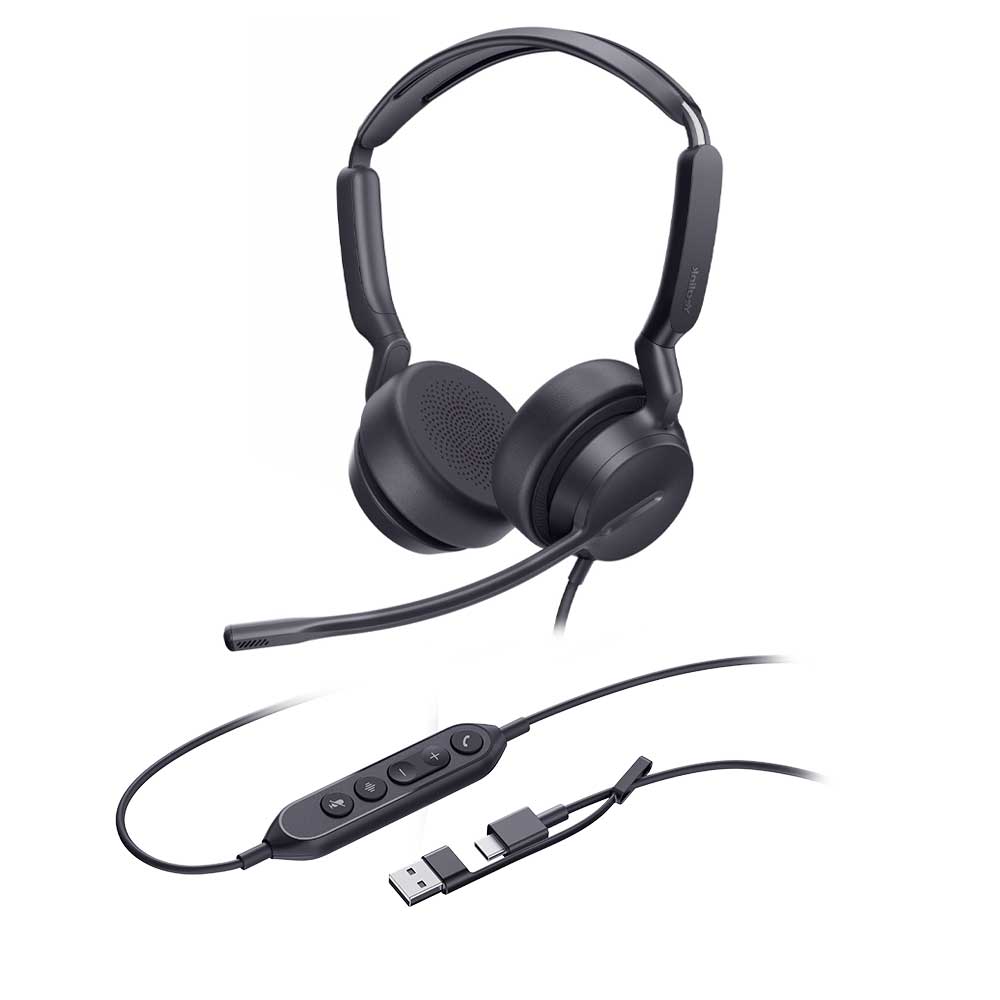
The Yealink UH42 Dual UC USB-C/A is a professional USB wired headset with crystal clear audio. It offers a lightweight, comfortable form suitable for workers who spend a lot of time wearing headsets for voice communications. Key Features: • 1-Mic & AI Noise Cancellation • All-Day-Wearing Comfort • High-Quality Audio Experience • Flexible and Fast Plug-and-Play • In-line Call Controller with LED Indicators • UC Certified Technical Specifications: Audio: • Microphone quantity: 1 • Microphone frequency response range: 100Hz-14kHz • Speaker size: Ø 35mm • Speaker sensitivity: 113.8±3dB 0.980V Speaker frequency response range: 20Hz-20kHz Hearing Protection: • Peak Block Protection (EN50332) • Australian G616 Protection (AU G616) • Daily Noise Exposure Protection

About This Product

The Yealink UH42 Dual UC USB-C/A is a wired headset aimed at professionals who spend long hours on voice calls and need reliable, comfortable audio for unified communications. It fits naturally in a desk-based office environment—whether in a Toronto open-plan workspace or a home office—where plug-and-play simplicity and consistent call quality matter more than wireless freedom. The dual USB-C/USB-A connector ensures broad compatibility with modern laptops and desktops, and its UC certification means it works out of the box with popular softphones like Microsoft Teams, Zoom, and Cisco Jabber. A practical tradeoff is the single-microphone design: while the AI noise cancellation effectively suppresses background chatter in a moderately noisy room, it won’t match the performance of a dual-mic boom setup in very loud surroundings. The headset is overkill for occasional calls where a basic earbud suffices, but it’s a solid choice for roles that demand all-day wear—customer support, sales, remote collaboration—where lightweight build and in-line call controls reduce fatigue. It’s underpowered for users who need wireless mobility or advanced noise rejection in a bustling call centre; those scenarios may call for a Bluetooth headset or a model with multiple microphones.
Services We Provide
  • Professional Installation & Configuration
  • Ongoing Maintenance & Support
  • Troubleshooting & Repairs
  • System Upgrades & Updates



