
Yealink UH42 Mono Teams USB-C/A – 1308216

Frequently Asked Questions

First, reseat the USB connector firmly and try a different USB port—bypass any hub or docking station if possible. Check your operating system’s sound or device manager to see if it appears as an audio device. If it still doesn’t show up, restart the computer and test again; a Toronto-based VoIP support provider can usually resolve this remotely by checking for driver conflicts.
Verify that the headset is selected as the input device in your softphone and in your computer’s sound settings. Make sure the boom microphone is not rotated away from your mouth and that the mute button on the inline controller isn’t active (the LED would be red). Then test the mic in another application like Voice Recorder to rule out a softphone-specific issue.
Check that the UH42 is set as the default playback device in your OS sound settings, and turn up the volume using the inline controller. Confirm the headset isn’t muted via any softphone controls. Try playing a system sound or a YouTube video to see if audio works at all.
Inside Teams, navigate to Settings > Devices and ensure the Yealink UH42 is selected for both Speaker and Microphone. Also check that the headset isn’t being overridden by a default device in Windows. Restarting the Teams client often clears temporary routing glitches.
Inspect the USB cable for any visible damage and try plugging directly into a computer port rather than a hub. In Windows sound settings, lower the sample rate or disable any audio enhancements. Strong electromagnetic interference—like from power adapters—can also cause noise, so move the cable away from such sources.
Lower the speaker volume using the inline controller and ensure the microphone boom isn’t pointed toward the earpiece. In your microphone properties within Windows, disable any ‘Microphone Boost’ and reduce the input level slightly. If the issue persists, a Toronto-based VoIP support provider can usually resolve this remotely by fine-tuning sidetone and acoustic echo settings.
The LED is tied to call and mute status and should light up when the headset is properly recognized by the operating system. Confirm the USB plug is fully inserted and try a known-good USB port. If the device is listed in your sound settings but the LED stays dark, the headset may need a firmware refresh through Yealink USB Connect.
Yes, firmware updates can be applied using the Yealink USB Connect desktop application. Download it from Yealink’s support site, connect the headset, and follow the prompts if an update is available. If you’re uncomfortable performing the update yourself, reach out to a local VoIP provider who can do it safely.
Absolutely. The headset ships with a USB-C to USB-A adapter attached; simply leave the adapter on and plug it into your USB-A port. The adapter maintains full functionality, so no extra drivers or settings are needed.
Press the dedicated mute button on the inline controller. The LED glows red when muted, and on a Teams call the software mute state will sync. Press the button again to unmute. You can also mute from within your softphone if you prefer.
Headsets

Yealink UH42 Mono Teams USB-C/A – 1308216
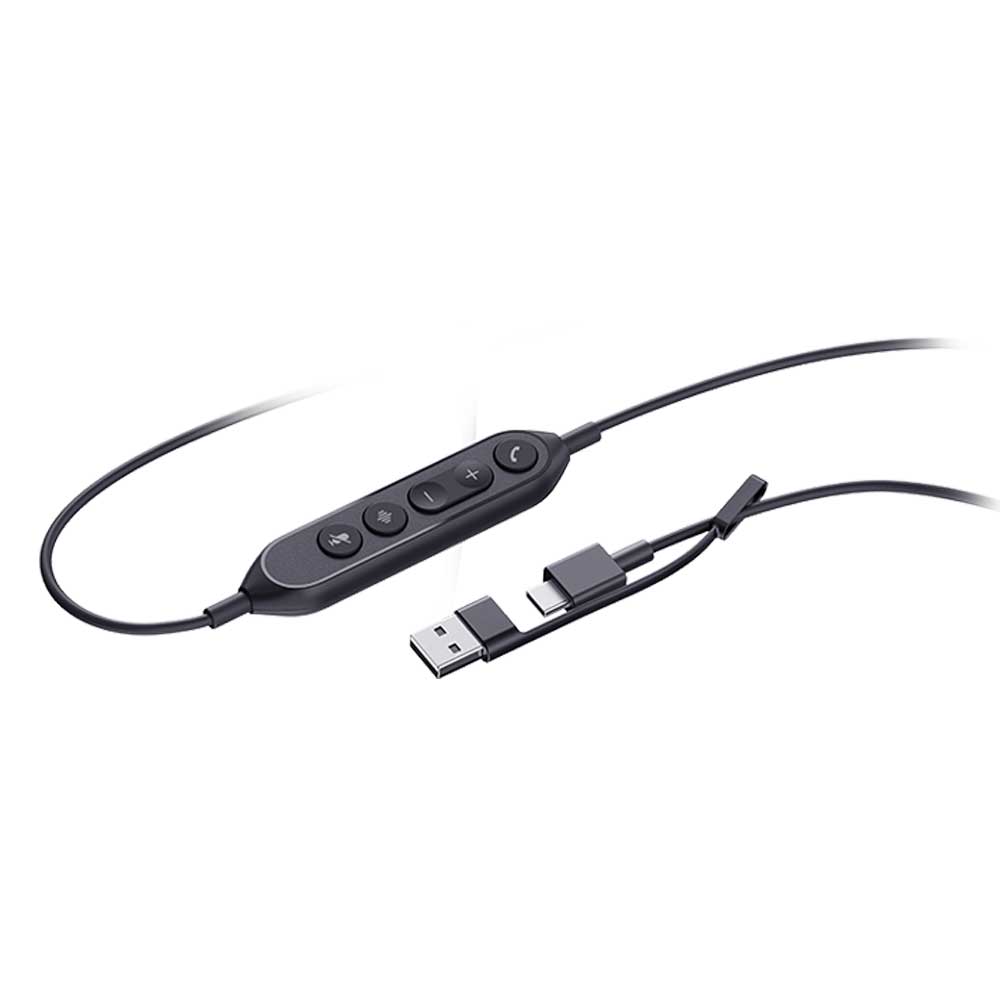
The Yealink UH42 Mono Teams USB-C/A is a professional USB wired headset with crystal clear audio. Its lightweight and comfortable design makes it suitable for workers who spend extended periods wearing headsets for voice communications. Key features include: • 1-Mic AI Noise Cancellation • All-Day-Wearing Comfort • High-Quality Audio Experience • Flexible and Fast Plug-and-Play • In-line Call Controller with LED Indicators • Teams Certified Technical Specifications: Audio: Microphone quantity: 1 Microphone frequency response range: 100Hz-14kHz Speaker size: Ø 35mm Speaker sensitivity: 113.8±3dB 0.980V Speaker frequency response range: 20Hz-20kHz Hearing Protection: Peak Block Protection (EN50332) Australian G616 Protection (AU G616) Daily Noise Exposure Protection

About This Product

The Yealink UH42 Mono is a no-frills, wired USB headset purpose-built for workers who spend most of their day on voice calls—contact centre agents, inside sales reps, and remote employees who live in Microsoft Teams. Its single-ear design leaves one ear free, a practical choice when you need to stay aware of office buzz or handle quick side conversations without pulling the headset off.

At this price point, Yealink intentionally skips wireless freedom and stereo audio in favour of absolute reliability and low total cost of ownership. The USB-C plug with the included USB-A adapter delivers genuine plug-and-play on nearly any modern laptop or desktop, and the inline controller gives you volume and mute without hunting through software menus. Teams certification means the mute LED and call controls sync with your Teams status, removing that moment of doubt about whether you’re live.

What you give up is noise isolation for your own ears—the AI noise cancellation works on the microphone pickup so your far-end callers hear you clearly, but you’ll still perceive surrounding office noise. The lightweight build and cushioned ear pad serve all-day comfort well, yet if you need the immersive silence of over-ear active noise cancelling or want to pace around on a call, this isn’t the headset for you. For a Toronto office deploying dozens of seats, it pairs cleanly with any softphone and keeps the fleet simple, but a single user who craves high-fidelity music or wireless range might find it underwhelming.
Services We Provide
  • Professional Installation & Configuration
  • Ongoing Maintenance & Support
  • Troubleshooting & Repairs
  • System Upgrades & Updates



