
Yealink UH44 Dual Teams USB-C/A – 1308186

Frequently Asked Questions

Confirm the headset is selected as the default speaker device in your computer’s sound settings and inside the Teams app. Try unplugging the USB connector, waiting a few seconds, and plugging it into a different port directly on the computer rather than a hub or dock. If the issue continues, a Toronto-based VoIP support provider can usually diagnose device routing issues remotely.
Make sure the microphone boom is positioned close to your mouth, about two finger-widths away, and that the mic opening faces you. Check that the mute indicator is off and that no protective film is covering the microphone. In Teams, verify the UH44 microphone is selected as the input device and not an internal laptop mic.
This is often a Teams sync issue. Confirm the headset is set as both the speaker and microphone device in Teams audio settings. Try fully quitting the Teams client and relaunching it — this re-establishes the certified headset integration. If the inconsistency persists, test on a different USB port or computer to isolate the problem.
Yes, many Yealink IP phones with a USB port support wired USB headsets. Connect the UH44 via its USB-C or USB-A lead directly into the phone’s port, then check the phone’s web interface or on-screen menu to confirm the headset is enabled and set as the audio path. Note that Teams-certified controls on the headset may not function with the phone’s native firmware in the same way.
Echo is typically caused by the speaker audio leaking back into the microphone. Lower the listening volume slightly and ensure the ear cushions create a good seal. In Teams, disable any audio enhancements or noise suppression that might be distorting the signal — let the headset’s built-in processing handle the sound.
A system update can occasionally reset USB device settings. First, check that your headset firmware is current using the Yealink USB Connect software. Then, inside Teams, go to Settings > Devices and confirm the UH44 is selected for both speaker and microphone; switching to a different device and back can force the integration to re-sync. A quick PC restart often clears lingering audio stack issues.
Yes, the UH44 is plug-and-play with macOS. After connecting, it typically appears as a USB audio device. You may need to select it as the input and output in System Settings > Sound, and inside the Teams app’s device menu. All key controls — mute, volume, and call answer — function on Mac without additional drivers.
Download the Yealink USB Connect application from Yealink’s support site, install it on your computer, and connect the headset. The tool will detect the device and show any available firmware updates. Always apply updates while the headset is connected and avoid disconnecting it during the process. If you’re uncomfortable performing the update, a Toronto-based VoIP support provider can handle it during a scheduled maintenance window.
Crackling often points to a damaged cable or loose USB connection. Try a different USB port first; if you’re using the USB-C to USB-A adapter, remove it and test the USB-C connection directly. Gently flex the cable near the controller and earcup to see if the noise changes. If the cable appears physically worn, the headset may need replacement — contact support for warranty options.
Headsets

Yealink UH44 Dual Teams USB-C/A – 1308186
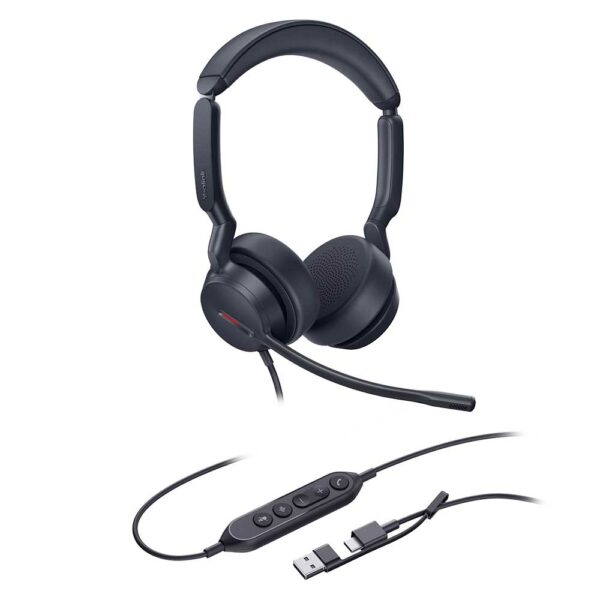
Yealink UH44 Dual Teams USB-C/A is a professional USB-wired headset designed for outstanding audio performance and noise canceling capabilities. The superior design and comfortable materials ensure all-day comfort, helping you stay focused and productive in the office or working from home. Key Features: • 2-Mic & AI Noise Cancellation • All-Day-Wearing Comfort • Flexible and Fast Plug-and-Play with USB-C/A Cord • High-Quality Audio (Professional-Grade 35mm Speakers) • Lift Mic-Boom to Mute • Teams Certified Technical Specifications: Audio: Microphone quantity: 2 Microphone frequency response range: 100Hz-14kHz Speaker size: Ø 35mm Speaker sensitivity: 113.8±3dB 0.980V Speaker frequency response range: 20Hz-20kHz Speaker bandwidth: Music mode: 20Hz-20kHz Talk mode: 100Hz-20kHz Hearing Protection: Peak Block Protection (EN50332) Australian G616 Protection (AU G616) Daily Noise Exposure Protection

About This Product

The Yealink UH44 Dual Teams is a straightforward wired USB headset built for professionals who spend hours on Microsoft Teams calls and need reliable audio with minimal fuss. Its dual USB-C and USB-A connection gives it a plug-and-play simplicity that suits hot-desking environments, home offices, and contact centres where staff rotate between different workstations. With built-in AI noise cancellation that uses two microphones, it helps keep background chatter from open-plan layouts or home distractions out of the conversation. The headset carries official Microsoft Teams certification, so the call-control button and mute indicator light integrate natively with the Teams interface, reducing the risk of being that person who forgets to unmute.

Being a corded headset, the UH44 trades mobility for zero-lag audio and freedom from battery anxiety. That makes it a solid choice for desk-bound roles where calls last for hours, but it would feel limiting for anyone who needs to pace during conversations or switch frequently between a laptop and a smartphone. The 35 mm speaker drivers deliver clear, natural voice reproduction, though those accustomed to bass-heavy consumer headphones may notice a more conversation-tuned sound profile. A practical touch is the lift-to-mute boom arm — simply raising the microphone mutes the call without hunting for a button, a small ergonomic win during back-to-back meetings.

For Canadian businesses standardized on Microsoft 365, this headset is a safe, cost-effective pick that works out of the box with Windows, macOS, and even many Yealink IP desk phones via USB. It is easy to deploy at scale without driver headaches, making it a candidate for office fit-outs in the GTA or anywhere a Teams-first workflow dominates. However, if your team regularly uses multiple softphone platforms or needs wireless headsets for a hybrid office footprint, the UH44’s wired, single-device focus might feel too narrow.
Services We Provide
  • Professional Installation & Configuration
  • Ongoing Maintenance & Support
  • Troubleshooting & Repairs
  • System Upgrades & Updates



