
Yealink WH62 V3 Wireless DECT Dual Headset Teams (WH62 Dual Teams V3)-1308001(C)

Frequently Asked Questions

First, ensure the headset is properly paired with the supplied DECT base and that the base is connected to your PC via USB. Open Teams, go to Devices, and confirm the headset is selected as the audio device. If it does not appear, restart both the headset and the Teams app. For persistent issues, a Toronto-based VoIP support provider can usually assist remotely.
Start by checking the range – DECT signals can weaken if you move too far from the base station. Also, look for sources of interference like other cordless phones or Wi-Fi routers near the base. Try moving the base to a different location, ideally elevated and away from metal objects. If the problem persists, a quick power cycle of both the headset and the base often restores clean audio.
Make sure the charging contacts on the headset and the cradle are clean and aligned properly. Try reseating the headset firmly onto the charger. If it still does not charge, check the power cable connection to the base. Battery life is rated up to 14 hours, but actual talk time depends on volume and usage – if it drops significantly below that, contact support before attempting any replacement.
The busylight is controlled by the base station or the PC softphone integration. First, confirm the headset is seated correctly on the base and that your call application (e.g., Teams) is configured to send the busy status. A simple reboot of the headset and base can refresh the connection. If the light still fails, verify that the feature is enabled in the Yealink Device Manager or your provisioning system.
The WH62 V3 base station includes a telephone cable for connecting directly to a desk phone's handset port. Plug one end into the base's phone port and the other into the handset port on your Yealink IP phone. Then, on the phone, ensure the auxiliary device is selected as the audio path. If using Teams, the headset connects primarily via USB, so this cable method is for traditional PBX-style use.
First, check the volume control on the headset itself – there is a dedicated rocker or button on the earpiece. Also, ensure the base station volume is not turned down. If the headset is connected to a softphone, verify that the software's audio levels are not set low separately. If the issue persists, try resetting the headset by turning it off and back on, then testing with a simple call.
Echo is usually a network or environment issue. Lower the headset volume slightly and make sure the microphone is positioned close to your mouth, not on your cheek. If using a desk phone, reduce the handset sidetone setting in the phone's options. In a GTA office with many calls, echo can also come from poor acoustic isolation – try moving away from hard surfaces.
Yes, the WH62 V3 is compatible with other major UC platforms when connected via USB as a standard audio device. You may need to manually select it in the audio settings of your softphone. The dedicated Teams button and indicator may not work on non-Teams platforms, but basic call control (answer, hang up, mute) should function through the headset's buttons.
This often points to interference or a weak DECT connection. First, check that the base is not placed inside a metal cabinet or behind a monitor. Ensure the base's antenna is not obstructed. If you have multiple DECT devices in the same area, they may interfere – try moving them farther apart. A power cycle of the base usually resets the connection. If disconnects continue, contact your VoIP provider for further diagnosis.
The headset and its base station should be managed via the Yealink Device Manager or a central provisioning system. You can check the firmware version on the base's LED indicator pattern – consult the user guide for the specific sequence. However, do not attempt to update firmware yourself unless instructed by support, as an incorrect update can render the headset non-functional. A local Toronto VoIP dealer can assist with safe firmware updates.
Headsets

Yealink WH62 V3 Wireless DECT Dual Headset Teams (WH62 Dual Teams V3)-1308001(C)
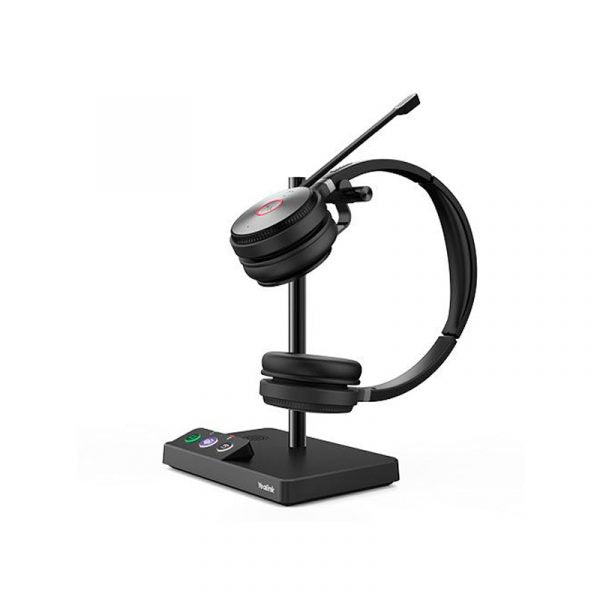
* The Yealink WH62 is an entry-level DECT wireless headset designed for seamless integration with major UC platforms and Yealink IP phones. * Enjoy crystal sound experiences with Yealink Super Wideband Technology and Acoustic Shield Technology, providing clear voice quality during phone calls and video conferencing. Features: • Supports busylight • Compatible with Teams and Skype for Business • Up to 14 hours of talking time (Dual) • Wireless range up to 160m • Telephone cable included • Compatible with Avaya/Poly/Snom/Grandstream/Fanvil/Yealink/Cisco IP Phones Technical Specifications: Audio (Headset): • Microphone type: dual microphone • Microphone sensitivity: -44.0+/-3 dBV • Microphone frequency range: 100 Hz-10 kHz • Speaker size: Ф 28mm • Speaker sensitivity: 92.5+/-3 dB, 0.179 V • Speaker impedance: 32+/-4.8 Ω • Speaker max output power: 10 mW • Speaker frequency range: 20 Hz-20 kHz • Speaker bandwidth – talk mode: wideband,100Hz – 8kHz • Speaker bandwidth – music mode: super wideband, 20Hz-20kHz (Pending) • Hearing Protection: • Peak Block Protection (EN50332) • Australian G616 Protection (AU G616) • Daily Noise Exposure Protection

About This Product

The Yealink WH62 V3 is a practical choice for professionals who need a reliable wireless headset for daily calls without breaking the bank. It is designed primarily for office environments where a dedicated headset for Microsoft Teams or a compatible desk phone is preferred over using a computer's built-in audio. The DECT wireless connection offers a generous 160-metre range, making it suitable for moving around a small to medium-sized office or even stepping away from the desk while staying connected. This headset pairs naturally with Yealink IP phones and also works with a wide range of other brands, including Avaya, Poly, and Cisco, which is helpful for mixed-device offices in the GTA.

While the WH62 V3 markets itself as an entry-level model, it still includes important audio features like wideband support for clear voice and Yealink's Acoustic Shield technology to reduce sudden loud noises. The dual-mic design and busylight help calls feel more professional. However, potential buyers should note that super wideband music mode is listed as pending, so it is not meant for critical music listening. The battery life of 14 hours (for the dual version) covers a full workday, but heavy users may need to charge during long shifts.

In a Canadian business context, this headset is a solid fit for Toronto call centres or hybrid workers who use Teams extensively and want a comfortable over-the-ear model. The DECT range works well in open-plan offices, though in dense wireless environments users may occasionally experience interference. It is not overkill for one-on-one calls, but it lacks the advanced noise cancellation and multipoint connectivity of higher-tier models. Conversely, it may be underpowered for executives who need premium audio for hours of video conferencing or for those who require simultaneous connection to multiple devices. Overall, it delivers reliable core functionality for voice-focused communication.
Services We Provide
  • Professional Installation & Configuration
  • Ongoing Maintenance & Support
  • Troubleshooting & Repairs
  • System Upgrades & Updates



