
Yealink WH64 Dual Teams -1208674

Frequently Asked Questions

First, make sure the base station is powered and the USB cable is securely connected to your PC or phone. Remove the headset and place it back in the charging cradle to re-initiate pairing. If it still doesn't connect, verify that the headset isn't already paired to another device and that it's within DECT range (up to 150 metres). If the issue persists, a Toronto-based VoIP support provider can usually resolve this remotely.
Audio dropouts are often caused by interference or distance from the base station. Try moving closer to the base and ensure there are no large metal objects or other DECT devices nearby. If you are using Bluetooth, switching to DECT mode may provide a more stable connection. Restarting the headset by power cycling it (remove and replace in the cradle) can also help.
The busylight relies on integration with your softphone. In Teams, go to Settings > Devices and confirm the headset is selected as the audio device. Make sure the Teams button on the headset is configured to alert calls. If it still doesn't light up, try uninstalling and reinstalling the Yealink WH64 software or plugging the USB into a different port.
First check that the boom arm is positioned near your mouth and not physically muted. Tap the mute button on the headset to ensure it is off. In your softphone or PC sound settings, confirm the Yealink WH64 is set as the default microphone. Rebooting the computer and reconnecting the headset often clears up driver glitches.
Make sure the charging contacts on the base and headset are clean and free of debris. Verify the power cable is firmly connected. If the battery drains much faster than the advertised 32 hours (DECT), the battery may be aging. Contact your IT support or the device manufacturer before attempting any replacement, as disassembly can void the warranty.
Start by restarting Teams and re-plugging the headset's USB. Ensure that Teams and the headset firmware are both up to date (check the Yealink website for firmware updates). If the problem continues, try using a different USB port, preferably directly on the PC rather than a hub. A remote session with your tech support can often identify software conflicts.
Use the supplied USB cable from the base station to your PC for softphone calls, and connect your desk phone's headset port to the base station using the included phone cable. The base can manage both connections simultaneously. You may need to configure the base's audio routing via the Yealink Device Manager software, but often it works plug-and-play.
Yes, it works as a standard USB audio device with any softphone. The Teams-specific button for answering and declining calls will only function natively in Microsoft Teams. For Zoom or Google Meet, you can use the headset's call button (multi-function) to answer and end calls, and volume controls work across all applications.
The headset manages both connections automatically. To pair a Bluetooth device like your mobile phone, press the Bluetooth button on the headset until it starts flashing, then select the headset from your phone. The headset will prioritize incoming calls from either source. You can also set which connection (DECT or Bluetooth) to use for audio via the Yealink software.
Reinstall the Yealink WH64 drivers or the full Yealink device manager software from the official website. Check Windows Sound settings to make sure the headset is set as both the default playback and recording device. If that fails, try connecting the headset to a different computer to see if the issue is system-specific. A local IT provider can often fix driver-related problems quickly.
Headsets

Yealink WH64 Dual Teams -1208674
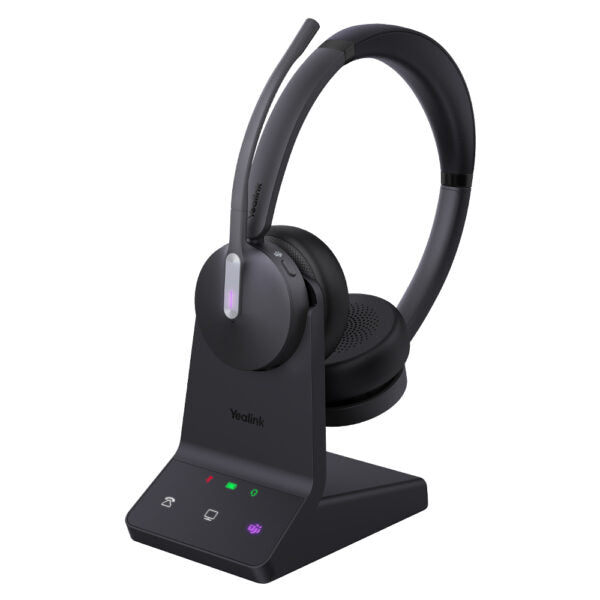
• The WH64 Dual Teams is a wireless headset designed for business communication, integrating DECT and Bluetooth modes for efficiency and flexibility. Its acoustic shield technology 2.0 eliminates background noise for clear sound transmission. Key Features: • DECT & Bluetooth Hybrid Wireless Technology • All-day-wearing Comfort • Acoustic Shield Technology 2.0 • Hybrid Visual Busylight • Plug & Play for Mainstream IP Phones • Up to 32 hours Talking Time • Multiple Devices Connection • Compatible with mainstream UC platforms • Teams Certified Additional Information: • Weight: 1.74lb • Dimensions: 7.6 × 9.4 × 3.92 in • Headset Type: DECT, Stereo, Teams Certified • Technical Specifications: • General Info: Model WH64 Dual Teams, Part Number 1208674 • Port: 1 micro USB 2.0 port, 1 Type-C USB 2.0 port, 1 Mini USB port, 1 DC power port, 1 busylight port • Charging Stand: For headset • USB Connectivity: To PC and IP phone • Boom Arm Adjustable: 280° • Integrated Busylight LED Indicator • Battery: • Talk Time: Up to 32 hours (DECT), up to 16 hours (Dect mode) • Music Time: Up to 48 hours (Bluetooth), up to 17 hours (Dect mode) • Standby Time: 195 hours • Charging Time: 1.5 hours (5 V/1.2 A) • DECT: • Wireless Range: Up to 150 m/492 feet • Frequency Bands: 1880 – 1900 MHz (Europe), 1920 – 1930 MHz (US) • Secure DECT: Level C, authentication, encryption, and DSC2 (128 bit) • Bluetooth: • Bluetooth Device • Bluetooth Version: Bluetooth5.2 • Bluetooth Profiles: HFP v1.8, A2DP v1.3.2, AVRCP v1.6.2, SPP v1.2 • Operating Range: Up to 50m/164 feet • Audio: • Hearing Protection: Peak Block protection (EN50332), Australian G616 Protection(AU G616) • Microphone Type: 3 microphones MEMS • Speaker Size: Ф 30 • Speaker Frequency Range: 20 Hz-20 kHz • Talk Mode: Wideband, 100 Hz-8 kHz, 16 kHz sample rate • Music Mode: 20 Hz-20 kHz, 48 kHz sample rate • Call Control: • Answer/End/Reject a call • Hold/Unhold call • Volume up/down • Microphone mute

About This Product

The Yealink WH64 Dual Teams headset is designed for professionals who need to stay connected while moving around a large office or hot-desking environment. It is an excellent choice for Teams-heavy workplaces, as the dedicated Teams button and certification ensure seamless call control and integration. The combination of DECT and Bluetooth wireless technology gives you the flexibility to maintain a long-range connection via DECT (up to 150 metres) with your desk phone, while simultaneously pairing a mobile phone or softphone via Bluetooth. This dual connectivity is particularly useful in open-plan offices or when you need to step away from your desk without dropping a call.

This headset pairs naturally with Yealink IP phones or any SIP desk phone that has a headset port, as well as PCs running Teams or other UC platforms. The included charging stand keeps the headset topped up between uses, and the 32-hour talk time on DECT easily covers a full work week. The acoustic shield technology helps reduce background noise for the person on the other end, though it is not active noise cancellation for your own listening. The stereo speakers offer good audio quality for occasional music playback between calls, but the primary focus is on clear, wideband voice communication.

A practical tradeoff is that DECT operates on the 1.9 GHz band, avoiding Wi-Fi interference, but requires a base station that must stay powered and within range. Bluetooth 5.2 gives decent range (50 metres) but can face congestion in 2.4 GHz-dense environments. For Canadian businesses, especially those in the GTA using Teams, this headset integrates smoothly and supports the North American DECT frequency range (1920–1930 MHz). It may be overkill for a fixed-desk worker who never moves away from their phone—a simpler wired headset would suffice. However, for anyone who needs to roam between meeting rooms or collaborate across a floor, the WH64 offers reliable, hands-free communication.
Services We Provide
  • Professional Installation & Configuration
  • Ongoing Maintenance & Support
  • Troubleshooting & Repairs
  • System Upgrades & Updates



