
Yealink WH64 Hybrid Dual UC-DECT & Bluetooth Hybrid Wireless Technology

Frequently Asked Questions

First, make sure the WDD60 dongle is plugged directly into a USB-A port on your computer, not through a hub. If it still doesn't pair, try removing the dongle, restarting your computer, and reinserting it. If the issue persists, a Toronto-based VoIP support provider can usually resolve this remotely.
Ensure the headset is powered on and not already connected to another Bluetooth device. Put the headset into pairing mode by pressing and holding the call control button for about 5 seconds until the LED flashes red and blue. Then, on your smartphone, go to Bluetooth settings and select 'Yealink WH64' from the available devices.
Check that the dongle is not obstructed by metal objects or large electronic equipment, as these can interfere with DECT signal. Also, verify that the headset is within the specified range of 150 metres in open space—walls and floors can reduce this range. If the problem continues, try repositioning the dongle to a more central location.
First, check that the boom arm is positioned close to your mouth, about one finger's width away, and that the microphone is not obstructed. Also, confirm that the mute function is not active—press the mute button on the headset to toggle it off. If the issue remains, test the headset with a different device to rule out a software problem.
Firmware updates are typically applied through the Yealink Device Manager or via the USB dongle using Yealink's update tool. Connect the headset to your computer with the USB cable, launch the update software, and follow the on-screen instructions. Do not disconnect the headset during the update.
The busy light is controlled by the call status from your connected device. Make sure the headset is properly connected and that your softphone or desk phone is sending the correct call state signals. You can test this by making a call and checking if the light activates—if not, try restarting both the headset and the connected device.
First, check that you are using the provided USB cable and a power source that meets the 5V/1.2A requirement. Try a different USB port or a wall charger. If the headset still does not charge, inspect the USB port for debris and ensure the cable is fully inserted. If it still fails, the battery may need service.
The WH64 connects via USB through the included dongle, so it is designed for computers and USB-capable desk phones. If your desk phone lacks a USB port, you may need an adapter or a different headset that supports a traditional RJ9 or 2.5mm connection. For compatibility advice, check with your desk phone manufacturer or a local VoIP provider.
Choppy audio can be caused by interference from other wireless devices, such as Wi-Fi routers or cordless phones. Try moving the dongle away from such sources. Also, reduce the distance between the headset and the dongle. If the problem persists, check if your computer's Bluetooth is also active, as it may cause interference with the dongle.
A factory reset should only be done as a last resort after trying other troubleshooting steps. To reset, ensure the headset is powered on, then press and hold the mute button and the volume down button simultaneously for about 10 seconds until the LED flashes red. Note that this will clear all paired devices and settings. Contact support before performing a reset if you are unsure.
Headsets

Yealink WH64 Hybrid Dual UC-DECT & Bluetooth Hybrid Wireless Technology
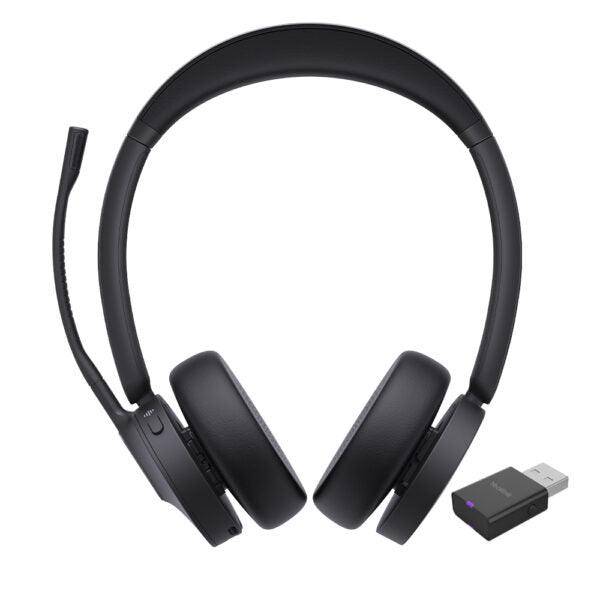
• Yealink WH64 Hybrid Wireless Headset: A Flexible Solution for Hybrid Working • This wireless headset combines DECT and Bluetooth technology, offering a flexible solution for multi-connection mobile working. • Key Features: • DECT & Bluetooth Hybrid Wireless Technology • Acoustic Shield Technology 2.0 for Clear Sound Transmission • Ultra-Long-Range Connectivity up to 150m • All-day-wearing Comfort • Hybrid Visual Busy Light • Up to 32 hours of Talking Time • Compatible with Mainstream UC Platforms • UC Certified • Additional Information: • Weight: 0.69 lb • Dimensions: 6.97 × 8.15 × 2.09 in • Headset Type: Bluetooth, DECT, Stereo, UC Certified, USB • Technical Specifications: • Model: WH64 Hybrid Dual UC • Part number: 1208686 • Box Contents: Dual Headset, USB 2.0 Cable (USB-A to USB-C), WDD60 Dongle, Drawstring Bag, Quick Start Guide • Port: 1 Type-C USB 2.0 port • Connects via WDD60 (USB-A) and Bluetooth connectivity to 1 mobile device • Boom arm adjustable: 280° • Integrated busy light LED indicator • Battery Life: Talk time up to 16 hours (DECT), up to 32 hours (Bluetooth); Music time up to 16 hours (DECT), up to 48 hours (Bluetooth); Standby time: 195 hours; Charging time: 1.5 hours (5 V/1.2 A) • DECT: Wireless range up to 150m/492 feet; Frequency bands: 1880 ‒ 1900 MHz (Europe), 1920 ‒ 1930 MHz (US) • Bluetooth: Bluetooth device, Bluetooth version: Bluetooth5.2, Bluetooth profiles: HFP v1.8, A2DP v1.3.2, AVRCP v1.6.2, SPP v1.2; Operating range: up to 50m/164 feet • Audio: Speaker size: Ф 30; Speaker frequency range: 20 Hz-20 kHz; Microphone type: 3 microphones MEMS

About This Product

The Yealink WH64 is a hybrid wireless headset designed for professionals who switch between desk phone, softphone, and mobile calls throughout the day. It combines DECT and Bluetooth connectivity, allowing you to stay connected to your desk phone via the included WDD60 USB dongle while simultaneously paired to a smartphone. This makes it a strong fit for hybrid workers in a Toronto office environment who need to take calls from their UC platform without missing mobile notifications.

The headset is built for all-day comfort and long shifts, with a lightweight over-the-head design and a 280-degree adjustable boom arm. The acoustic shield technology helps reduce background noise, which is useful in open-plan offices or home workspaces with ambient sound. The visual busy light on the headset gives a clear signal to coworkers that you are on a call, reducing interruptions.

A practical limitation is that the ultra-long DECT range of up to 150 metres is only available when connected via the included dongle; Bluetooth range is a more typical 50 metres. The headset is compatible with major UC platforms and is UC certified, so it should integrate well with most softphones used in Canadian businesses. It is not a replacement for a dedicated desk phone headset if you need a wired connection, but it does offer flexibility for those who move around the office or work from multiple devices.
Services We Provide
  • Professional Installation & Configuration
  • Ongoing Maintenance & Support
  • Troubleshooting & Repairs
  • System Upgrades & Updates



