
Yealink WH64 Hybrid Mono Teams-DECT & Bluetooth Hybrid Wireless Technology
Frequently Asked Questions
Yealink WH64 Hybrid Mono Teams-DECT & Bluetooth Hybrid Wireless Technology
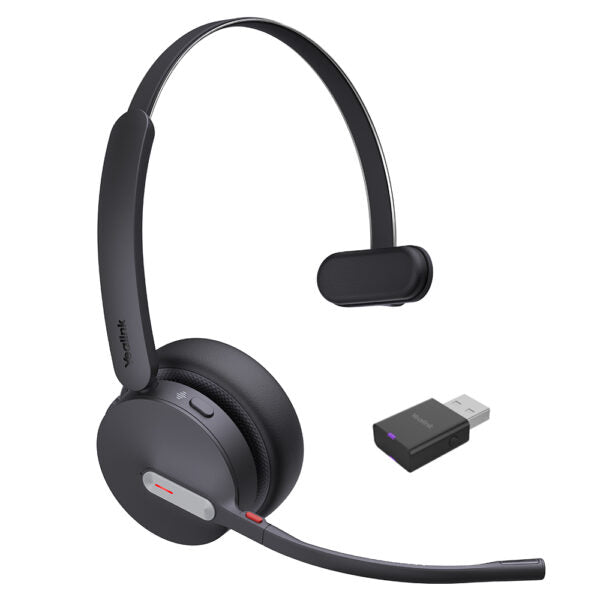
• The Yealink WH64 Hybrid is a wireless headset with DECT and Bluetooth modes for flexible and efficient hybrid working. • Advanced Acoustic Shield Technology 2.0 filters out background noise for clear sound transmission. • DECT wireless connectivity technology offers an exceptional call range of up to 150 m, ensuring reliable and uninterrupted communication over significant distances. • The headset connects seamlessly with UC platforms for plug-and-play and device switching. • Key features include: • DECT & Bluetooth Hybrid Wireless Technology • Acoustic Shield Technology 2.0 • Ultra-Long-Range Connectivity • All-day-wearing Comfort • Hybrid Visual Busylight • Up to 32 hours Talking Time • Compatible with mainstream UC Platforms • Teams Certified • Additional Information: • Weight: 0.56 lb • Dimensions: 6.97 × 8.15 × 2.09 in • Headset Type: Bluetooth, DECT, Mono, Teams Certified, USB • Technical Specifications: • Model: WH64 Hybrid Mono Teams • Part number: 1208687 • Box Contents: • Mono Headset • USB 2.0 Cable (USB-A to USB-C) • WDD60 Dongle • Drawstring Bag • Quick Start Guide • Port: • 1 Type-C USB 2.0 port • Connect to your computer with WDD60(USB-A) • Bluetooth connectivity to 1 mobile device • Boom arm adjustable: 280° • Integrated busy light LED indicator • Battery: • Talk time: • DECT mode: up to 14 hours • Bluetooth mode: up to 26 hours • Music time: • DECT mode: up to 13 hours • Bluetooth mode: up to 41 hours • Standby time: 157 hours • Charging time: 1.5 hours (5 V/1.2 A) • DECT: • Wireless range: up to 150 m/492 feet • Frequency bands: • 1880 ‒ 1900 MHz (Europe) • 1920 ‒ 1930 MHz (US) • Bluetooth: • Bluetooth device • Bluetooth version: Bluetooth5.2 • Bluetooth profiles: HFP v1.8, A2DP v1.3.2,<br>AVRCP v1.6.2, SPP v1.2 • Operating range: up to 50m/164 feet • Audio: • Speaker size: Ф 30 • Speaker frequency range: 20 Hz-20 kHz • Microphone type: 3 microphones MEMS • Hearing Protection: • Peak Block Protection (EN50332) • Australian G616 Protection (AU G616) • Daily Noise Exposure Protection • Call Control: • Answer/End/Reject a call • Volume up/down • Microphone mute • Move the microphone boom arm up to mute, or down to unmute
About This Product
This headset pairs well with Microsoft Teams deployments, thanks to its dedicated certification and the USB dongle that provides a stable DECT link to the computer. The DECT connection gives you the freedom to walk well away from your desk during a call, while Bluetooth handles the mobile side. It is a natural fit for workers who already rely on Yealink desk phones or meeting bars and want consistent audio behaviour across devices.
The trade-off to understand is battery life under real-world conditions. The headline talk time varies considerably between DECT and Bluetooth modes, so a heavy day of DECT calls will drain the headset faster than a day spent primarily on mobile. Acoustic Shield Technology 2.0 does an effective job suppressing steady background hum, but like any noise-filtering microphone system, it cannot completely eliminate unpredictable loud sounds in a chaotic environment.
This headset is overkill for someone who only ever takes calls at a single wired desk phone and never uses a mobile for work. It is underpowered if you need active noise cancellation for your own ears in very loud spaces, as the focus here is on microphone noise reduction for the far end, not immersive silence for the wearer.
Services We Provide
- Professional Installation & Configuration
- Ongoing Maintenance & Support
- Troubleshooting & Repairs
- System Upgrades & Updates



